
Trigger
The entry point of a chatbot flow. Choose the messaging channels your bot answers on and the welcome message new users see.
The Trigger node is where every chatbot session begins. You use it to pick the messaging channels the bot listens on, enter each channel's connection details, and write the introduction message. Every chatbot flow has exactly one Trigger, and it has no input handle.
Automation projects
In an automation project the Trigger node opens a different panel, where you choose Schedule, External or Form as the ways a run can start. The palette's Triggers group also has one item per trigger type, such as Schedule Trigger, Webhook Trigger and Form Trigger. See Automation triggers.
When to use it
- Every chatbot flow needs exactly one, as its starting point.
- You are connecting the bot to WhatsApp, Instagram, Telegram, Messenger, Slack or the web chat widget.
- You want to change the message users get when they start a conversation.
To start an automation from a public web form instead of a chat, use Form Trigger. For voice projects, the entry points are Incoming Call and Outbound Call.
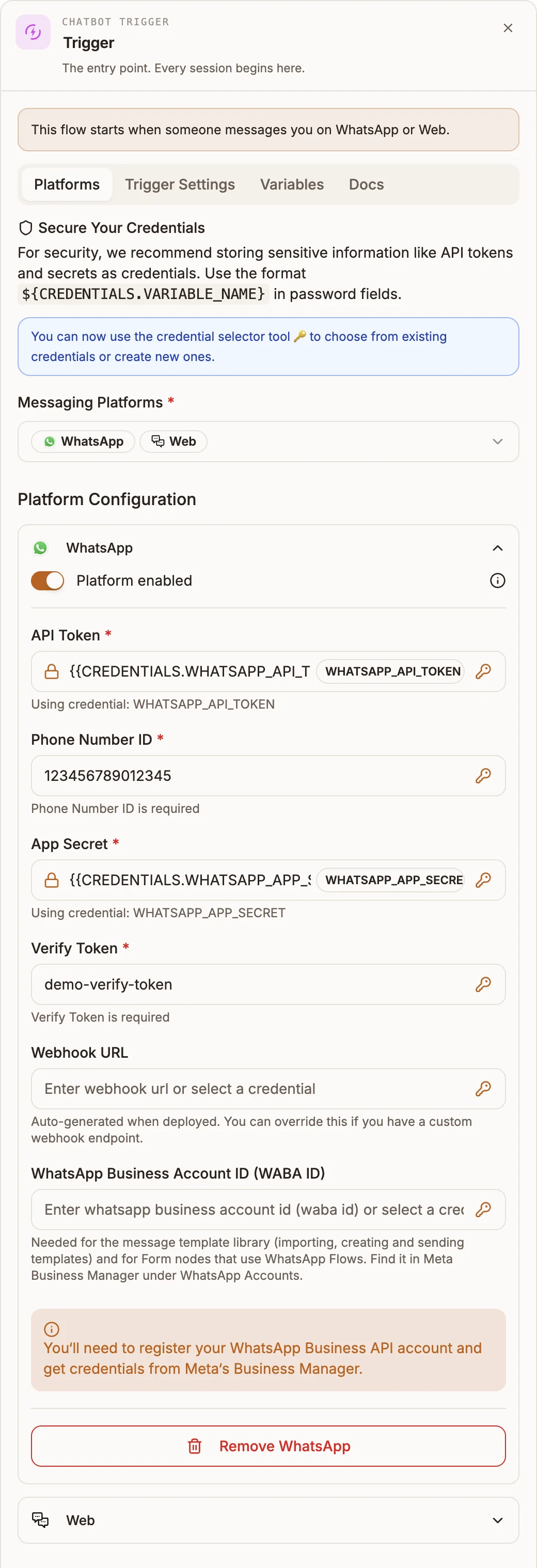
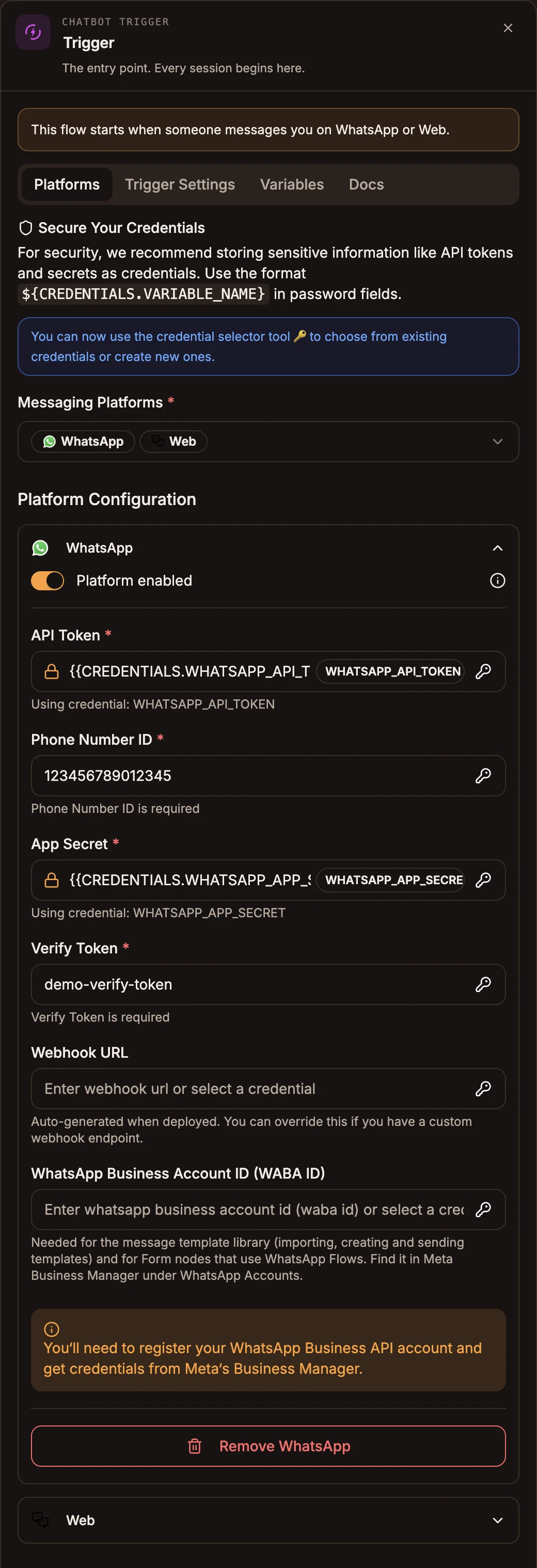
At the top of the panel, a summary sentence says when the flow starts, for example "This flow starts when someone messages you on WhatsApp or Web." Below it the panel has four tabs: Platforms, Trigger Settings, Variables and Docs.
Settings
Platforms
Prop
Type
Each selected platform gets its own section under Platform Configuration. The fields are:
| Platform | Required fields | Optional fields |
|---|---|---|
| API Token, Phone Number ID, App Secret, Verify Token | Webhook URL, WhatsApp Business Account ID (WABA ID) | |
| Access Token, App Secret, Verify Token | App ID, Webhook URL | |
| Telegram | Bot Token | Webhook URL |
| Messenger | Page Access Token, App Secret, Verify Token | App ID, Webhook URL |
| Slack | Bot User OAuth Token, Signing Secret, App ID | Webhook URL |
| Web | None | None |
Secret fields accept a stored credential. Type ${CREDENTIALS.WHATSAPP_API_TOKEN} or use the key icon on the field to pick or create one, so tokens are not saved in the flow itself. See Credentials.
Once a platform has any configuration saved, you cannot untick it in the Messaging Platforms list. Use its Remove button instead, so its credentials are never dropped by accident.
The Webhook URL field is filled in when you publish. You only change it if you run your own webhook endpoint. Channel set-up is covered per channel under Channels.
Trigger Settings
Prop
Type
Variables
Prop
Type
The Docs tab repeats the credential guidance and the match-type definitions for quick reference.
Keyword Based and the Variables tab
The published bot's generated code does not read Trigger Type, Keyword Triggers or the Variables tab. Only the browser-side fallback processor, used when the web widget cannot reach your bot's webhook, applies them. Do not rely on keyword matching to decide which conversations a live bot answers. Use Intent nodes to route messages instead.
Outputs
The Trigger has one output handle. Connect it to your top-level Intent nodes. The flow check reports any node other than the Trigger that has no incoming connection as orphaned, so every top-level intent needs a connection from the Trigger.
The Trigger does not write any state variables that other nodes rely on in a published bot.
Example
A support bot answers on WhatsApp and the website:
Trigger (Platforms: WhatsApp, Web
         Introduction Message: "Hi, I'm the Kijani Bank assistant. Ask about balances, cards or branches.")
  ├── Intent: CheckBalance → API → Reply
  ├── Intent: ReportLostCard → Form → Live Chat
  └── Intent: FindBranch → Reply
Tips and limits
- A chatbot flow must contain exactly one Trigger. The flow check reports "Only one trigger node is allowed per flow." when you add a second one.
- On WhatsApp, Instagram, Messenger, Slack and Telegram, the introduction is sent when the user sends
/startor/help. - A platform marked Disabled keeps its credentials. Use it to pause a channel without losing its set-up.
- The node shows a red warning icon when a required field is missing on an enabled platform. Hover it to see which platform.
- Republish after changing platforms or credentials. The live bot uses what was published.