
Triggers
Every way to start an automation run - schedules, webhooks, manual runs, hosted forms, failures and app events - and the settings for each.
A trigger decides when an automation runs and what data the run starts with. There are two ways to set one up: the trigger node every new automation starts with, and the Triggers group of the node palette.
Two ways to add triggers
- Standard trigger node: the node a new automation starts with. One per workflow, with Schedule, External (manual or webhook) and Form tiles you can combine.
- Triggers group: at the top of the node palette, one node per trigger type, including Error and app triggers. A workflow can have several.
Standard trigger node
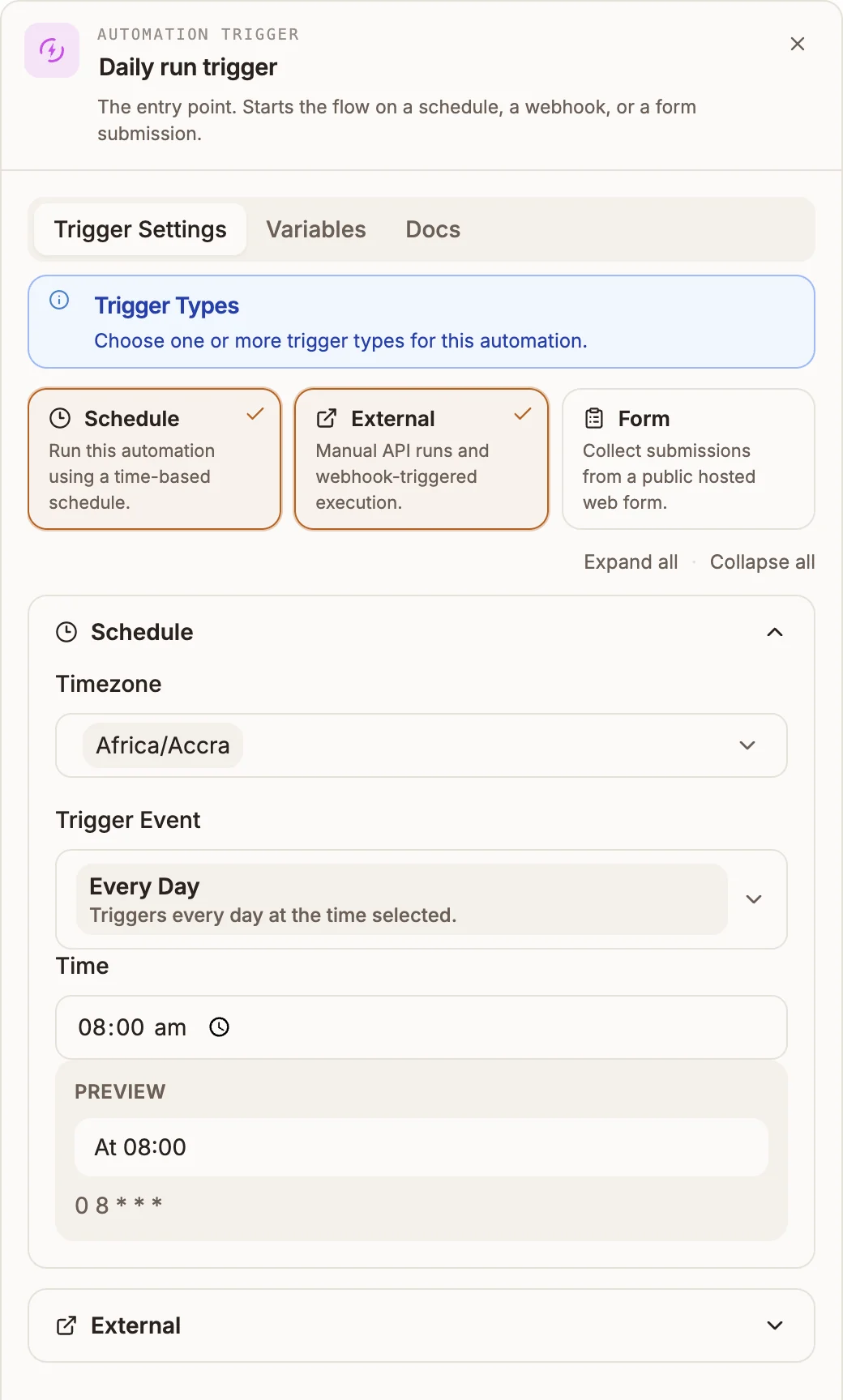
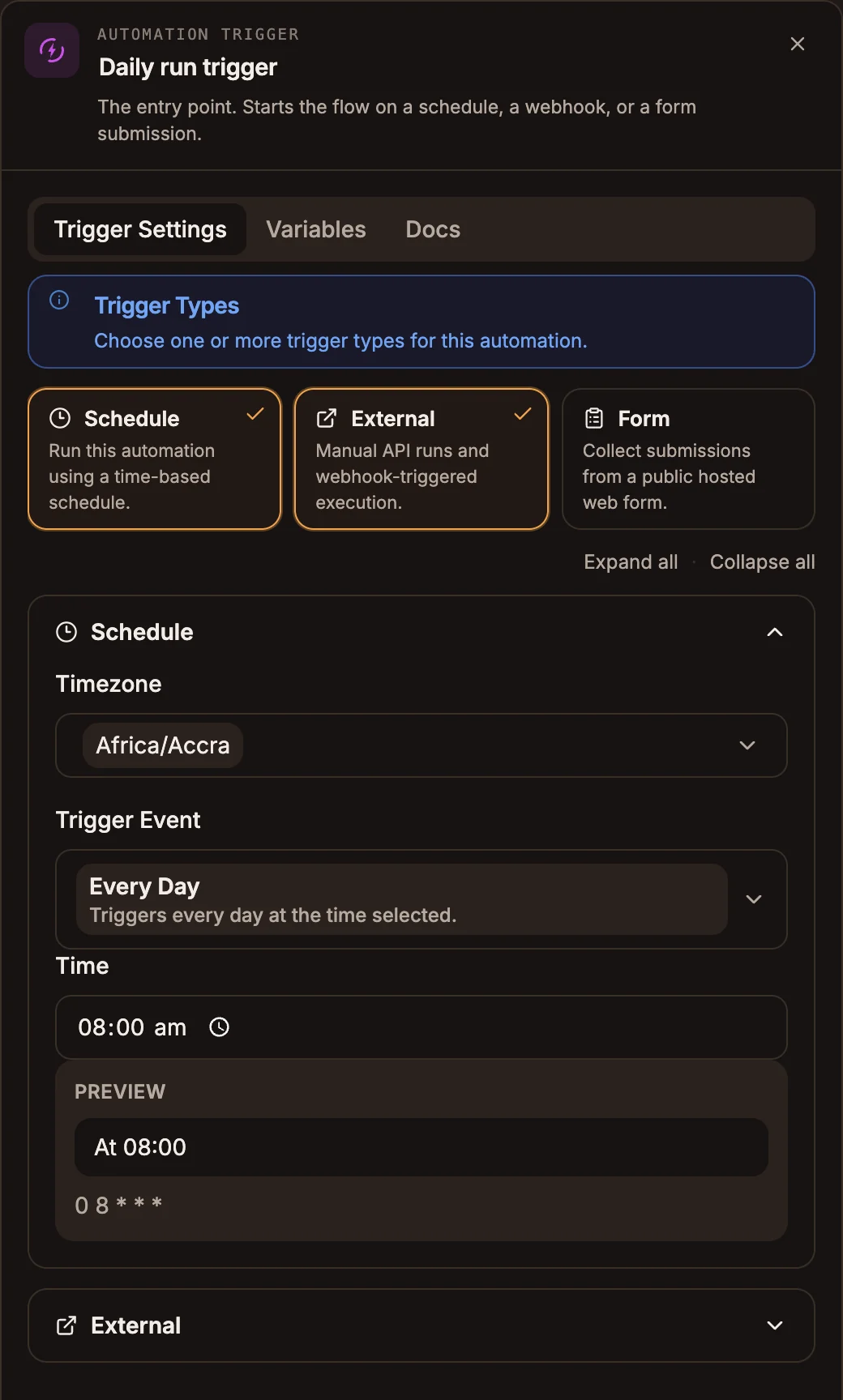
A new automation opens with a trigger node already on the canvas. Open it and, on Trigger Settings, choose one or more trigger types. Each selected type gets its own section you can expand or collapse.
| Tile | Description in the app |
|---|---|
| Schedule | Run this automation using a time-based schedule. |
| External | Manual API runs and webhook-triggered execution. |
| Form | Collect submissions from a public hosted web form. |
Schedule
| Field | What it does |
|---|---|
| Timezone | The timezone the schedule is read in. |
| Trigger Event | How often to run: Every Hour, Every Day, Every Week, Every Month or Custom Cron. |
| Time | The time of day, for daily, weekly and monthly runs. |
| Days | Which weekdays, for weekly runs. |
| Day of Month | Which day(s) of the month, for monthly runs. |
| Preview | The upcoming run times, so you can check the schedule before saving. |
Custom Cron opens a Custom Cron Builder with presets (for example Weekdays at 8 AM, Every 30 minutes, Weekday business hours) and a Raw Scheduler Expression field. The raw field accepts a five-field cron (0 8,20 * * *), the AWS form (cron(0 8 * * ? *)) or a rate (rate(1 hour)). A cron expression cannot restrict both day-of-month and day-of-week; use ? in one of them.
External
External Mode is either Manual or Webhook.
| Field | What it does |
|---|---|
| Trigger Source | The system that will call the workflow, such as Custom, Stripe or GitHub. |
| Trigger Key | The event name recorded on each run, for example automation.started. The Activity tab uses it to name runs. |
| Enrollment Policy | Run once per entity or Run on every matching event. |
| On Error Policy | ABORT or CONTINUE, recorded with each run. |
| Callback Override | Send the result of asynchronous runs to your own Callback URL, optionally signed with a Callback Secret. |
| Schema Config | The payload you expect callers to send. Edit it in Builder, Plain or JSON Editor mode. The Run panel turns it into a form. |
| External API Token (test only) and Run Dry Test | Paste an API token with the automation trigger scope and send a dry-run request to check the configuration. |
External calls use the Buni.ai public API and an API token. See Authentication and Async runs and callbacks.
Form
The Form tile publishes a hosted web form; each submission starts a run. See Hosted forms.
Triggers group
Triggers from the palette are nodes you drag from its Triggers group. Each palette item is named after its trigger, for example Webhook Trigger or Stripe Trigger.
- A workflow can have several triggers. Each trigger node starts the workflow from its own output.
- Each trigger can be paused. Use the Enabled / Paused switch in the node's header. A paused trigger shows a Paused badge on the canvas and rejects deliveries.
- Recent deliveries lists the latest events the trigger received, newest first.
- Send test event runs the draft workflow with a sample payload. Test runs never touch the published version.
Core triggers
| Trigger | Starts the workflow when |
|---|---|
| Schedule | A timetable fires: every hour, day, week or month, or a custom cron. |
| Webhook | An HTTP request reaches the trigger's unique URL. |
| Manual | You run it from the editor, with optional JSON input. |
| Form | Someone submits the trigger's hosted form. |
| Error | Another run of this project's workflows fails. See Error workflows. |
Schedule settings are under Timetable: Frequency (Every hour, Every day, Every week, Every month, Custom cron), Time, Days of week, Day of month, Cron expression, Timezone, and optional Start date and End date. Next five runs previews the schedule. The cron field takes a standard five-field expression; the AWS six-field form with a year also works. Daylight-saving shifts are handled for you.
Webhook trigger
The Endpoint section shows two URLs:
- Test runs the draft workflow immediately.
- Prod runs the published workflow. It answers
409until you publish the project.
Under Request, Allowed methods limits which HTTP methods are accepted (others get 405), and Expected payload takes a JSON example of what callers send. Under Response, Mode is either Async (202), which acknowledges immediately, or Sync (wait for result), which waits for the run and returns its result. Custom status code overrides the default.
Signing requests
Until you add a secret the trigger shows Unverified and accepts any request to its URL. Select Generate signing secret and copy the secret; it is shown once. The trigger then shows Signed and rejects requests without a valid signature with 401.
Sign each request with HMAC-SHA256 over the raw request body and send it in the x-buni-signature header:
POST /api/hooks/t/<endpoint-token> HTTP/1.1
Content-Type: application/json
x-buni-signature: sha256=<hex HMAC-SHA256 of the raw body>
For replay protection, also send x-buni-timestamp with the current Unix time in seconds. The signature must then cover <timestamp>.<raw body>, and requests more than five minutes old are rejected.
import crypto from 'node:crypto';

const body = JSON.stringify({ orderId: 'ord_12345' });
const timestamp = Math.floor(Date.now() / 1000).toString();
const signature = crypto
  .createHmac('sha256', process.env.BUNI_TRIGGER_SECRET)
  .update(`${timestamp}.${body}`)
  .digest('hex');

await fetch(TRIGGER_URL, {
  method: 'POST',
  headers: {
    'Content-Type': 'application/json',
    'x-buni-signature': `sha256=${signature}`,
    'x-buni-timestamp': timestamp,
  },
  body,
});
To stop a retried request from running the workflow twice, send an x-idempotency-key header. A repeat of a key the trigger has already accepted returns 200 with "deduplicated": true and does not start a run.
Webhook responses
| Status | Meaning |
|---|---|
202 | Accepted (async mode). The body includes the invocationId. |
200 | Sync mode result, or a deduplicated repeat. |
401 | Signature verification failed. |
404 | Unknown trigger URL. |
405 | Method not in Allowed methods. |
409 | The trigger is paused, or the Prod URL was called before the project was published. |
413 | The payload is larger than the limit (1 MB by default). |
429 | Too many requests for your workspace. |
App triggers
App triggers start the workflow from an event in another product. Pick the trigger, choose a Connection, then pick the Events you care about. The Setup checklist in the node lists anything still missing.
Connections for Stripe, GitHub, Shopify, Telegram, Google Sheets, Airtable and HubSpot are added in the project's Integrations tab.
Webhook-based triggers receive events as they happen:
| Trigger | Events | Setup |
|---|---|---|
 Stripe Stripe | Payments, checkouts, customers, subscriptions and invoices | A Stripe connection (secret key). Publishing registers the production webhook in Stripe for you. |
 GitHub GitHub | Push, pull requests, issues, issue comments, releases, workflow runs | A GitHub connection (token with repo admin) and a Repository (owner/name). The webhook is registered for you. |
 Shopify Shopify | Orders, customers and products | A Shopify connection (store domain and Admin API token). Shopify registers one webhook per selected event. |
 Telegram Telegram | Incoming messages, bot commands, button presses, edits and channel posts | A Telegram connection (bot token). A bot can feed only one trigger at a time. |
 Slack Slack | Channel messages, bot mentions, reactions, channel created, member joined | Paste the trigger's URL into your Slack app's Event Subscriptions request URL, set the app's Signing Secret on the trigger, and subscribe the app to the same events. |
Provider signatures are checked on every delivery (for example Stripe-Signature, X-Hub-Signature-256, X-Shopify-Hmac-Sha256, X-Slack-Signature), and repeated deliveries of the same provider event run only once.
Polling triggers check for changes on an interval. The first check records a baseline and does not fire, so existing records never start runs.
| Trigger | Watches | Settings |
|---|---|---|
| Sessions | Sessions starting or ending in this project | Check every (minutes). Covers USSD sessions today. Abandoned sessions never fire Session ended. |
| Data Store | Records created, updated or deleted in one of your data stores | Data store, Poll every (minutes), Ignore workflow writes (on by default, so a workflow that writes to the store it watches does not loop). |
 Google Sheets Google Sheets | New or updated rows | A Google connection, Spreadsheet id, Range (default A1:Z1000, first row is headers), optional Watched columns, Poll every (minutes). |
 Airtable Airtable | New or updated records | An Airtable connection (personal access token), Base id, Table, optional View, Poll every (minutes). |
 HubSpot HubSpot | Contacts, deals and tickets created or updated | A HubSpot connection, Poll every (minutes). |
The minimum polling interval is 1 minute; the default is 5.