
Schedule Trigger
Starts the workflow on a timetable: every hour, day, week or month, or a custom cron expression, in the time zone you choose.
The Schedule Trigger runs your workflow on a timetable. Use it for daily reports, reminders, clean-ups and anything else that should happen at set times rather than in response to an event.
Where you find it
Drag Schedule Trigger from the Triggers group of an automation project's node palette. A workflow can have several triggers; each one starts the workflow from its own output.
When to use it
- Send a morning summary or a weekly report.
- Remind people about appointments the day before.
- Tidy or sync records on a regular interval.
- To start runs when something happens instead, use a Webhook Trigger or an app trigger.
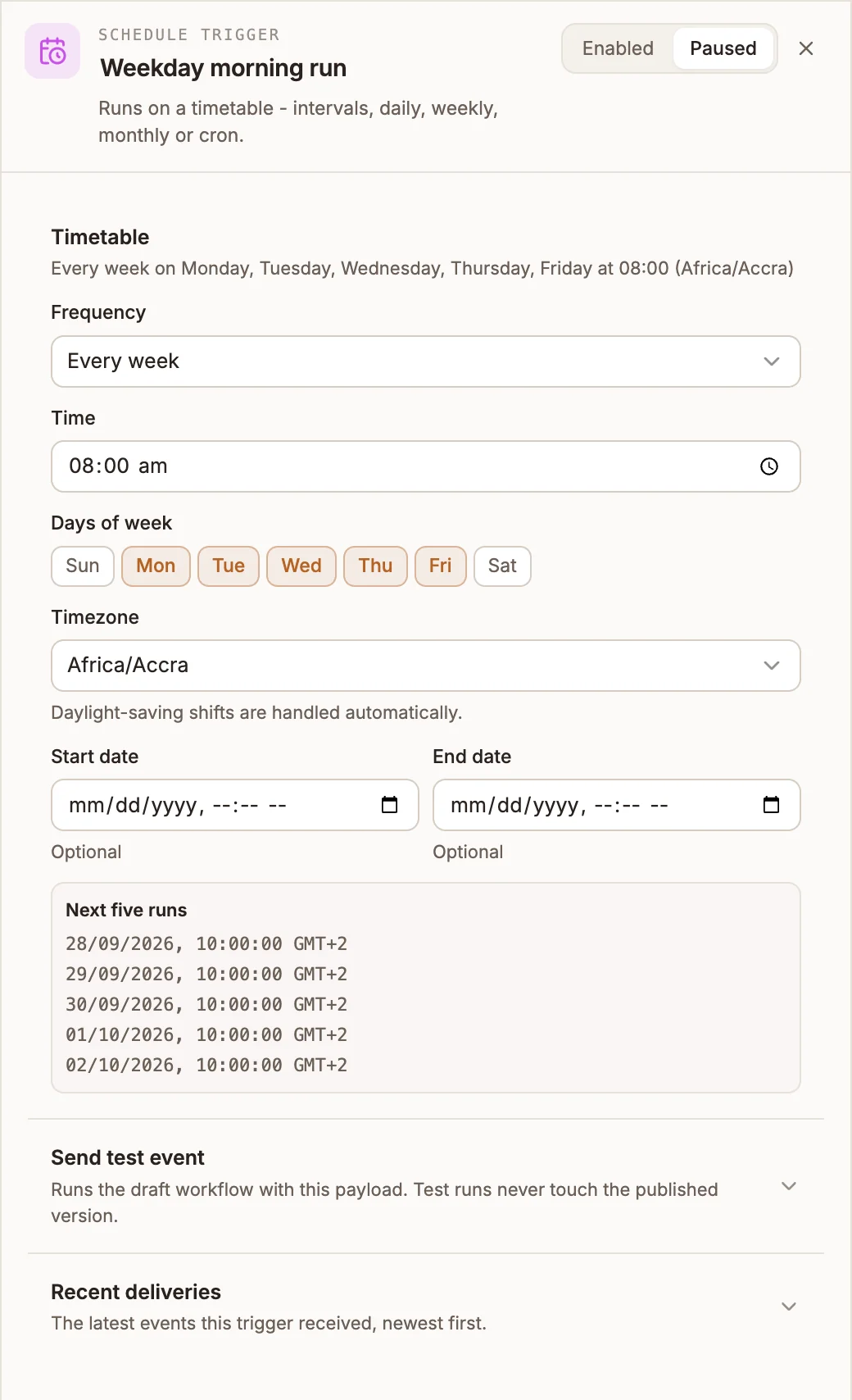
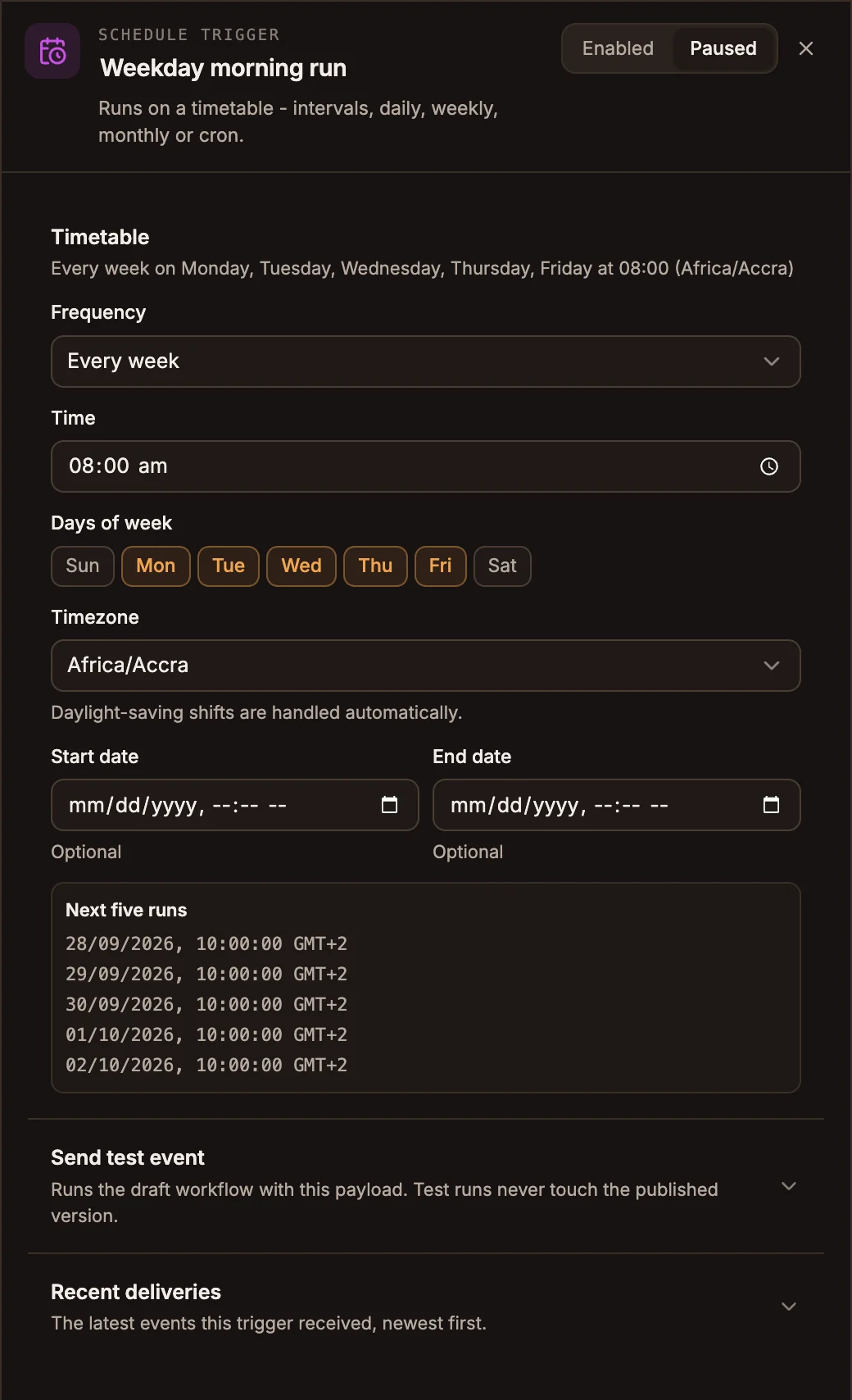
Settings
The panel header has an Enabled / Paused switch. New triggers start Enabled; a paused trigger shows Paused on its canvas card and starts no runs.
Timetable
The section's subtitle reads your timetable back in plain words, for example "Every week on Monday, Tuesday, Wednesday, Thursday, Friday at 08:00 (Africa/Accra)".
Prop
Type
Next five runs previews the upcoming run times, shown in your browser's own time zone.
Send test event takes a Sample payload and shows what the trigger would pass to the workflow, without running the workflow's nodes. Recent deliveries lists the latest runs this trigger started, newest first, with their status and duration.
Outputs
A scheduled run starts with no payload of its own. {{state.trigger.type}} is SCHEDULE, so nodes shared with other triggers can tell a scheduled run apart.
Example
A clinic sends tomorrow's appointment reminders every weekday evening:
Schedule Trigger (Every week, Mon-Fri, 18:00, Africa/Accra)
  → Data Store (find appointments for tomorrow)
  → Loop (each appointment)
      → Messaging (SMS: "Reminder: your appointment is tomorrow at ...")
Tips and limits
- Every hour runs every 60 minutes counted from when the schedule was set up, not on the hour, and the time zone does not apply to it. Use Custom cron (
0 * * * *) to run on the hour. - A trigger starts at most one run per minute, so a busy timetable never runs twice for the same tick.
- Saving the workflow schedules your draft; publishing schedules the published workflow. Only the version you saved or published most recently runs on the timetable, so after publishing, saving the draft again moves the schedule to the draft until you publish again.
- Two Schedule Triggers with the same timetable and time zone in one workflow are flagged as an error, because the workflow would run twice per tick.
- Scheduled runs count towards your plan's usage and can be refused when it is used up.
Related
Form Trigger
Publishes a hosted web form and starts the automation each time someone submits it. Answers land in state under the output variable.
Webhook Trigger
Gives the workflow its own URL. Each HTTP request to it starts a run with the request body, with optional request signing and a synchronous response mode.