
Subworkflow
Runs a subworkflow's steps as part of this project, on the version you choose, with one path per exit.
The Subworkflow step runs a subworkflow here, as part of this project: a set of steps built once in your organisation, such as an identity check. You give it its inputs, and the project continues along the path for the exit it ends by.
When to use it
- Several projects need the same steps, including steps that talk to the person, such as a USSD menu or a chatbot question.
- You want each project to change only when you choose: a Subworkflow step stays on its version until you update it.
- To get an answer from a workflow that runs on its own and always uses its current live version, use Run workflow instead.
Where you find it
Subworkflow is in the Logic group of the palette in USSD, chatbot and automation projects. Voice projects can't use subworkflows yet.
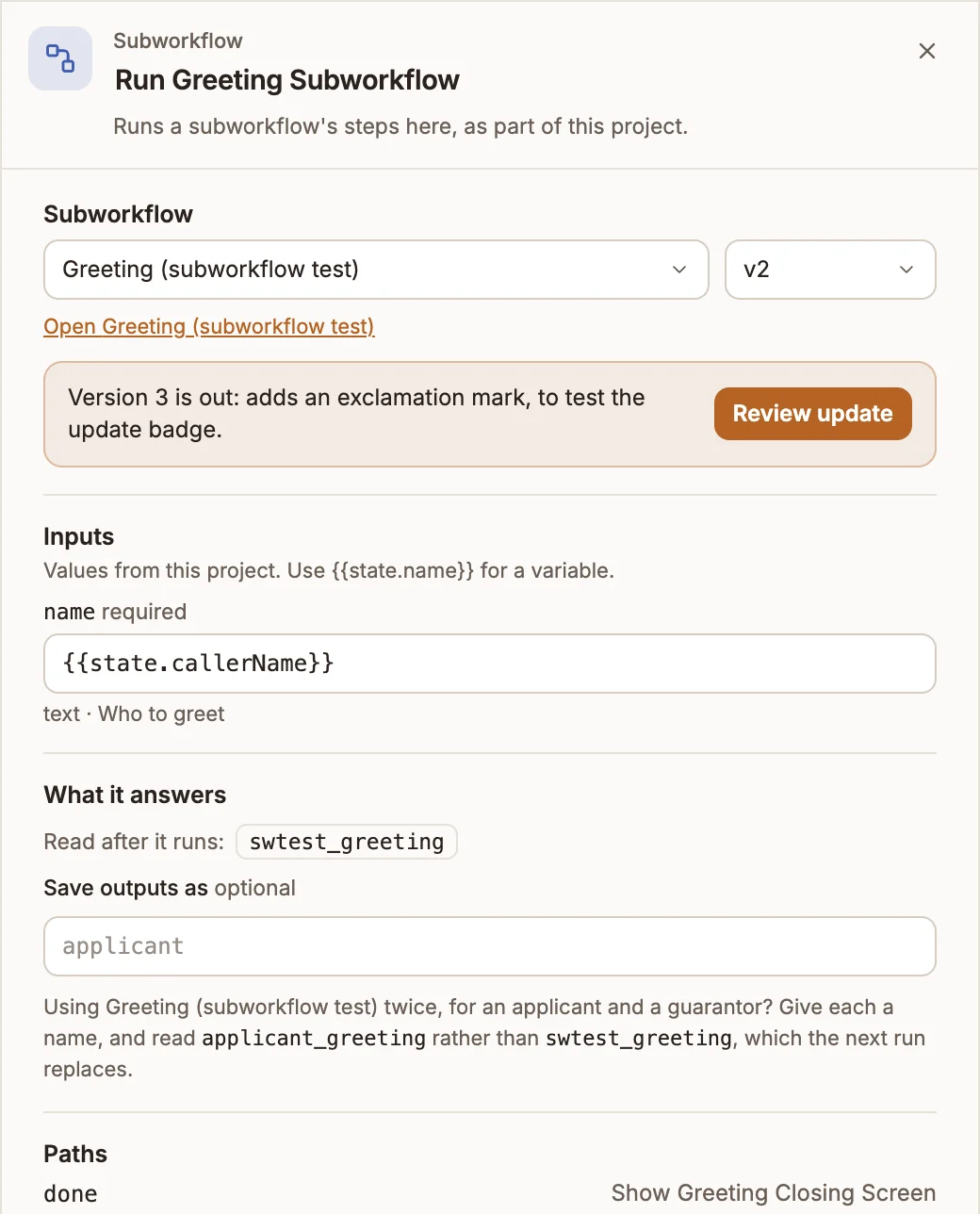
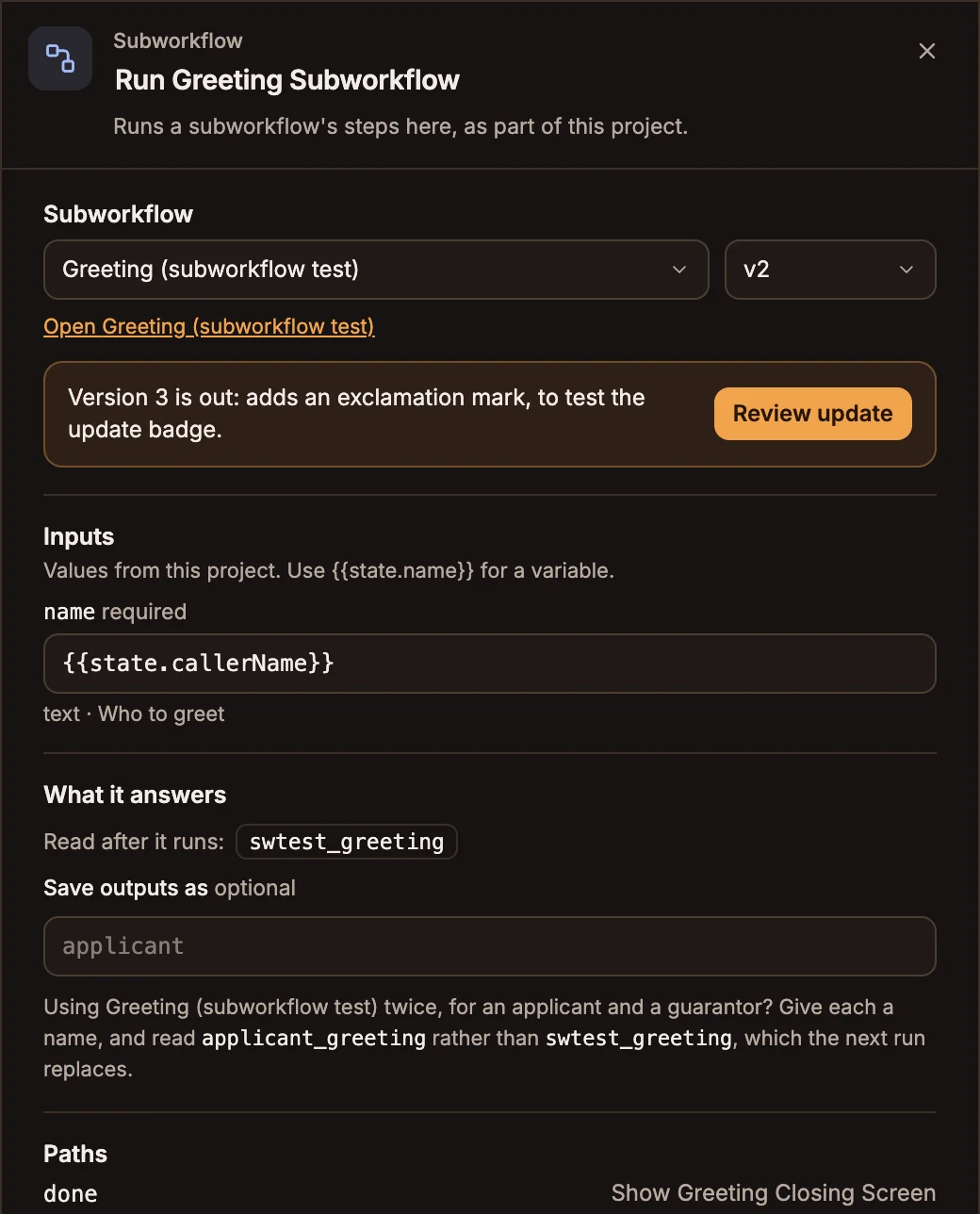
Settings
Prop
Type
What it answers lists the variables the project can read after the step, such as kyc_fullName.
Outputs
The step has one path per exit name of its version, such as verified and rejected. Paths in the panel shows where each leads, or Not connected: the flow ends here.
After the step, the project reads each output as {{state.kyc_fullName}}, with the subworkflow's prefix, and also as {{state.applicant_fullName}} when Save outputs as is applicant. Outputs are cleared each time the subworkflow starts, so a value is never left over from an earlier run.
Updating to a new version
When a newer version is published, the step shows v2 available. Open it and select Review update to see the version's notes and what changes for this step, then Update to version 2 or Keep version 1. Your live project keeps its version until you publish. See Update a project to a new version.
Tips and limits
- Not inside a Parallel branch. Run it before or after the Parallel step.
- Up to 25 Subworkflow steps in a project.
- Publishing builds it in. A project can't be published while a Subworkflow step has no subworkflow, leaves a required input empty, or uses steps this kind of project can't run. The canvas flags No Subworkflow Chosen and Required Input Empty first.
- Test it in the project's simulator. The run panel lists the subworkflow's steps under this step, and a failure inside it shows here.
- Buni can add the step for one of your organisation's subworkflows, with its inputs and paths.