
Connect a chatbot to the WhatsApp Cloud API, configure Meta's webhook, and understand the 24-hour window, button limits and read receipts.
 Buni.ai connects to WhatsApp through Meta's WhatsApp Cloud API. You own the Meta app and the business phone number; Buni.ai receives messages from Meta's webhook and replies through the API with your token.
Before you start you need:
- A Meta Business account and a Meta developer app with the WhatsApp product added.
- A business phone number registered to the app's WhatsApp Business Account.
- A chatbot project in Buni.ai.
Set up the connection
Collect the values from Meta
In the Meta for Developers dashboard, open your app and collect:
- The Phone Number ID and WhatsApp Business Account ID from the WhatsApp API Setup page.
- An access token with WhatsApp messaging permission. Use a permanent system-user token; the temporary token on the setup page expires within a day.
- The App Secret from App settings › Basic.
Also choose a Verify Token: any string you make up. You will enter it in both Buni.ai and Meta.
Add WhatsApp to the chatbot
Open the chatbot's trigger node and go to the Platforms tab. In Messaging Platforms, select WhatsApp. Under Platform Configuration, expand WhatsApp and fill in the fields below.
Password fields have a credential selector. Store the token and secret as credentials and pick them, rather than pasting them in.
Publish and copy the webhook URL
Publish the project. The Platform Setup dialog that opens after publishing shows Your Bot Webhook URL. You can also find it any time under Settings›General›Bot Webhook Configuration.
Point Meta's webhook at Buni.ai
In your Meta app, open WhatsApp›Configuration. Under Webhook, set:
- Callback URL: your Bot Webhook URL
- Verify token: the same Verify Token you entered in Buni.ai
Select Verify and save, then subscribe the webhook to the messages field.
Test it
Send a WhatsApp message to your business number from your own phone. The bot should reply within a few seconds.
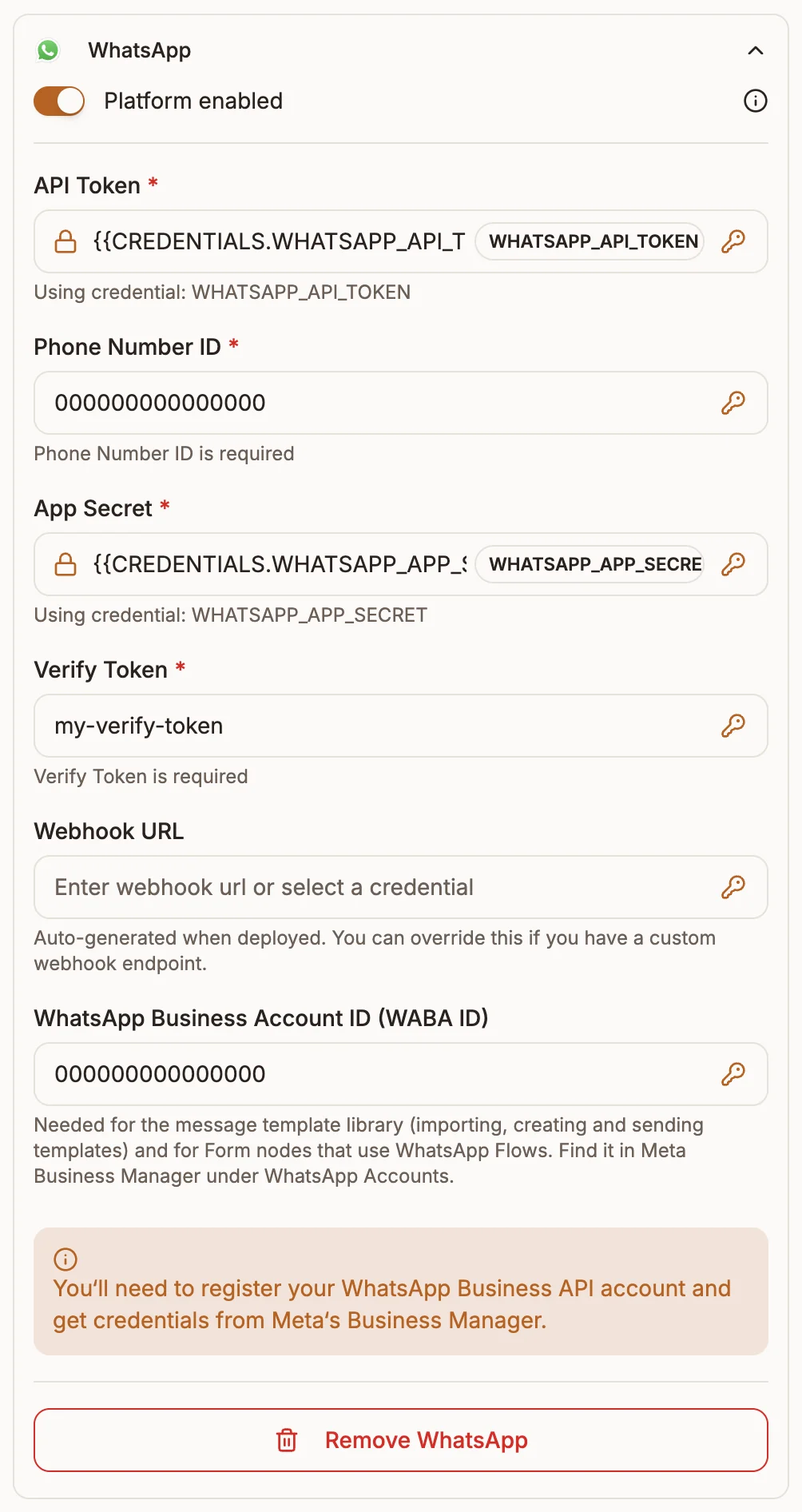
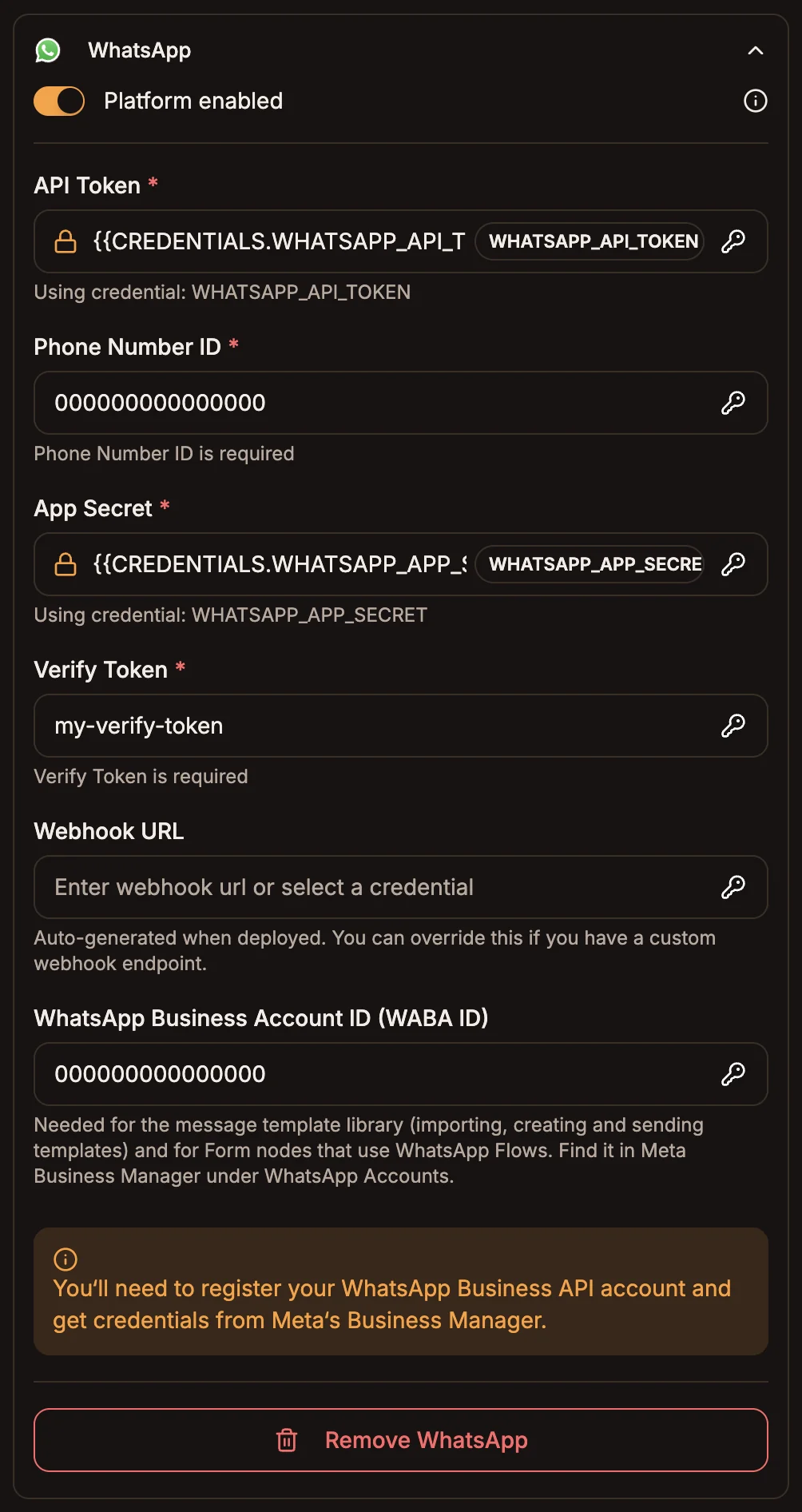
Fields
| Field | Required | What to enter |
|---|---|---|
| API Token | Yes | Your Meta access token. |
| Phone Number ID | Yes | The id of the business number the bot sends from (not the phone number itself). |
| App Secret | Yes | Your Meta app's secret. Used to check that incoming webhooks really come from Meta. |
| Verify Token | Yes | The string you chose. Meta sends it once when you verify the webhook. |
| Webhook URL | No | Filled in when the project is deployed. Override it only if you use your own webhook endpoint. |
| WhatsApp Business Account ID (WABA ID) | No | Needed for WhatsApp templates and for Form nodes that use WhatsApp Flows. Find it in Meta Business Manager under WhatsApp Accounts. |
Each platform has a Platform enabled switch. A disabled platform ignores incoming messages until you turn it back on, without losing its settings.
How requests are verified
- When you select Verify and save in Meta, Buni.ai answers Meta's check only if the verify token matches.
- Every message Meta sends carries an
x-hub-signature-256header. Buni.ai checks it against your App Secret and rejects anything that does not match with403. If the App Secret is wrong or missing, no messages get through.
The 24-hour customer service window
WhatsApp only lets a business send free-form messages to a customer within 24 hours of that customer's last message. Outside that window, Meta rejects anything but an approved template.
This matters when a reply arrives late: an agent answering from the Inbox the next day, a workflow that sends a follow-up, or a broadcast to people who have not written recently. Free-form messages to anyone outside the window are not delivered.
To reach customers outside the window:
- Create and get approval for a template on the WhatsApp Templates page, and set one as the project's default, then republish. When the window is closed, Buni.ai sends the approved template instead of the free-form reply.
- Replies that could not be delivered are queued for up to 7 days (up to 5 replies) and delivered when the customer writes again or taps the template's quick reply.
- In the Inbox, messages sent this way carry a Template: label with the template's name.
Only approved templates are sent
A template that is pending review, rejected or paused is never sent. If a project has no approved default template, customers outside the window get nothing.
Message limits
Buni.ai adapts your flow's messages to WhatsApp's limits:
| Element | Limit | What happens past it |
|---|---|---|
| Reply buttons | 3 per message | Extra buttons are dropped. |
| Button title | 20 characters | Longer titles are cut. |
| Text message | 4,096 characters | The text is split at paragraph, line or word breaks and sent as several messages. |
| Text above buttons | 1,024 characters | Split the same way. |
| Lists | Not sent as WhatsApp list messages | A list is sent as numbered text, with up to 3 buttons. |
Design menus with three or fewer options, or ask customers to reply with a number.
Read receipts and typing
When a customer's message arrives, the bot marks it as read (blue ticks) and shows a typing indicator while it prepares the reply. It does this automatically and stops once a human agent takes over the conversation.
Agents control this for their own replies in the Inbox. Open the Inbox Chat Settings and use Send read receipts and Show typing indicator under Chat Features.