
Credentials
Store API keys, tokens and other secrets once, choose which projects can use them, and reference them in flows by name.
Credentials keep API keys, passwords and tokens out of your flows. You store a value once on the Credentials page, then refer to it by name wherever a node needs it. Only the name is saved in the flow; the value is filled in when the flow runs.
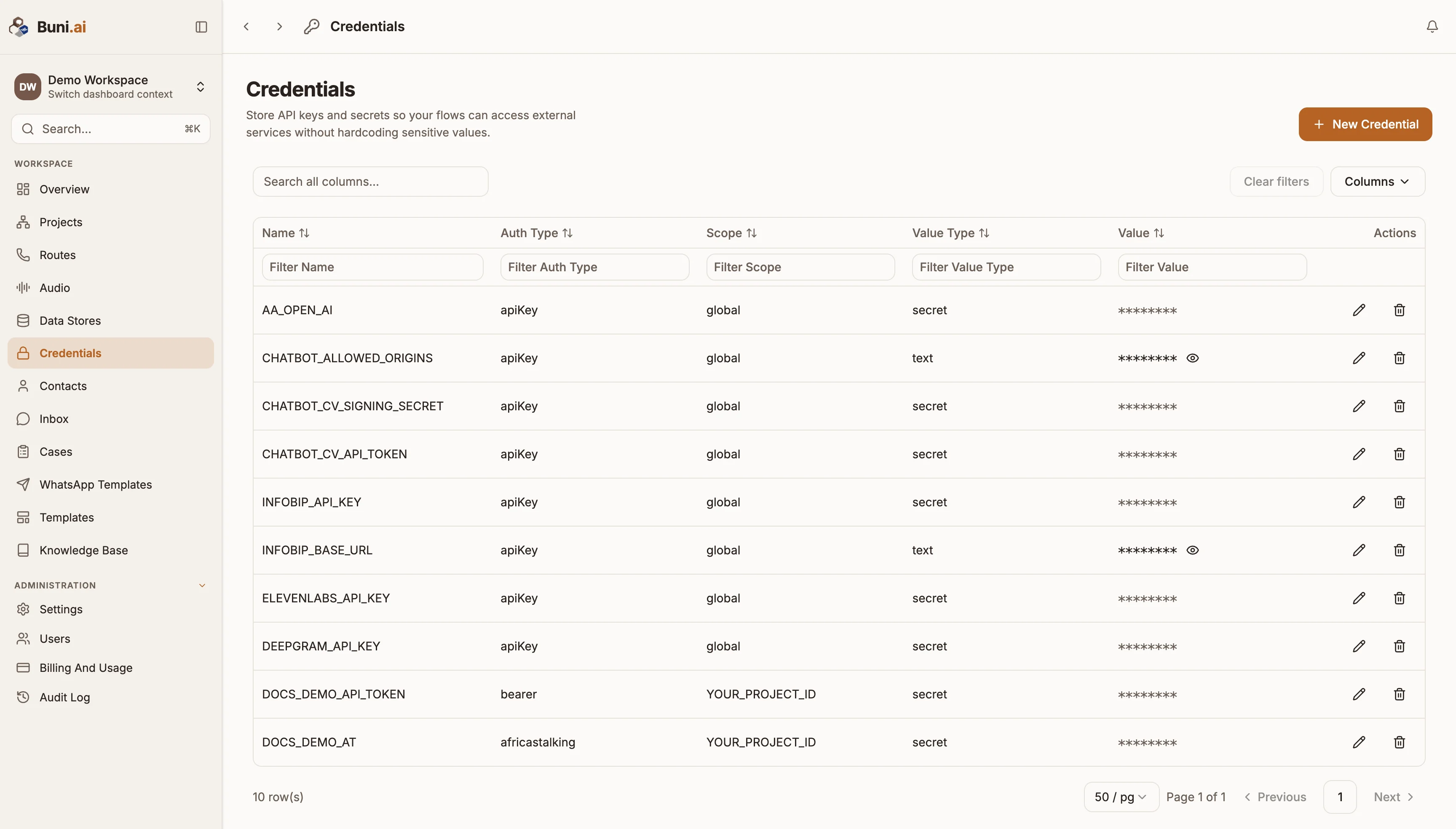
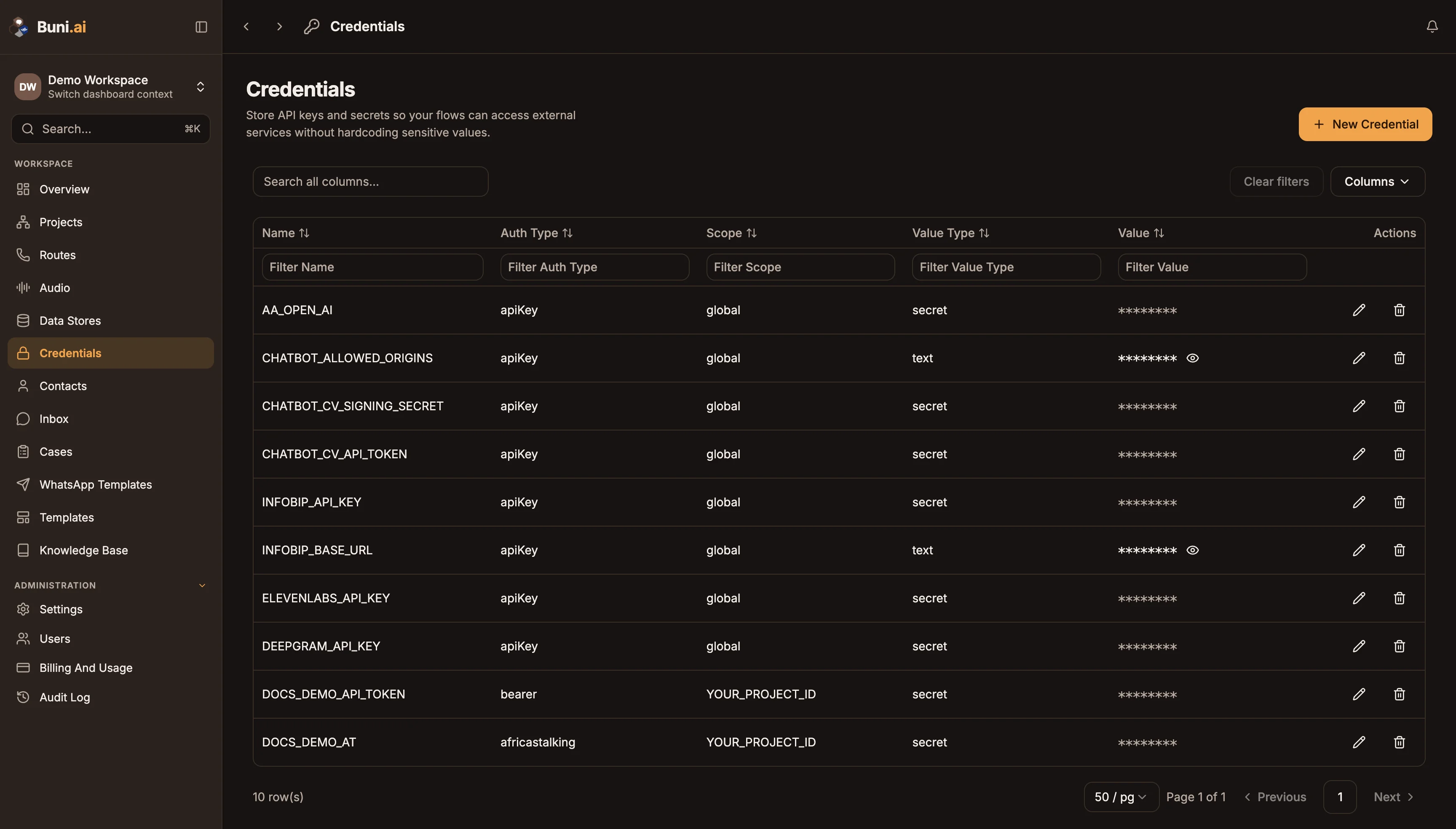
Open Credentials from the sidebar.
Add a credential
Open the form
Select New Credential. The Add New Credential dialog opens.
Name it
Enter a Credential Key, such as PAYMENTS_API_KEY. This is the name you use in flows.
Enter the value
Enter the Credential Value and choose its Credential Type (see below).
Mark it sensitive
Turn on Sensitive for anything secret. A sensitive value is encrypted when it is saved and is never shown in full again; the list shows it masked.
Choose where it can be used
Set Accessibility to Global (every project in the organization) or to one project.
Save
Select Save.
Credential types
| Type | Use it for |
|---|---|
| API Key | A key sent to an API. |
| Bearer Token | A token sent as Authorization: Bearer. |
| Basic Auth | A username and password. |
| OAuth | An OAuth access token you paste in yourself. |
| URL | A URL, such as a webhook or a base URL, that you want to keep out of the flow. |
| Plain Text | Any other value. |
Some carriers and providers have their own forms. When you add a credential for one of them from its setup screen, the dialog asks for that provider's fields instead, such as Account SID and Auth Token for Twilio, or Base URL and API Key for Infobip, and an Authentication Type.
The credentials list
| Column | Shows |
|---|---|
| Name | The credential key. |
| Auth Type | The credential type. |
| Scope | Global or the project it belongs to. |
| Value Type | Whether the value is sensitive. |
| Value | The value. Sensitive values are masked; use the eye icon to show a non-sensitive one. |
Use the row actions to edit or delete a credential. Deleting a credential breaks any flow that still refers to it.
Connected apps (OAuth)
Some integrations, such as HubSpot, Slack, Gmail, Google Sheets and Google Calendar, connect with OAuth: you sign in to the service and approve access instead of pasting a key. You start this from a project's Integrations tab, an Integration node or an AI Agent node's tools. The resulting tokens are saved as organization-wide credentials. If a token expires, the integration asks you to reconnect.
Use a credential in a flow
Reference a credential by its key with the ${CREDENTIALS.NAME} form:
Authorization: Bearer ${CREDENTIALS.PAYMENTS_API_KEY}In node fields, the variable picker's Secrets tab lists your credentials, and Create Credential adds one without leaving the node. See Variables.
Keep secrets out of nodes
Never paste an API key or password straight into a node. Anyone who can view the project could read it.
Access to the Credentials page can be limited per user with section access.