
Integration
Runs one action in a connected service such as Salesforce, HubSpot, Google Sheets or Slack, every time the flow reaches it, without AI.
Integration runs a single action in a third-party service: create a Salesforce case, append a Google Sheets row, send a Slack message. It runs the same action every time the flow reaches it, with the parameters you set. No model decides whether or how to call it.
When to use it
- Log every completed registration to a spreadsheet.
- Open a support ticket when a user reports a problem.
- Notify a team channel when an order comes in.
- When an AI should decide whether to call a service, and with what, give the AI Agent node the same integration as a tool instead.
- For a service that is not listed below, use the API node.
Set up the node
Pick a service
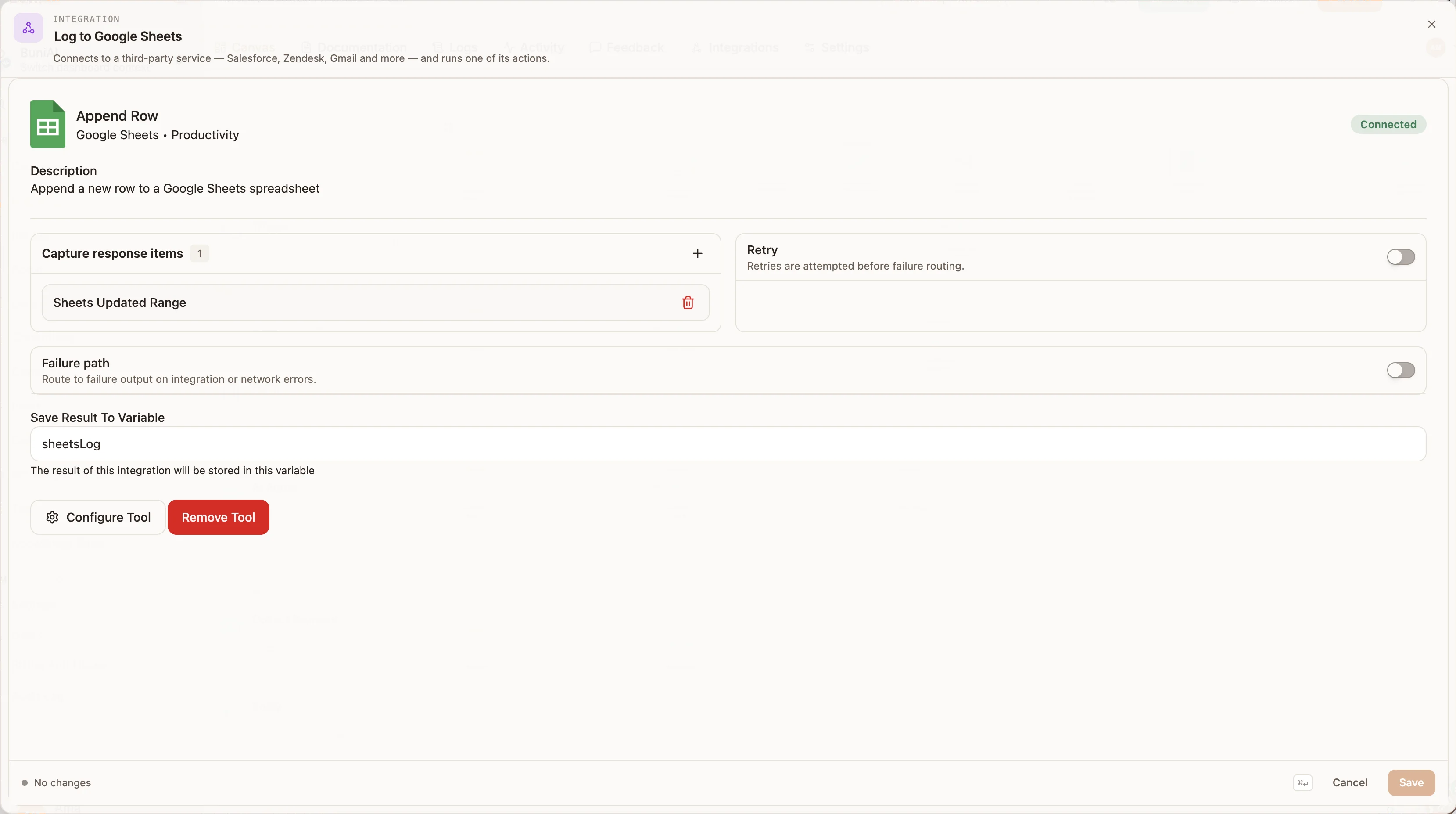
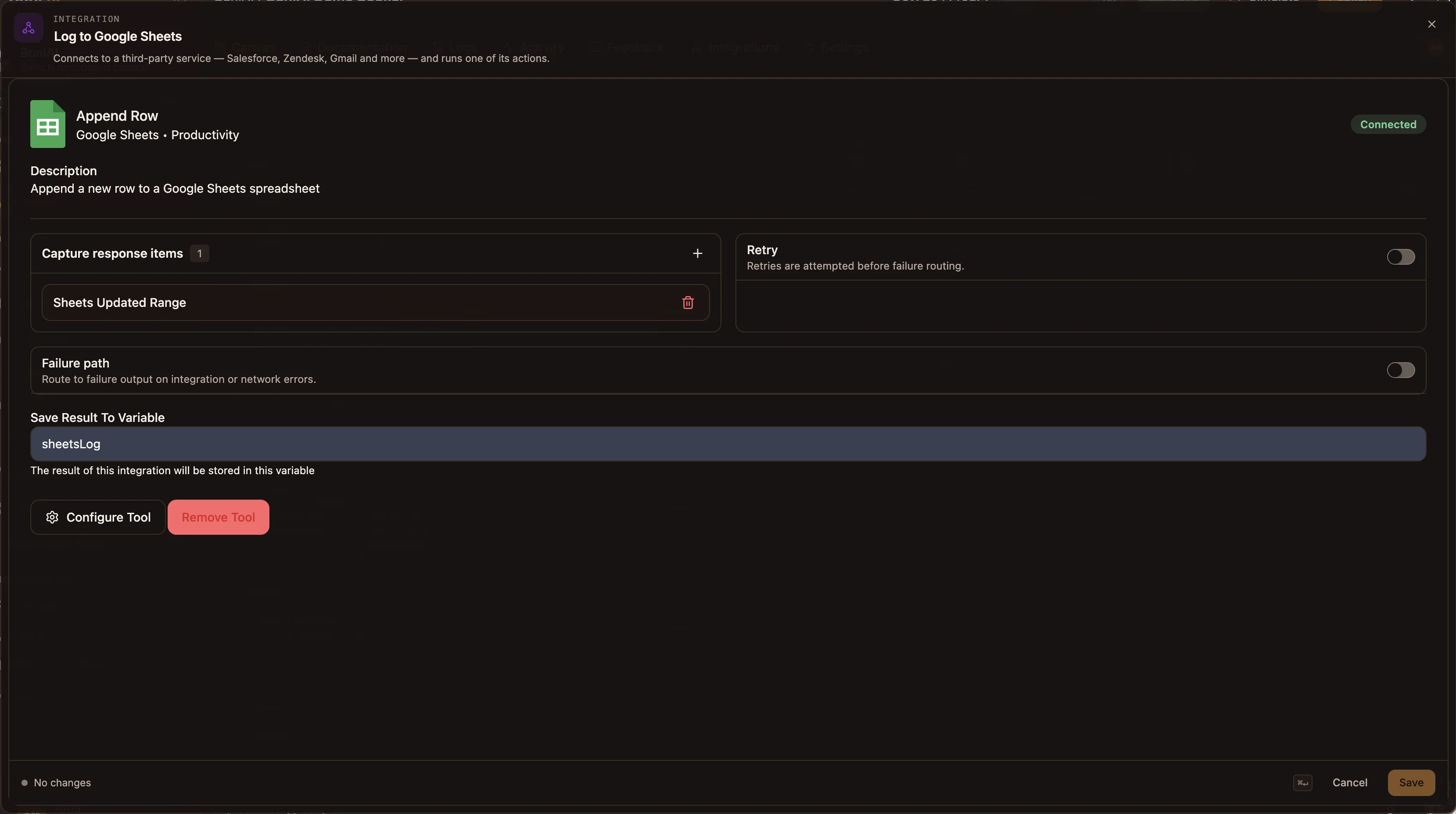
Open the node and search the list by name, category or action. Services you have already connected show Connected.
Pick an action and connect
Choose the action, for example Append Row. If the service is not connected yet, select Connect: OAuth services open the provider's sign-in; API-key services ask for the key, which is stored as a credential.
Fill in the parameters
Select Configure Tool to set the action's parameters. Values you type are the values sent, and can include variables such as {{state.email}}. A parameter you leave empty is taken from the step's input or from state instead.
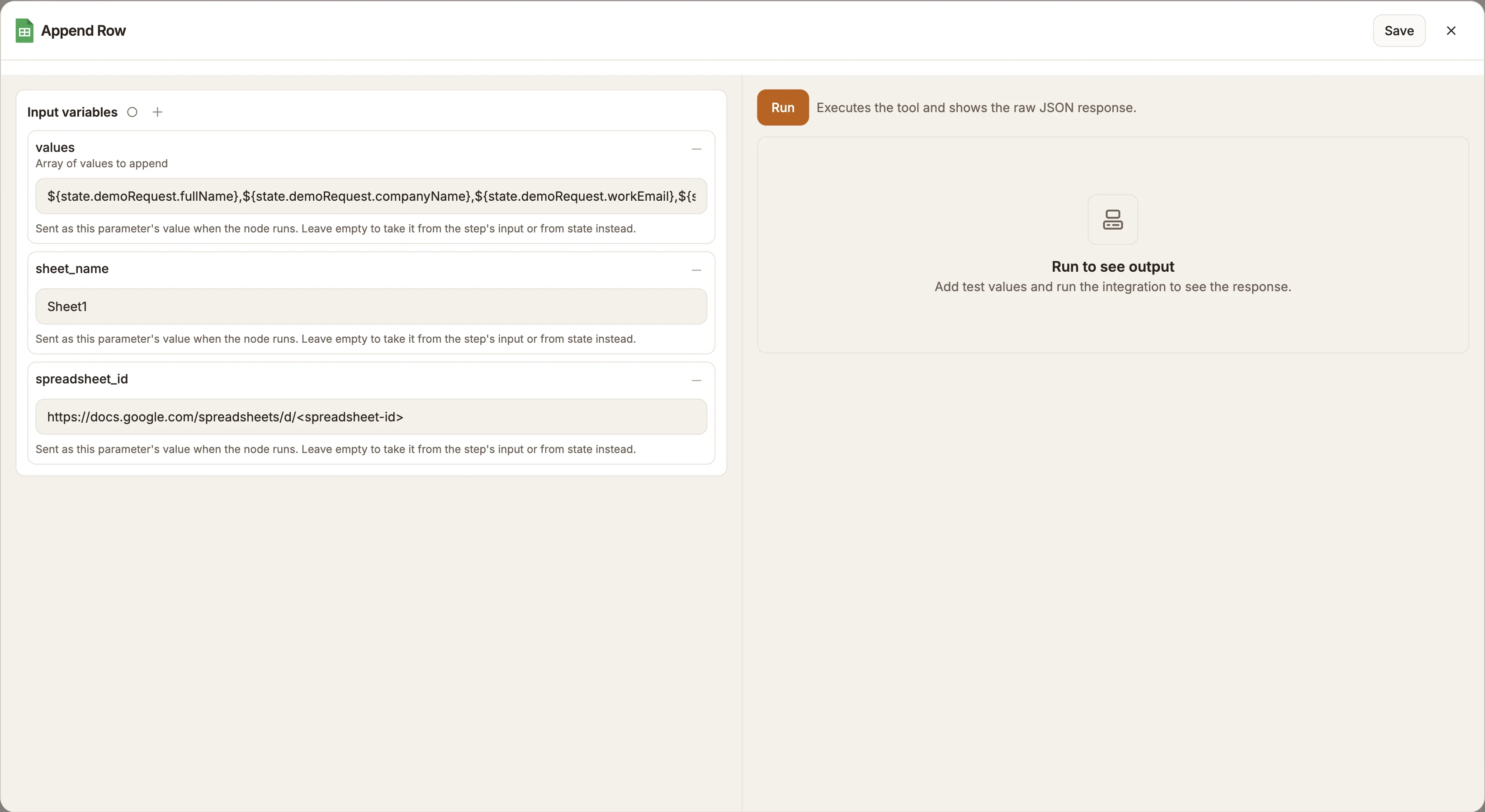
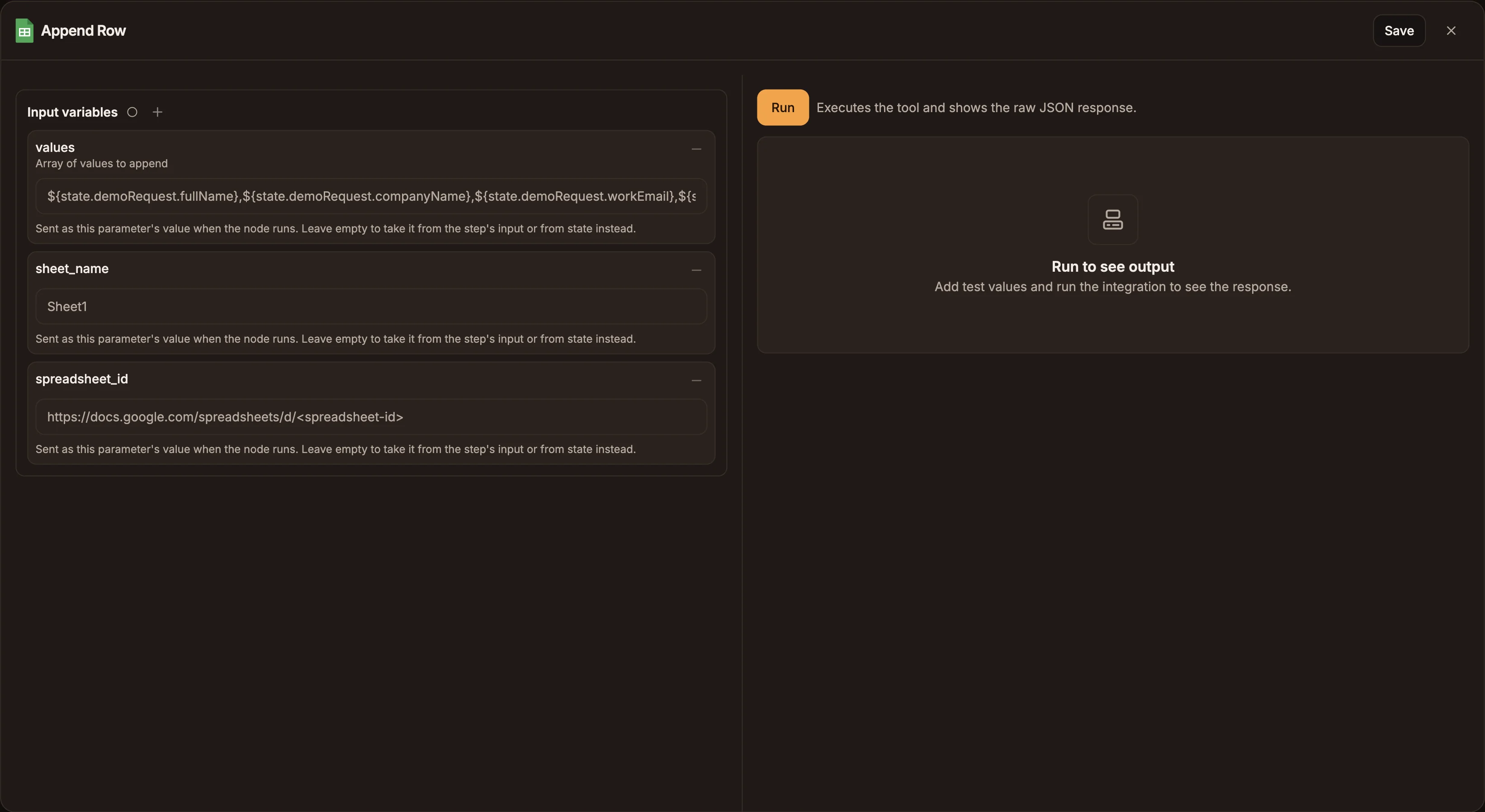
Run executes the action with these values and shows the raw JSON response. It is a real call: running Append Row adds a row to the sheet.
Name the result
Enter Save Result To Variable, for example sheetResult, so later nodes can read the result.
Settings
Prop
Type
Outputs
| Handle | When |
|---|---|
| Success | The service accepted the action. |
| Failure | Failure path on: the service returned an error, or it could not be reached. |
In automation projects the result saved to your variable has the same shape for every service:
{
  "ok": true,
  "provider": "google_sheets",
  "operation": "append_row",
  "status": 200,
  "data": { },
  "error": null,
  "meta": { "timestamp": "2026-09-24T10:15:00.000Z" }
}
data holds the service's response. On failure ok is false, data is null and error has message, category and code.
Available services
| Service | Category | Connect with | Actions |
|---|---|---|---|
| Airtable | Database | API key | Create Records, Get Record, List Records, Update Records, Delete Records |
| Asana | Project Management | API key | Create Task, Get Task, Update Task, List Tasks in Project, Add Comment, Get Project |
| Calendly | Productivity | OAuth | Get User Info, List Event Types, Get Scheduled Events, Cancel Event |
| ClickUp | Project Management | API key | Create Task, Get Task, Update Task, List Tasks, Create Comment, Get Workspace Members |
| Discord | Communication | API key | Send Message, Send Direct Message, Create Channel, Get Guild Info, Add Role to Member, Delete Message |
| GitHub | Developer Tools | API key | Create Issue, Get Issue, List Issues, Create Pull Request, Add Comment, Get Repository |
| Gmail | Communication | OAuth | Send Email, Reply to Email |
| Google Calendar | Productivity | OAuth | Create Event, Get Events, Update Event, Delete Event |
| Google Drive | Productivity | OAuth | List Files, Get File, Download File, Upload File, Create Folder, Delete File, Share File |
| Google Sheets | Productivity | OAuth | Read Rows, Append Row, Update Row, Clear Range |
| HubSpot | CRM | OAuth | Create Contact, Update Contact, Create Company, Create Deal |
| Infobip | Communication | API key | Send SMS, Get SMS Reports, Send Voice Message, Get Account Balance |
| Jira | Project Management | API key | Create Issue, Get Issue, Update Issue, Search Issues, Add Comment |
| Mailchimp | Marketing | API key | Create Contact, Get Contact, Update Contact, List Contacts, Create Campaign, Send Campaign |
| Make (Integromat) | Automation | API key | Trigger Scenario, Get Scenario Execution |
| Microsoft Outlook | Communication | OAuth | Send Email, List Emails, Get Email, Create Calendar Event, List Calendar Events, Update Calendar Event |
| MongoDB | Database | API key | Find Documents, Find One Document, Insert Document, Update Document, Delete Document, Aggregate |
| Notion | Productivity | OAuth | Create Page, Get Page, Update Page, Query Database, Append Block Children, Search |
| Pipedrive | CRM | API key | Create Deal, Get Deal, Update Deal, Create Person, Search Persons, Add Activity |
| PostgreSQL | Database | API key | Select Rows, Insert Row, Update Rows, Delete Rows, Upsert Row, Call Function (RPC) |
| Redis | Database | API key | Get, Set, Delete Key, Increment, Hash Set, Hash Get All, Publish |
| Salesforce | CRM | API key | Add Comment to Case, Create Case, Create Contact, Create Lead, Update Case, Update Contact, Update Lead |
| SendGrid | API key | Send Email, Send Template Email, Add Contact, Get Contact, Remove Contact, Create List, Add Contacts to List | |
| Shopify | E-commerce | API key | Create Product, Get Product, Update Product, List Orders, Get Order, List Customers |
| Slack | Communication | OAuth | Send Message, Create Channel, Get User Info, Add Reaction |
| Stripe | Finance | API key | Create Customer, Create Payment Intent, Get Customer, List Charges, Create Subscription, Get Payment Methods |
| Telegram | Communication | API key | Send Message, Send Photo, Send Document, Get Chat, Get Updates, Pin Message |
| Todoist | Productivity | API key | Create Task, Get Task, Update Task, Close Task, List Tasks, List Projects |
| Trello | Project Management | API key | Create Card, Get Card, Update Card, Get Board, List Cards in List, Add Comment to Card |
| Twilio | Communication | API key | Send SMS, Make Call, Get Call Logs, Get SMS Logs |
| WhatsApp Business Cloud | Communication | API key | Send Text Message, Send Template Message, Send Media Message, Send Interactive Message, Mark Message as Read, Get Message Templates |
| Zendesk | Support | OAuth | Create Ticket, Add Ticket Comment, Find Tickets, Update Ticket, Find Group, Find Latest Comment, Find User, Update Organization |
Example
A chatbot logs every completed lead to a sheet and alerts sales:
- Form collects name, email and budget as
lead. - Integration, Google Sheets Append Row, values
{{state.lead.name}},{{state.lead.email}},{{state.lead.budget}}, resultsheetResult. - Integration, Slack Send Message to
#sales: "New lead:{{state.lead.name}}". - Reply: "Thanks, someone will be in touch."
Connect each node's Failure output to a Reply that still thanks the user, so a service outage does not leave them without an answer.
Tips and limits
- A disconnected service fails at run time. The panel shows Not Connected with a Connect button; reconnect after an OAuth token is revoked or a key rotated.
- Each service has its own rate limits. When calling one for many items in an automation, use Loop pacing.
- In automations, WhatsApp Business Cloud and Telegram messages sent through this node are added to the recipient's conversation in the Inbox, but only when the send succeeds.
Related
API
Calls any HTTP endpoint with your method, headers, auth and body, captures fields from the response into state, and routes on success or failure.
Collect Payment
Requests a payment by mobile money prompt (MTN MoMo, M-Pesa) or card checkout link (Paystack, Flutterwave, Stripe) on USSD, chat, a call or an automation.