
Slack Trigger
Starts the workflow on messages, mentions, reactions and channel activity from your own Slack app.
The Slack Trigger starts your workflow when your Slack app receives an event: a message in a channel, a mention of your bot, a reaction or channel activity. Slack sends each event to the trigger's URL, and Buni.ai checks it with your app's signing secret.
Where you find it
Drag Slack Trigger from the Triggers group of an automation project's node palette. A workflow can have several triggers; each one starts the workflow from its own output.
When to use it
- Log a request or open a ticket when someone mentions your bot.
- Run a job when someone adds a particular reaction to a message.
- Welcome people who join a channel.
- To hold a conversation in Slack, use a chatbot project instead.
Before you start
You need a Slack app of your own, installed in your Slack workspace, and permission to change its settings. You can create one at api.slack.com/apps.
Set it up
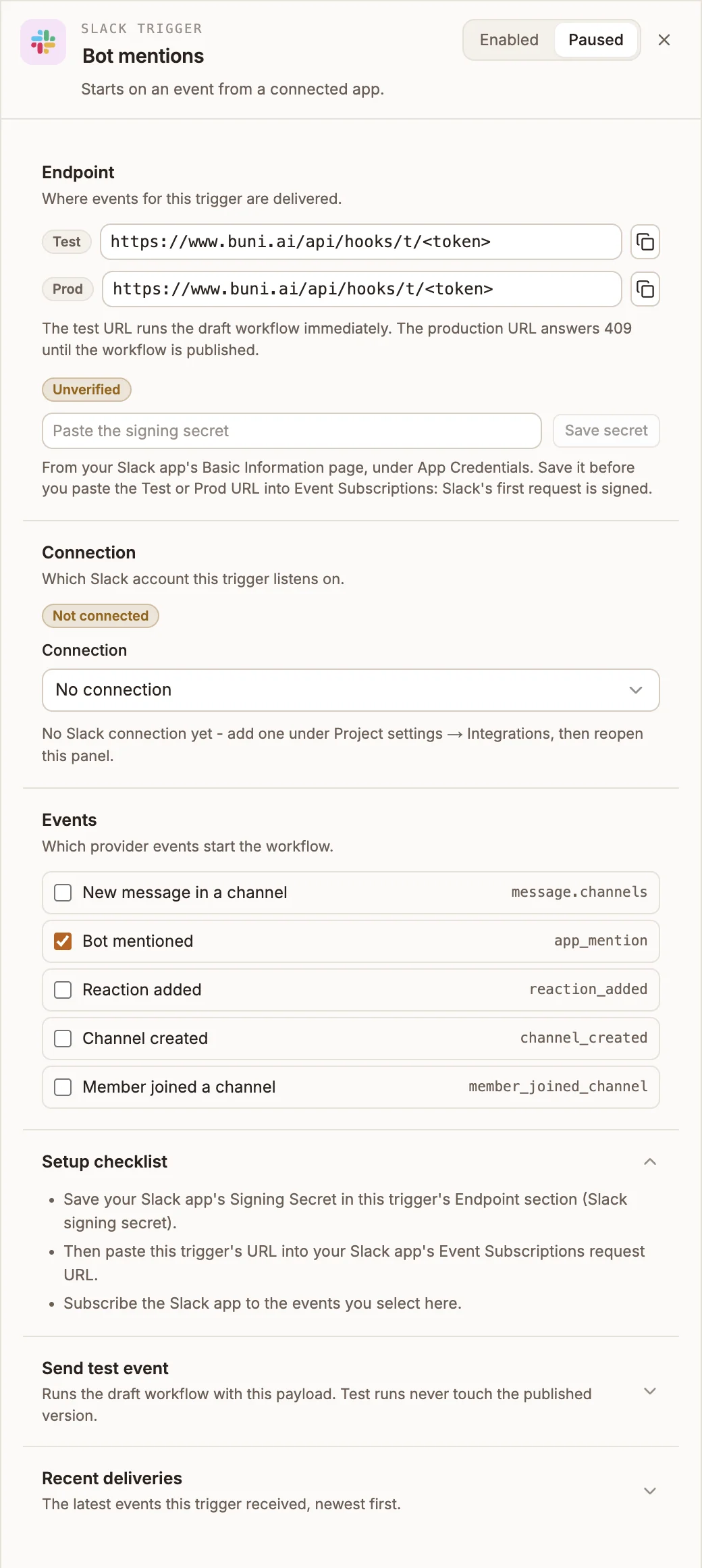
Add the trigger and select the Events that should start the workflow.
In your Slack app's settings, open Basic Information and copy the Signing Secret under App Credentials. Paste it into the trigger's Endpoint section and select Save secret.
Do this before the next step: Slack signs its very first request, and the trigger can only answer it once it has the secret.
Save the workflow and copy the Test URL.
In your Slack app, open Event Subscriptions, turn on Enable Events and paste the URL as the Request URL. Slack sends a check to the URL and shows Verified when the trigger answers.
Under Subscribe to bot events, add the same events you selected on the trigger, such as app_mention. Save, and reinstall the app if Slack asks you to.
When you publish the workflow, change the Request URL to the Prod URL. The Prod URL answers 409 until the workflow is published, so Slack cannot verify it before then.
Settings
The panel header has an Enabled / Paused switch. New triggers start Enabled; a paused trigger shows Paused on its canvas card and starts no runs.
Prop
Type
| Event | Slack name | Starts a run when |
|---|---|---|
| New message in a channel | message.channels | A message is posted in a public channel your app is in. |
| Bot mentioned | app_mention | Someone mentions your app's bot. |
| Reaction added | reaction_added | Someone adds an emoji reaction to a message. |
| Channel created | channel_created | Someone creates a public channel. |
| Member joined a channel | member_joined_channel | Someone joins a channel your app is in. |
Send test event takes a Sample payload and shows what the trigger would pass to the workflow, without running the workflow's nodes. Recent deliveries lists the latest runs this trigger started, newest first, with their status and duration.
Outputs
input.payload is the event as Slack sends it. The event itself is in input.payload.event:
| Field | Contains |
|---|---|
input.payload.event.type | The Slack event, for example app_mention. |
input.payload.event.text | The message text, for message and mention events. |
input.payload.event.user | The Slack member id of the person who acted. |
input.payload.event.channel | The channel id. |
{{state.trigger.type}} is WEBHOOK.
Tips and limits
- Slack sends every event your app subscribes to. Events you did not select on the trigger are acknowledged and start no run, so keep the two lists the same.
- A Slack app has one Request URL, so one app feeds one trigger. Use a separate Slack app for each workflow that needs Slack events.
- Slack also sends messages that bots post, including your own. If the workflow posts to a channel it listens to, add a Filter that skips events with a
bot_id, or the workflow will start itself. - Slack retries an event it thinks was not received. Each event runs once.