
Manual Trigger
Starts the workflow when you run it from the editor, with optional JSON input. For testing and for jobs you start by hand.
The Manual Trigger starts the workflow when you run it yourself from the editor. Use it while you build and test, or for jobs you only want to start by hand, such as a one-off import.
Where you find it
Drag Manual Trigger from the Triggers group of an automation project's node palette. A workflow can have several triggers; each one starts the workflow from its own output.
When to use it
- Test a workflow with sample data before connecting a real source.
- Run an occasional job on demand, such as re-sending a batch of messages.
Settings
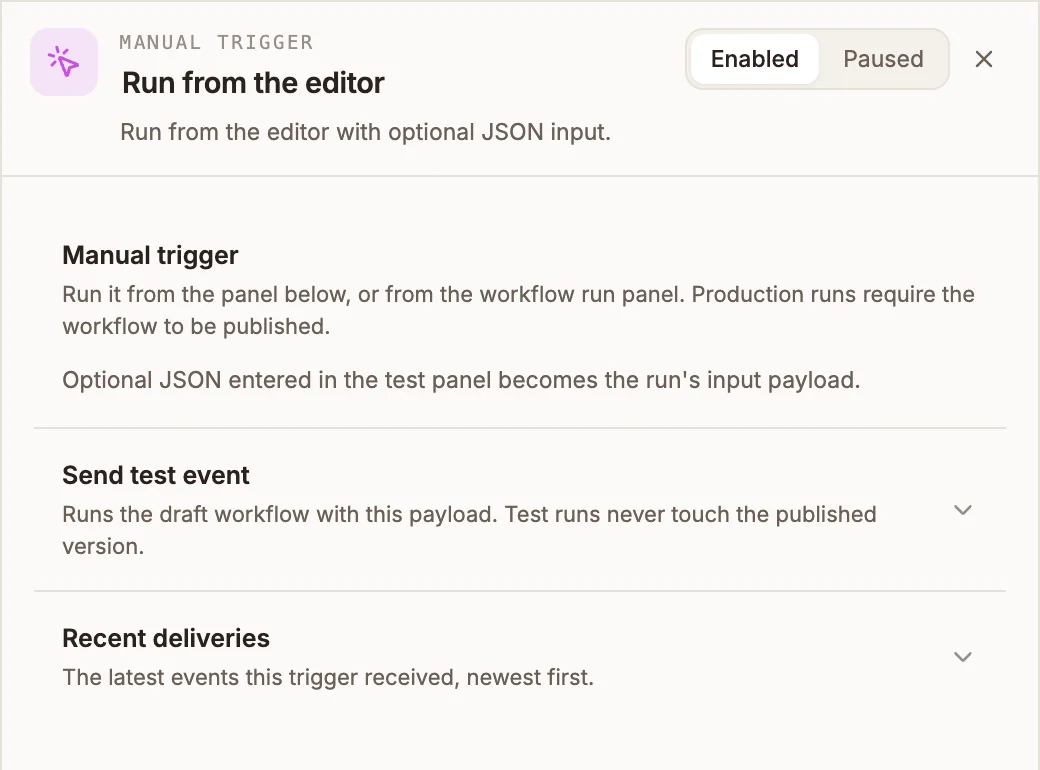
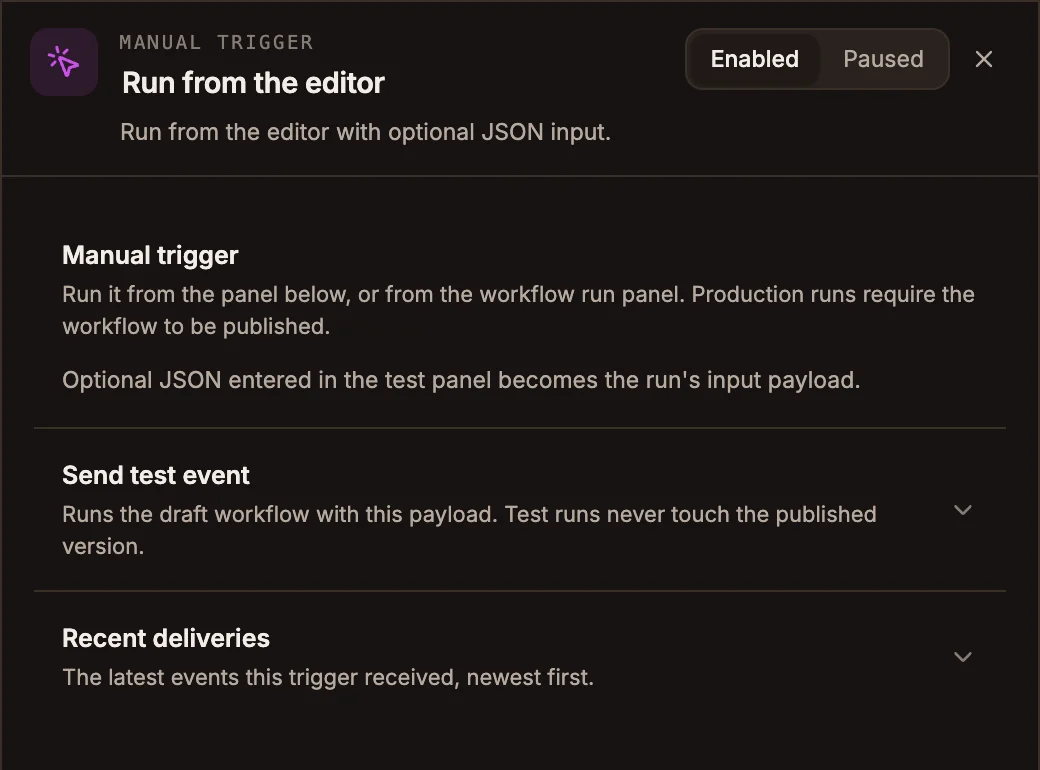
The panel header has an Enabled / Paused switch, and a paused trigger shows Paused on its canvas card. Runs you start from the Run panel are not affected by it.
The Manual Trigger has no settings of its own. To run the workflow, open the project's Run panel, enter optional JSON, and select Run; the JSON becomes the run's input. Production runs need the workflow to be published.
Send test event takes a Sample payload and shows what the trigger would pass to the workflow, without running the workflow's nodes. Recent deliveries lists the latest runs this trigger started, newest first, with their status and duration.
Outputs
The JSON you entered arrives as input.payload. {{state.trigger.type}} is MANUAL.
Tips and limits
- The Run panel does not pick a trigger. It starts the workflow at the only trigger if there is one, otherwise at the first Manual Trigger, otherwise at the first trigger on the canvas. Keep one Manual Trigger in workflows you run by hand.
Related
Webhook Trigger
Gives the workflow its own URL. Each HTTP request to it starts a run with the request body, with optional request signing and a synchronous response mode.
Error Trigger
Starts the workflow when another run in the same project fails, with the failure's details, so one handler can alert your team.