
Publishing
Publish a project to make its current flow Live, see what publishing does for each project type, copy the live URL and unpublish.
Publishing makes the current flow the Live version: the one your users reach. Until you publish, only you can run the project, through the simulators and Draft routes. See Environments.
Paid plans only
Free organizations cannot publish. Selecting Publish on the Free plan opens the upgrade dialog with the message "Free accounts cannot publish projects. Upgrade to publish your projects." You also need permission to manage the project. See Billing and usage and Users and roles.
Publish a project
Test it first
Run through every path in the simulator and fix anything the flow validation panel reports on the canvas.
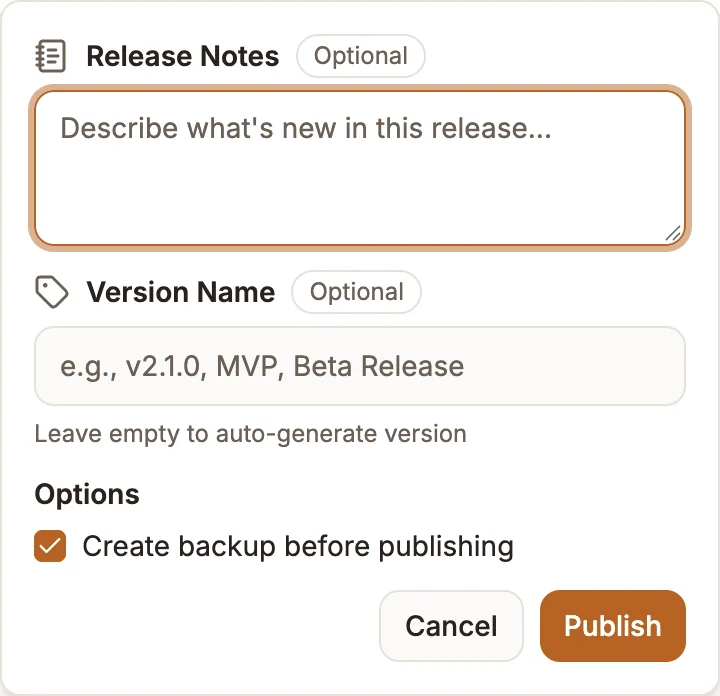
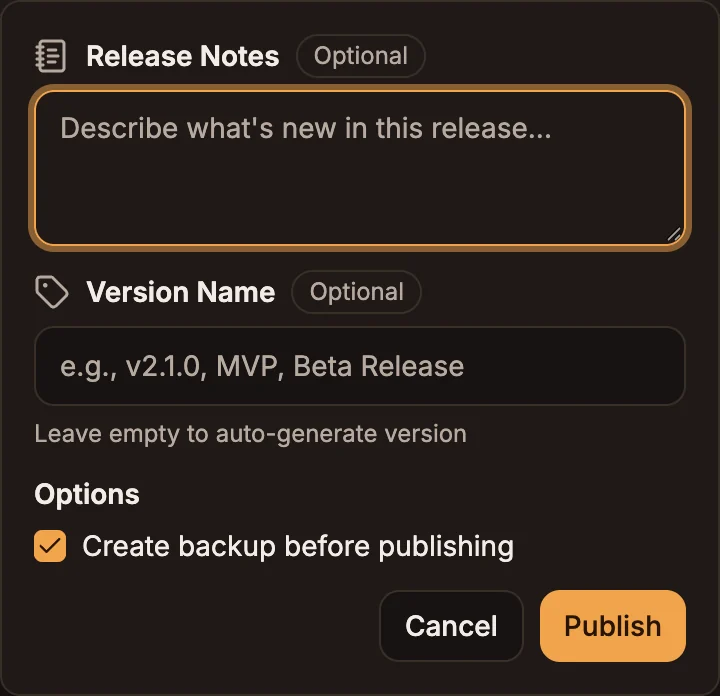
Describe the release (optional)
| Field | What to enter |
|---|---|
| Release Notes | What changed in this release. Optional. |
| Version Name | A name for the release, such as v2.1.0, MVP or Beta Release. Optional; leave it empty to auto-generate one. |
| Create backup before publishing | On by default. |
Publish
Select Publish in the panel. Publishing saves the current canvas first, so you do not need to save separately. A progress indicator shows while the project is built and deployed.
If publishing fails, a Couldn't publish dialog explains why. For voice projects it lists each problem in the flow that stopped it from compiling.
After publishing, the version badge's Prod number updates and the release appears in Version history.
What publishing does for each type
- Deploys the flow to every chat channel enabled in the Trigger node.
- Makes the bot's webhook URL available in Settings › General › Integration, for platforms that need one.
- Turns on the embed codes in Settings › Chat Widget, so you can put the bot on a website. See Web chat widget.
- The Feedback tab starts showing data, since it only covers published projects.
Publish again after changes
Editing and saving never changes the Live version on its own. When you are ready to release your changes, publish again. Users keep reaching the previous Live version until you do.
Copy the live URL
Select More Options (the three dots in the action bar) › Copy Live URL. The URL is copied to your clipboard. It is only available once the project is published. In voice projects, the same menu item is Voice webhook URL and opens the carrier details instead.
Treat live URLs as confidential. Anyone who has one can send requests to your project.
Unpublish
Select the arrow next to Publish, then Unpublish. The arrow only appears while the project is published.
| Type | What unpublishing does |
|---|---|
| Chatbot | Turns off the Live bot and deactivates its embed tokens, so the website widget stops working. |
| USSD | Removes the Live version and deactivates its live URL. The Draft version stays. |
| Voice (IVR) | Deactivates the project's voice endpoints. Publishing again restores the same webhook URL, so you do not need to reconfigure your carrier. |
| Automation | Removes the Live version, so its production trigger URL and schedules stop running it. The Draft version stays. |
To bring the project back, publish again.