
Subworkflows
Build a set of steps once, with the inputs it takes and the ways out it ends by, and add it to any USSD, chatbot or automation project in your organisation.
A subworkflow is a set of steps you build once and add to any project in your organisation, such as an identity check, an eligibility check or the steps that register a customer. It has no number or URL of its own: its steps run inside the projects that use it, as if they had been built there.
- Start declares what it takes: its inputs.
- Exit steps are its named ways out, such as
verifiedandrejected, each with the outputs it answers. - In a project, the Subworkflow step runs it. It has one path per exit name.
Each project chooses a published version and stays on it until someone updates it there, so changing a subworkflow never changes a live project by surprise. See Versions and updates.
Subworkflow or shared workflow?
A subworkflow's steps are copied into each project that uses it and pinned to a version: it can show a USSD menu or send a chat message, as part of that project's own session. A shared workflow runs on its own and answers, always with its current live version, and can't talk to the caller.
Make a subworkflow
Create it
In Projects, select New project, set Channel to Subworkflow, and fill in:
| Field | What it's for |
|---|---|
| Name | Up to 120 characters. |
| What it does | Shown to people choosing a subworkflow to add to their project. |
| Variable prefix | Starts every variable this subworkflow sets, so nothing clashes with the project using it. It follows the name (KYC check gives kyc) until you edit it: 2 to 16 lowercase letters or digits, starting with a letter, and not used by another subworkflow. |
Select Create subworkflow. Subworkflows don't count toward your plan's projects; an organisation can have up to 100.
Declare the inputs
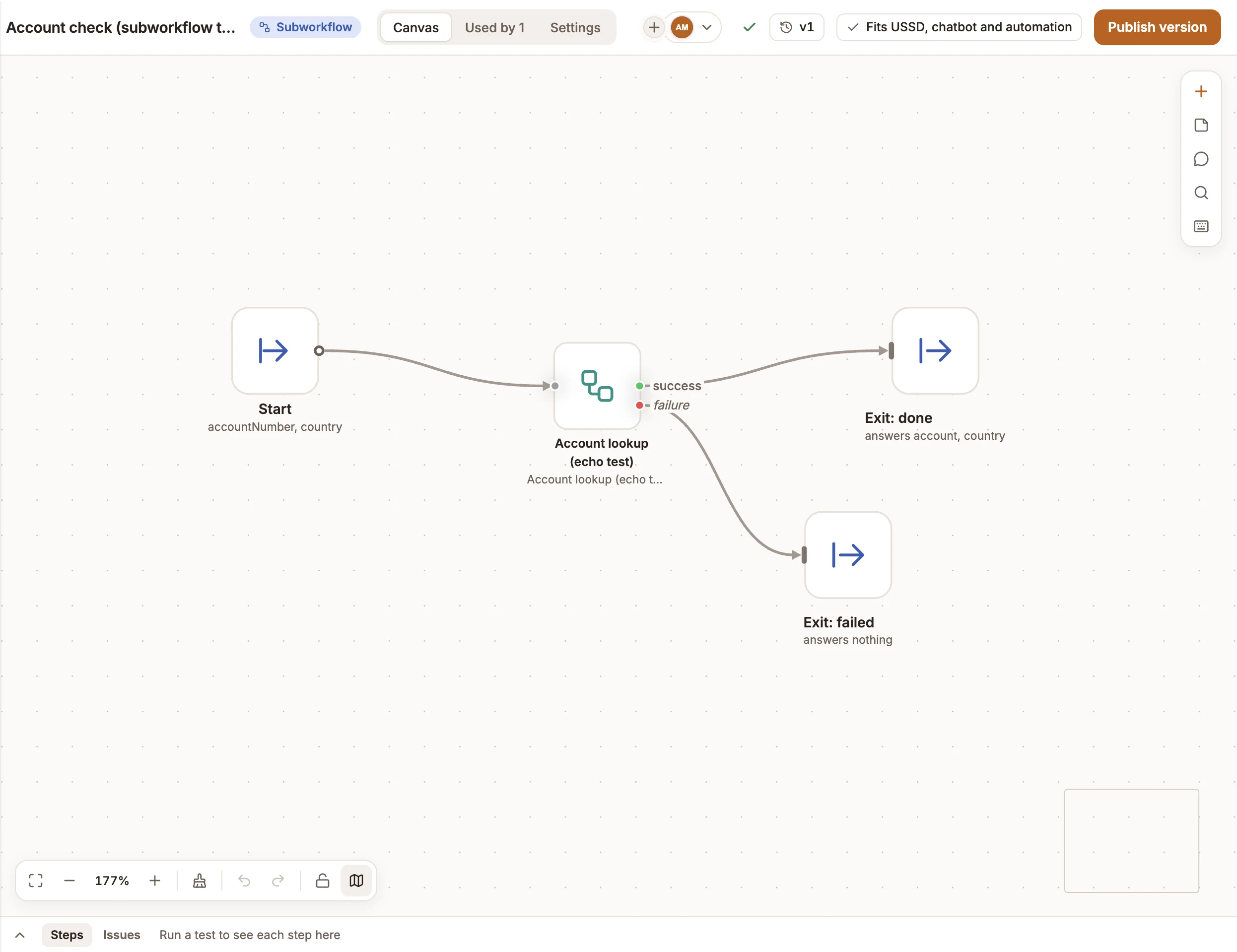
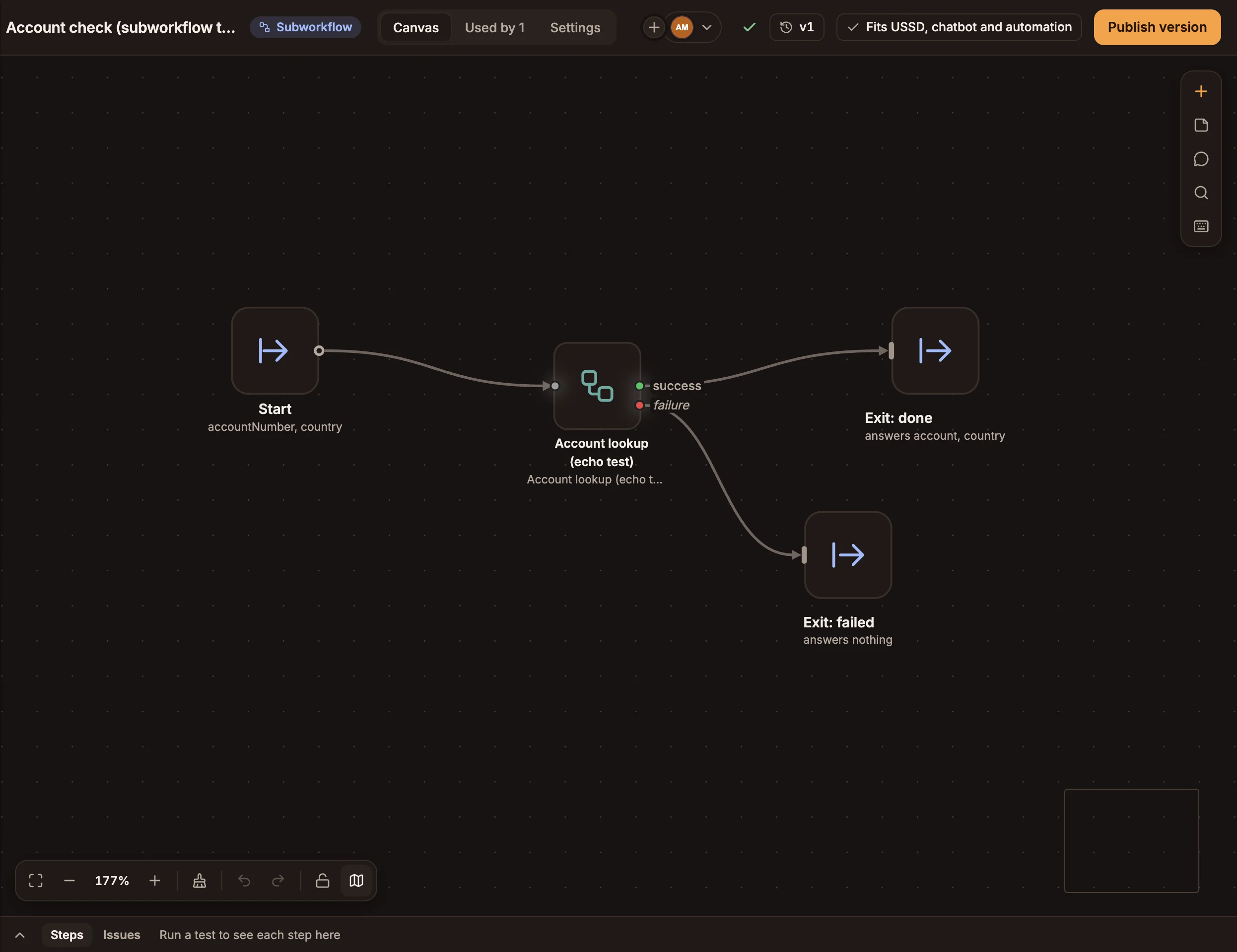
The new canvas holds a Start step joined to an Exit named done. Open Start and select Add input for each value a project gives it, such as nationalId. Steps inside read it as {{state.kyc_nationalId}}.
Build the steps
Add steps from the palette. Logic and data steps, such as API, Router, Set, Function, Data Store and Run workflow, work in every kind of project. Channel steps, such as a USSD menu or a chatbot message, limit where the subworkflow fits: a USSD menu makes it a USSD-only subworkflow.
Every variable a step sets must start with the prefix, such as kyc_status. The Issues bar under the canvas lists anything to fix, with a one-click Rename for a variable without the prefix.
Add the exits
End each path with an Exit step. Give it an Exit name, such as verified, and the Outputs the project reads after it, such as fullName set to {{state.kyc_response.fullName}}. Several exits can share a name to end on the same path.
Publish version 1
Select Publish version. Once version 1 is published, projects can add the subworkflow as a step. See Versions and updates.
The subworkflow's header
A subworkflow's canvas has three tabs: Canvas, Used by and Settings. Its header shows:
- Subworkflow where other projects show Live or Draft. A subworkflow is never live itself.
- The version:
v2, with · changes not published when the canvas has changed since, or No version yet. Select it for each version's date and notes. - Where it fits, such as Fits USSD, chatbot, automation and voice. Select it to see which step limits the fit.
- Publish version.
There's no simulator: test a subworkflow by running a project that uses it. In that project's run panel, its steps are listed under the Subworkflow step, as Check identity › Verify ID, and a failure inside it shows on the Subworkflow step.
Rules
| Rule | Limit |
|---|---|
| Steps in a version | 150 |
| Inputs | 20 |
| Exit names | 10 |
| Subworkflow steps in one project | 25 |
| A project's steps, with its subworkflows copied in | 1,000 |
| Subworkflows in an organisation | 100 |
- One Start step, and at least one Exit. Every step must be reachable from Start, and nothing can follow an Exit.
- No steps that start a flow or answer a caller: triggers, Incoming Call, Outbound Call, Intent, Return, or a USSD main menu.
- Not inside a Parallel branch. Its variables would be shared with the other branches, so run it before or after the Parallel step.
- Credentials come from the project. A step that uses a credential, such as
CREDENTIALS.apiKey, gets it from the project running it. A connection saved for one project can't be used: use one of your organisation's connections. - The prefix is fixed once version 1 is published, so projects using it keep working. Before that, change it in Settings › Variable prefix.
- Voice projects can't add a Subworkflow step yet, even when a subworkflow fits voice.
Buni and subworkflows
Buni, the AI assistant, isn't available on a subworkflow's own canvas. In USSD, chatbot and automation projects, it knows your organisation's subworkflows, with what each takes and its exits, and can add a Subworkflow step for one when you ask.