
Inbox
Answer customers who need a person, work USSD and voice reports, and find any conversation across your chatbot, USSD and voice projects.
The Inbox is where your team picks up conversations from your projects: chats handed over by a bot, USSD sessions that left a report behind, and voice calls. Agents reply, add notes, record outcomes and resolve conversations from one screen.
When the Inbox appears
Inbox (and Cases beside it) only shows in the sidebar once your organization has at least one Chatbot, USSD or Voice (IVR) project. Automation and SMS projects do not create Inbox conversations.
What you see
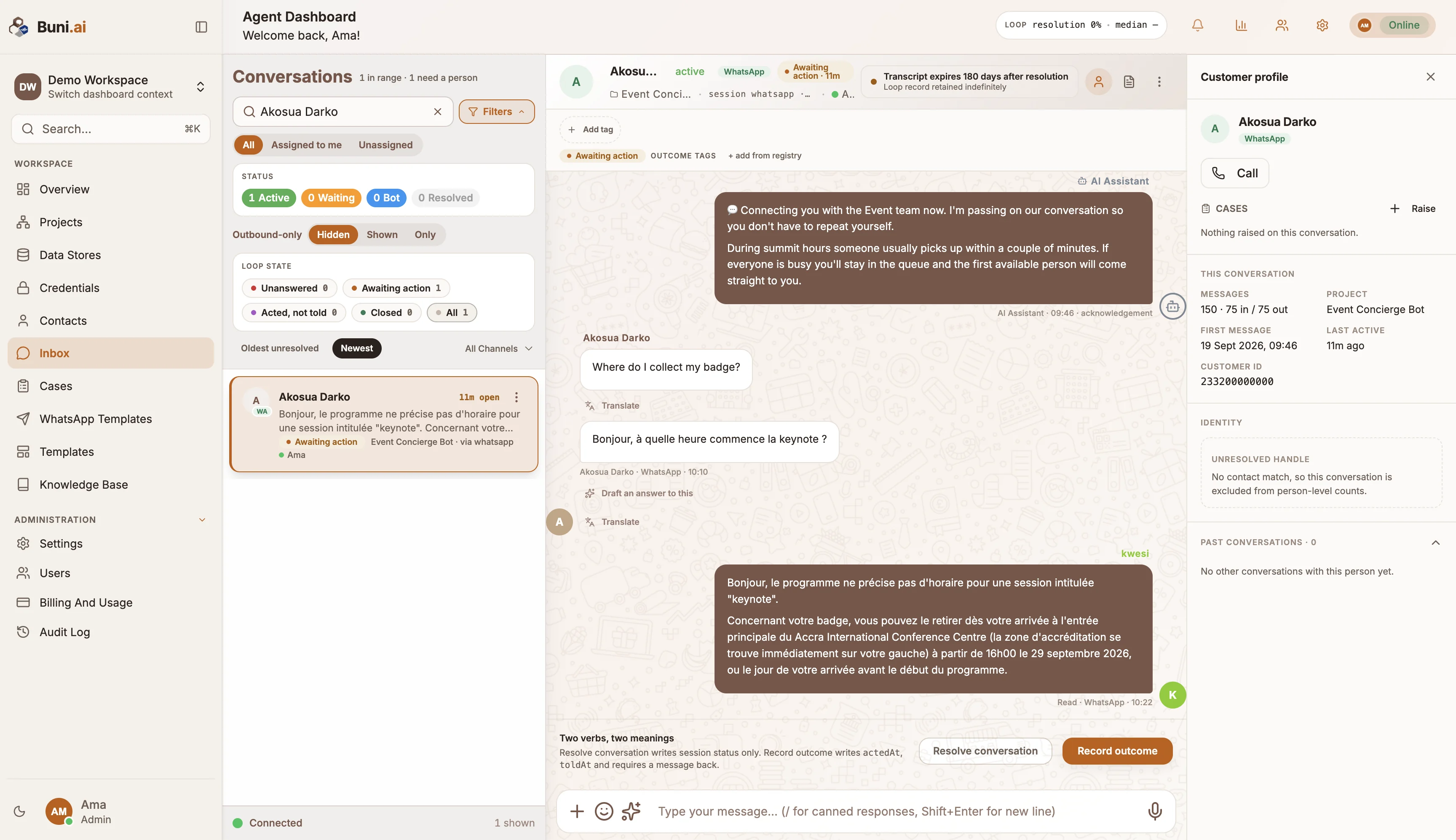
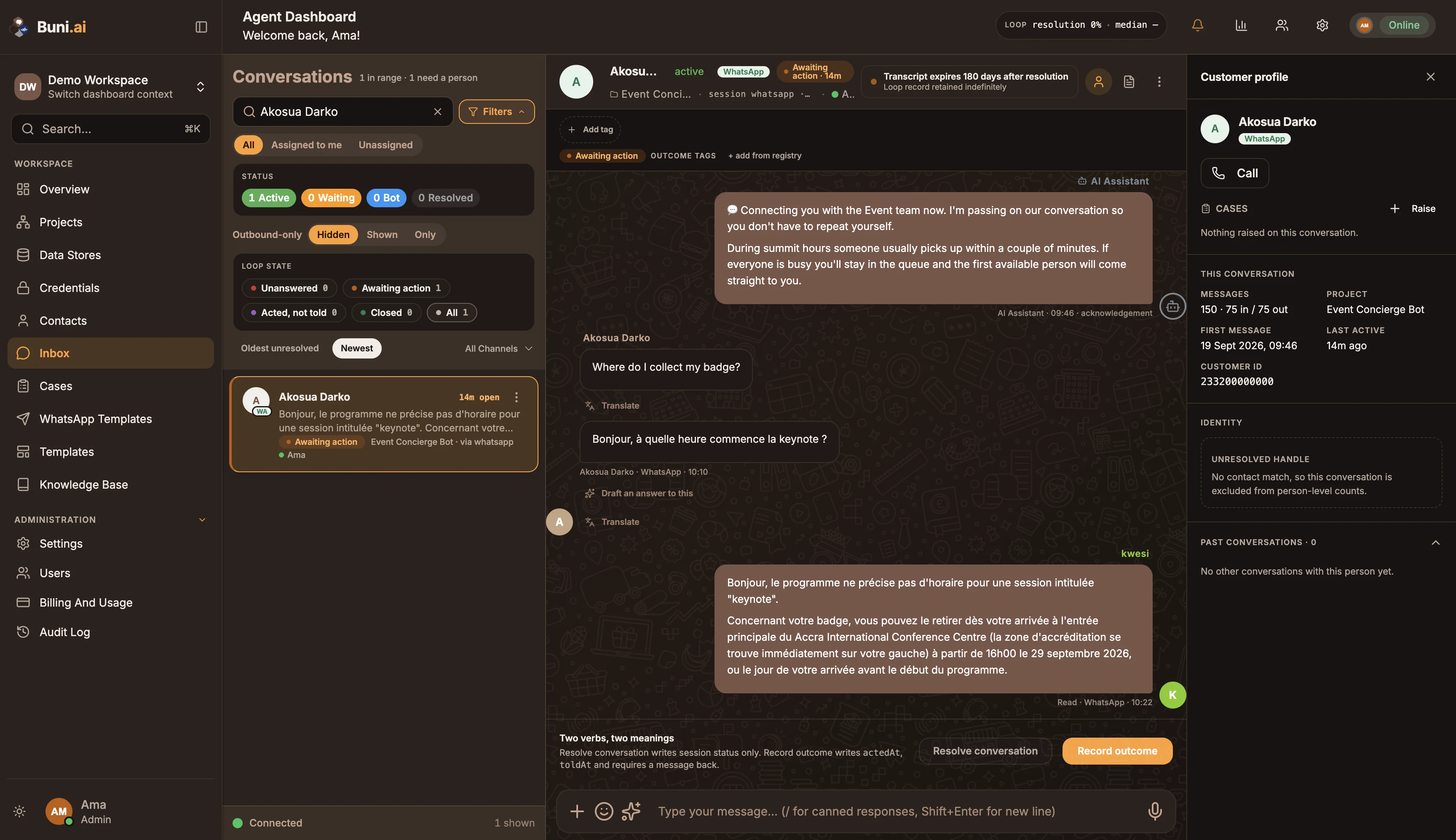
The Inbox page is titled Agent Dashboard and has three areas:
| Area | What it holds |
|---|---|
| Conversations (left) | The queue: search, filters and one row per conversation. |
| Conversation (middle) | The transcript, the composer and the footer actions for the selected conversation. |
| Side panels (right) | Customer profile and Internal notes, opened from the conversation header. |
The header also holds the loop readout (resolution rate and median time to resolution), notifications, Analytics, Manage Agents (admins and supervisors only) and Settings. On a phone the list and the conversation are separate screens; use Back to conversations to return to the list.
Which conversations appear
| Project type | What reaches the Inbox |
|---|---|
| Chatbot | Every chat session. A chat is handled by the bot until it is handed to a person, usually by a Live Chat node. |
| USSD | Sessions that left a report. The caller has already hung up, so there is no composer; you claim the report and reply by SMS. |
| Voice (IVR) | Calls, joined to their transcripts. As with USSD, any reply goes out as a new contact after the call. |
Each row shows the customer, a channel badge, the latest message, the project, the loop state, the assigned agent, up to three tags and a CSAT score once the customer has rated the conversation.
Conversation status
Every conversation has one of four statuses. These are also the Status filter chips.
| Status | Meaning |
|---|---|
| Active | An agent has the conversation. |
| Waiting | The customer asked for a person and nobody has accepted yet. Waiting rows show an Accept Chat button. |
| Bot | The bot is handling it. |
| Resolved | Wrapped up. Hidden by default. |
By default the queue shows Active, Waiting and Bot. Select Resolved to include resolved conversations. When nothing needs attention, the list shows Queue is clear.
Filter and sort the queue
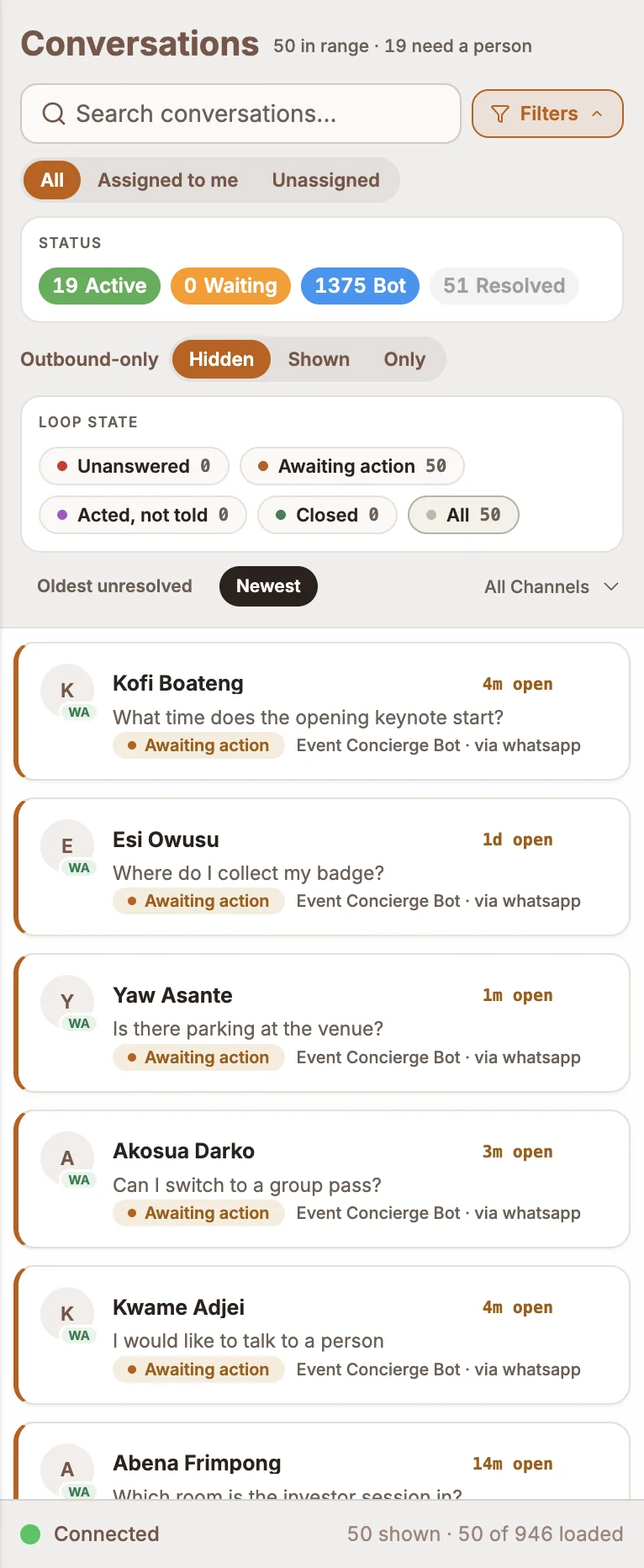
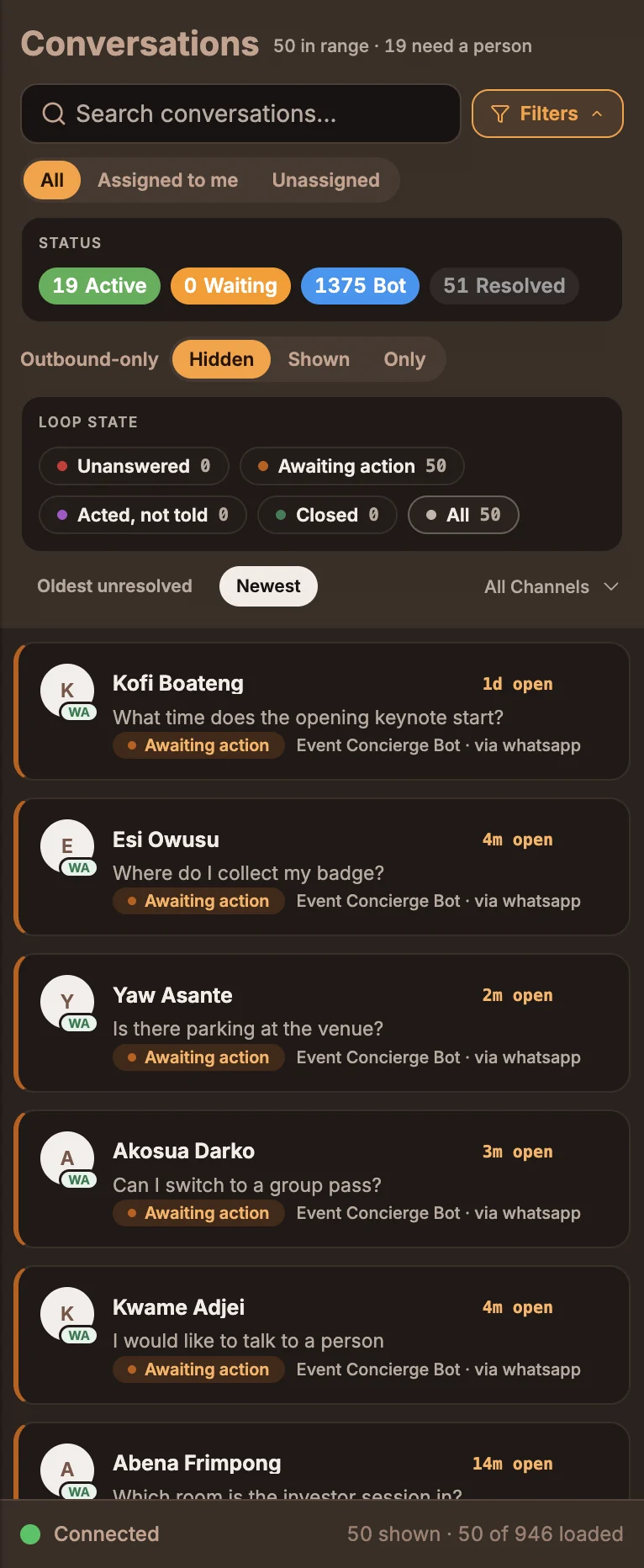
Type in Search conversations... to search, and use the assignment switch above the list:
| Option | Shows |
|---|---|
| All | Everyone's conversations. |
| Assigned to me | Conversations assigned to you. |
| Unassigned | Conversations with no agent. |
Select Filters for the rest:
- Project and Tags: limit the list to one project or one tag. The project chips appear only when the list holds conversations from more than one project, and the tag chips only once a conversation has a tag.
- Status: the four status chips above, each showing a count.
- Loop state: Unanswered, Awaiting action, Acted, not told or Closed. See Resolving conversations.
- Outbound-only: conversations that exist only because you messaged someone (a broadcast or reminder) and they have not written back. Hidden (the default) keeps them out of the queue, Shown includes them and Only shows just those.
- Sort: Newest or Oldest unresolved.
- Channel: All channels or one channel.
Active filters appear as chips you can remove one at a time, or all at once with Clear all. Filters are kept in the page URL, so you can bookmark or share a filtered view such as your own queue.
Unread messages
The Inbox item in the sidebar shows a badge with the number of messages that have arrived since you last looked. Each row also shows its own unread count. Opening a conversation marks it read for you, and the read is saved, so the count stays cleared after a reload.
Other agents on the same conversation
When a teammate has the same conversation open, the header shows Also viewing: with their name, so two people do not answer at once.