
Automation
Build workflows that start from a schedule, a webhook, a form or an app event, and run without a conversation.
An automation is a workflow with no one on the other end of a chat. Something happens — a clock ticks, an HTTP request arrives, someone submits a form, a record changes in an app — and Buni.ai runs your nodes from start to finish, then records the result.
Use an automation when the work is triggered by an event rather than by a customer message: sending reminders, syncing records between systems, notifying a team when a payment fails, or processing form submissions.
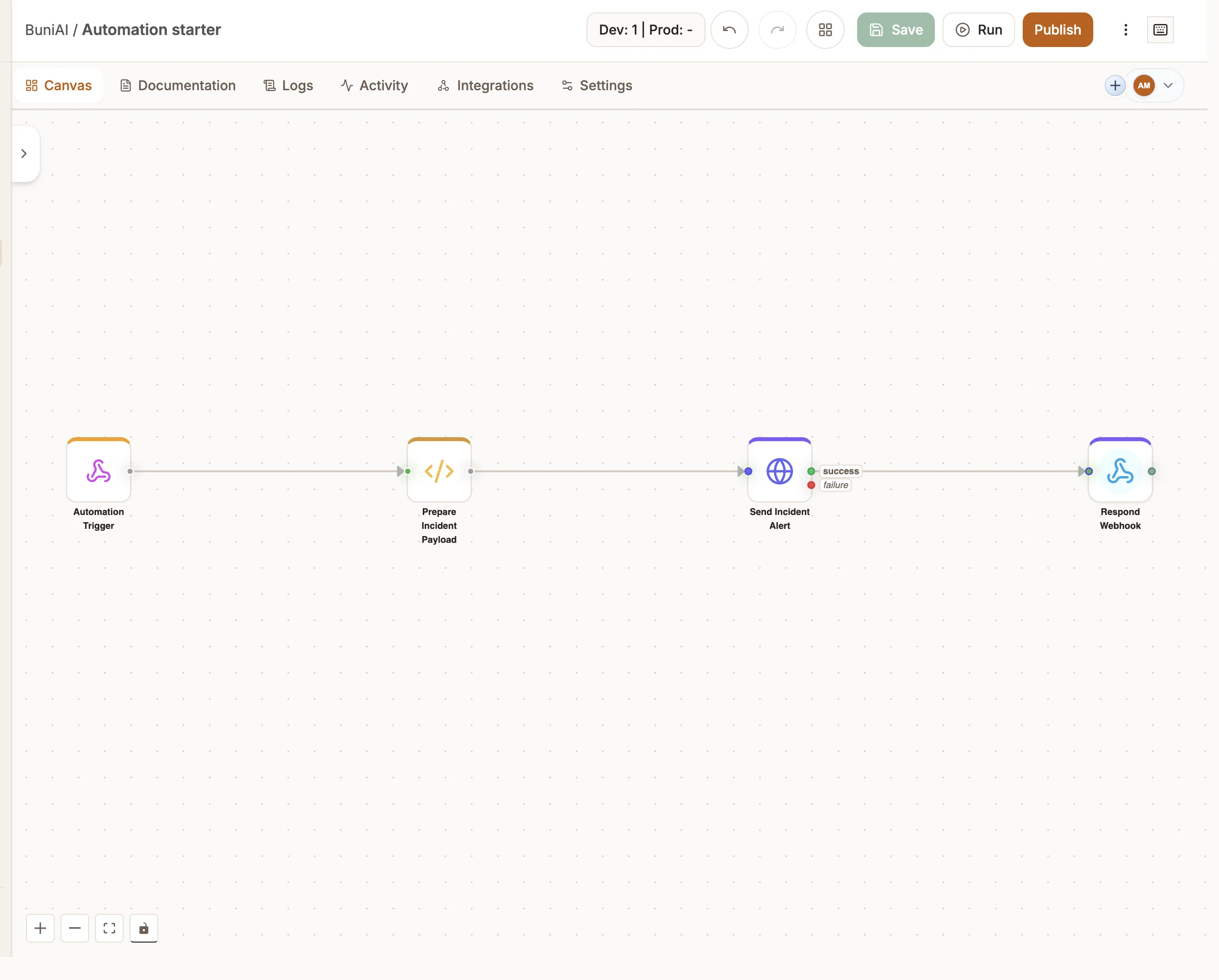
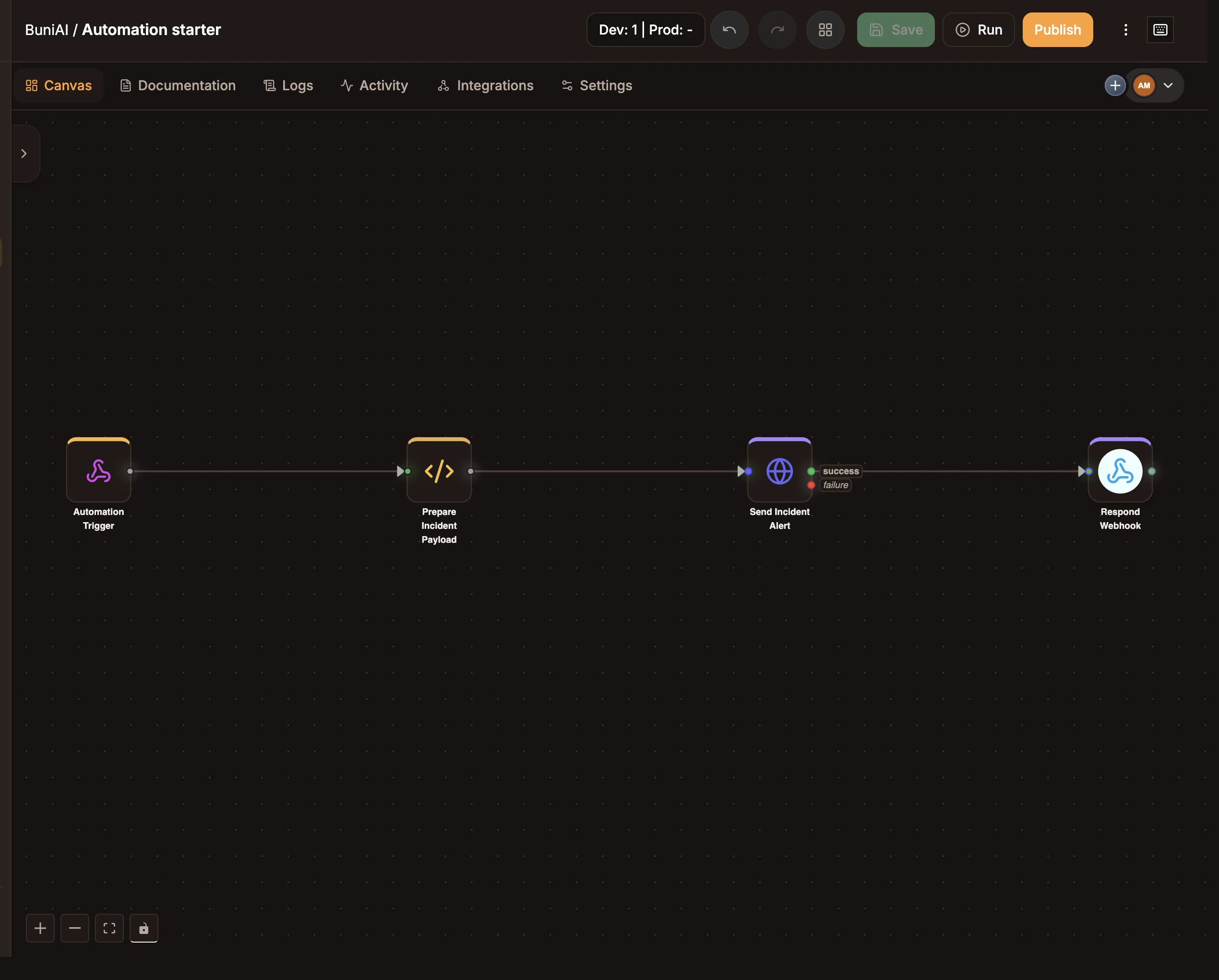
How an automation differs from a chatbot
| Chatbot | Automation | |
|---|---|---|
| Starts from | A customer message on a channel | A trigger: schedule, webhook, manual run, form, error or app event |
| Waits for a reply | Yes, between turns | No. It can pause on a Wait or Approval node, but never for a customer to type |
| Test button | Simulate | Run |
| Where runs are listed | The Logs and Activity tabs | The Activity tab |
Triggers
Every automation starts from at least one trigger. The trigger decides when a run starts and what data the run receives as its input.
| Trigger | Starts a run when |
|---|---|
| Schedule | A timetable fires: every hour, day, week, month or a cron expression |
| Webhook | An HTTP request reaches the trigger's unique URL |
| Manual | You press Run in the editor |
| Form | Someone submits the trigger's hosted web form |
| Error | Another workflow run in the same project fails |
| App triggers | A connected app reports an event (Stripe, GitHub, Shopify, Slack, Telegram) or a poll finds a change (Sessions, Data Store, Google Sheets, Airtable, HubSpot) |
See Triggers for each one's settings. Error and app triggers are added from the Triggers group of the node palette.
The node palette
Automations use the same logic, data and integration nodes as chatbots, plus two nodes that only make sense without a conversation: Loop and Parallel. The Reply and Live Chat nodes are not available, because there is no conversation to reply to.
Triggers
Conversation
AI
Logic
Data
Integrations
How a run works
A trigger fires
The trigger's payload becomes the run's input. Nodes read it as input or payload, for example input.email for a webhook body field.
Nodes run in order
Each node reads from the input and from state, and writes its result back to state under its output variable. Branching nodes such as Router, Filter and Approval choose which edge to follow.
The run may pause
Wait and Approval pause the run durably. The run shows as Waiting in the Activity tab and resumes later, even after hours or days.
The run finishes
The run ends as Succeeded or Failed. Every run, its input, its result and a step-by-step trace are kept in the Activity tab. See Runs and logs.
Test and production
Every automation has two environments:
- Staging (shown as Simulator in the Activity tab) runs your current draft. Use it while building, from the Run button or a trigger's test URL.
- Production runs the published version. Production URLs and schedules only work after you publish the project.
Publish after every change you want live
Editing the canvas changes the draft only. Production keeps running the last published version until you publish again.