
Create a project
Create a project by describing it for AI to draft, starting from a template or starting blank, and choose its channel and organization.
A project is one app or workflow. You create it from the New project dialog, which asks what it should do, what to start from and which channel it runs on.
Before you start: make sure the organization you want the project in is selected. Projects are created in the organization shown at the top of the sidebar; select it to switch organization.
Plan limits
Each plan limits how many projects an organization can have, and the Free plan allows very few. When you reach the limit, New project opens the upgrade dialog instead. See Billing and usage.
Open the New project dialog
Select Projects in the sidebar, then New project. You can also start a project from the Templates page, or from More Options (the three-dot menu) › New Project while another project is open.
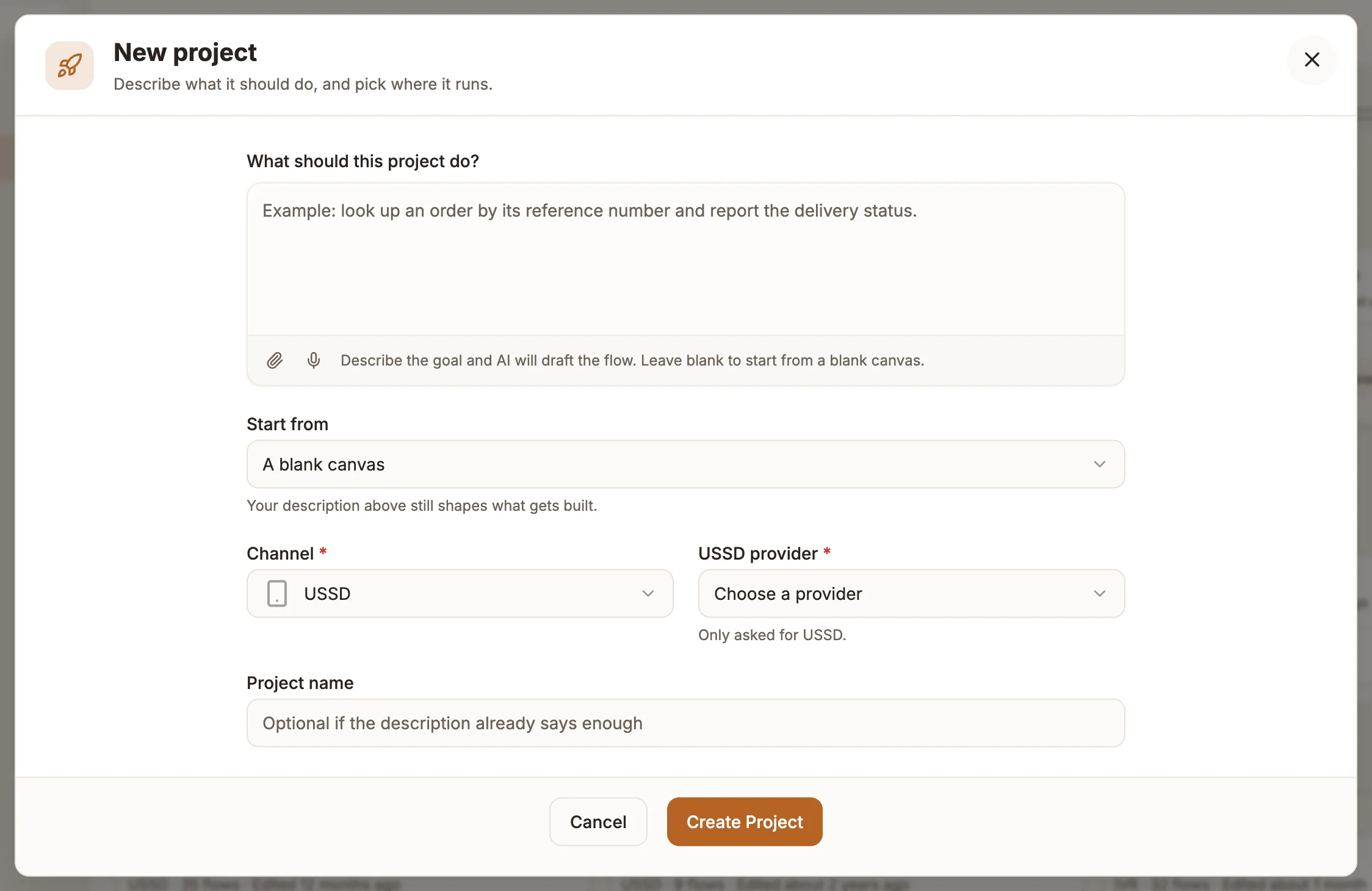
The fields
| Field | What it does |
|---|---|
| What should this project do? | Optional. Describe the goal in your own words. If you write anything here, AI drafts the flow for you. Leave it blank to start without AI. Use the microphone button to dictate, where your browser supports it. |
| Start from | A blank canvas or A template. With a template, a searchable list of templates for the selected channel appears. |
| Channel | Required. The project type: USSD, Chatbot, Voice (IVR) or Automation. SMS - coming soon is listed but cannot be selected yet. See Choose a project type. |
| USSD provider | Required for USSD projects only: the provider whose short code will carry your app. |
| Project name | Optional when you have written a description, because a name is derived from it. With a template selected, it defaults to the template's name. |
The main button changes with your choices:
| Button | When |
|---|---|
| Create with AI | You wrote a description and are starting from a blank canvas. |
| Create from Template | You picked a template. |
| Create Project | No description and no template. |
Describe it and let AI draft the flow
Describe the goal
Write what the project should do, who uses it and what should happen at the end. Specific descriptions give better drafts: "Look up an order by its reference number and report the delivery status" works better than "order bot".
When you write something, the dialog shows AI will draft this flow for you.
Choose the channel
Set Channel, and USSD provider if you chose USSD. Leave Start from on A blank canvas.
Create it
Select Create with AI. A progress bar shows while the project is created, then the project opens on its canvas with Buni, the AI assistant, open beside it. Buni may ask a few clarifying questions, then builds the flow from your description.
You can keep refining the flow by asking Buni for changes. See AI assistant.
Start from a template
- Set Channel first. The template list only shows templates for that channel.
- Set Start from to A template.
- Search with Search templates if you need to, then select a template. Each card shows what the template contains, such as "3 menus · 2 routers".
- Check the Starting from banner names the template you want. Select Clear to choose another.
- Optionally, change Project name, then select Create from Template.
Your description, if you wrote one, is saved as the project's description. See Templates.
Start blank
Leave the description empty, keep Start from on A blank canvas, choose the Channel and select Create Project. Each type starts with a small working flow rather than an empty canvas:
| Type | Starter flow |
|---|---|
| Chatbot | A Trigger on web chat, a Simple Greeting intent and a Hello Response reply |
| USSD | A Start menu with a welcome message |
| Voice (IVR) | An Incoming Call greeting, a two-option Main Menu, two messages and an End Call |
| Automation | A webhook Automation Trigger, a Function that prepares a payload, an API call and a Respond Webhook |
Replace or edit these nodes to build your own flow. See Building flows.
If creation fails
The dialog stays open with your entries and shows the reason above the buttons, so you can fix it and try again. Common messages:
| Message | Fix |
|---|---|
| Project type is required | Choose a Channel. |
| USSD Provider is required for USSD projects | Choose a USSD provider. |
| This project type is coming soon and cannot be created yet | Choose another channel. |
| Please select a template | You chose A template but did not pick one. |
After you create it
The project opens on the Canvas tab. From there: