
Simulators
Test a project's Draft version before anyone else sees it, with the chat simulator, USSD phone emulator, call simulator or automation run panel.
Every project type has a built-in simulator that runs your Draft version, the one you are editing, without affecting real users. Select Simulate in the action bar (Run in automation projects) to open it.
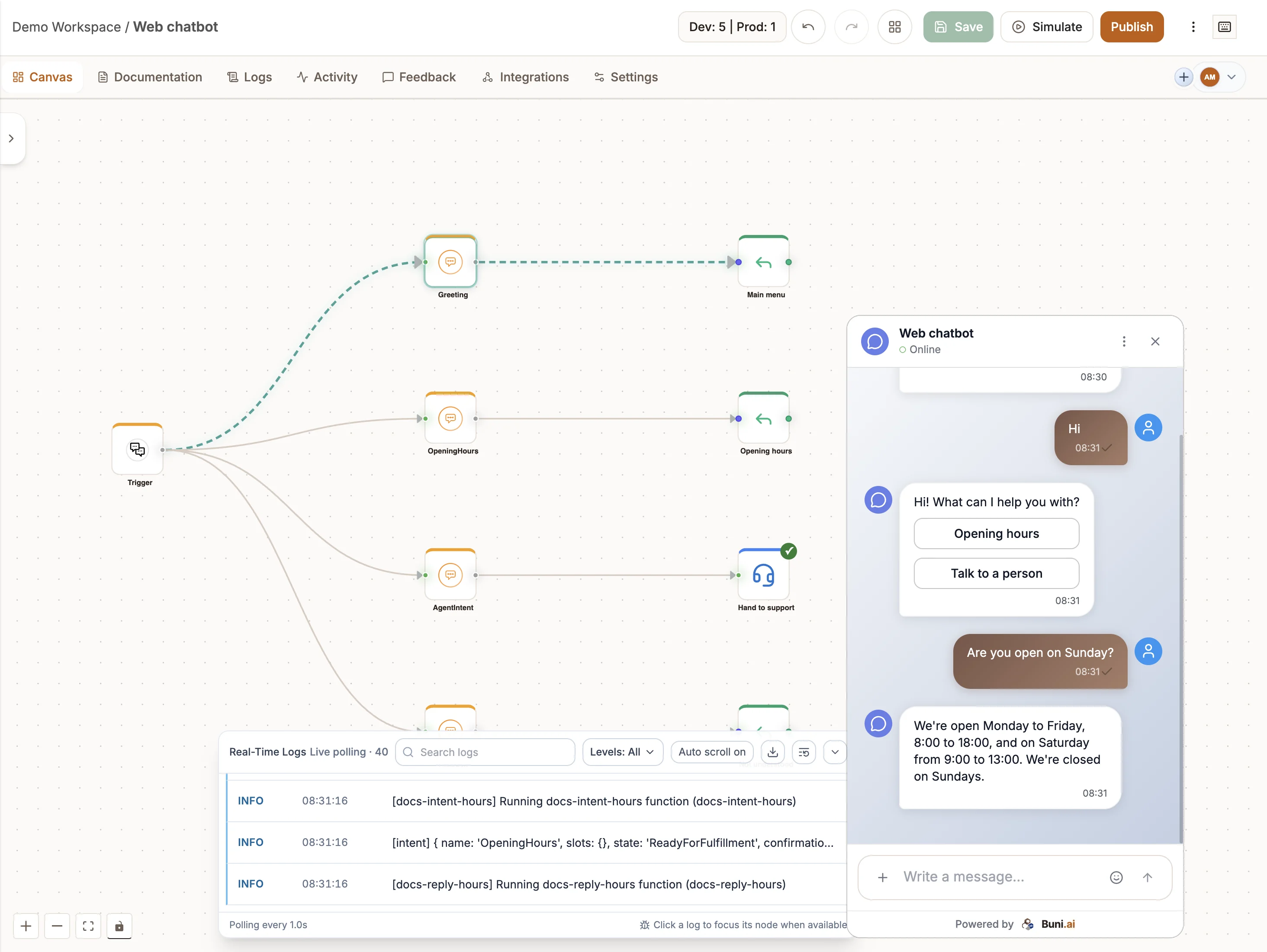
While a simulation runs, the canvas highlights each node as the run reaches it, so you can follow the path the flow takes and spot where it goes wrong.
Save first
Simulators run the Draft version. Select Save before you test so the simulator runs your latest changes.
Chatbot: chat simulator
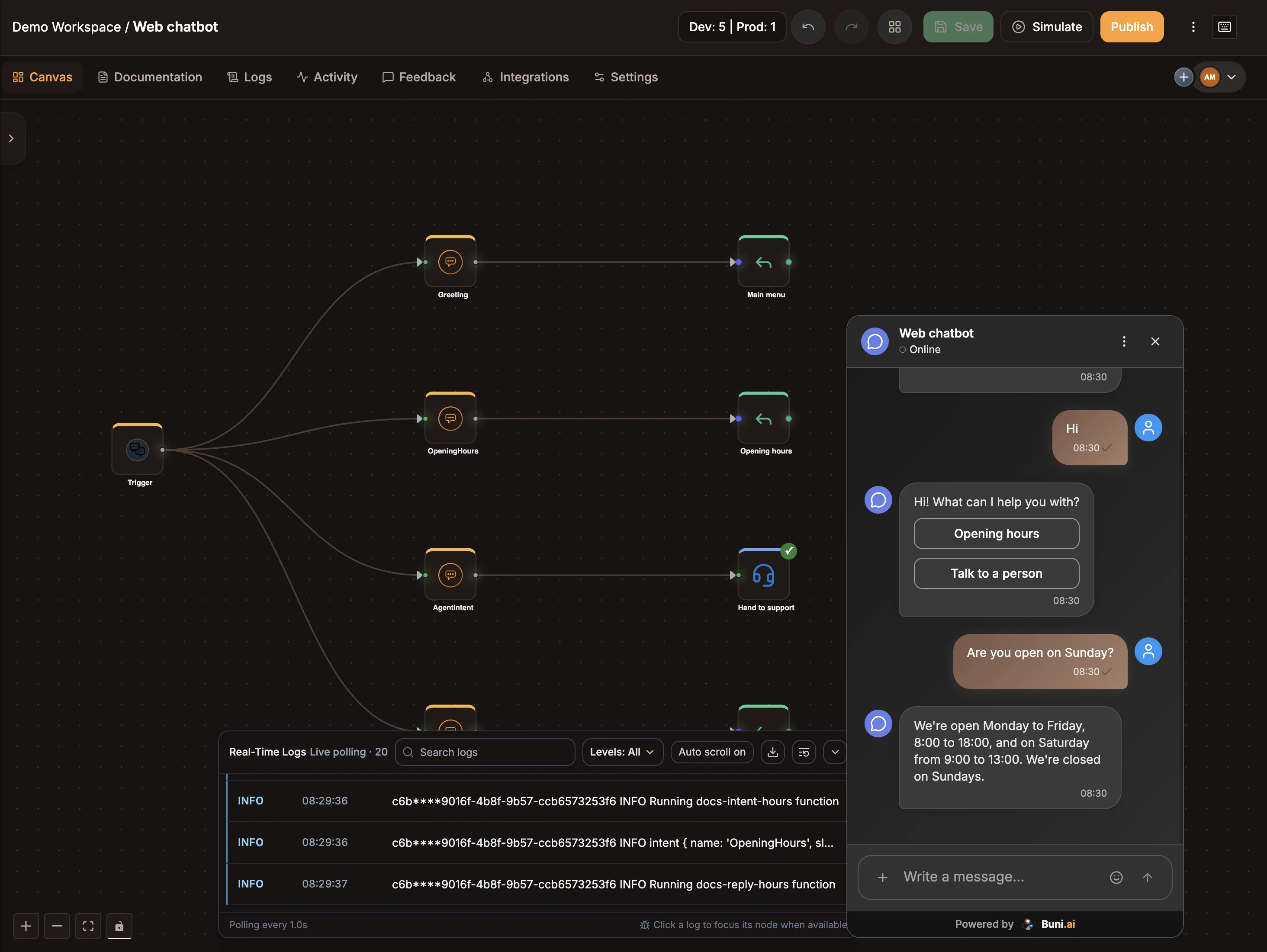
The chat simulator is the same chat window your users get from the web chat widget, opened over the canvas.
- Select Simulate.
- Type into Write a message... and send, or tap any buttons and quick replies the bot shows.
- Watch the Real-Time Logs panel docked under the canvas.
The simulator can send attachments and emoji like the real widget. Close it with the close button in its header.
USSD: phone emulator
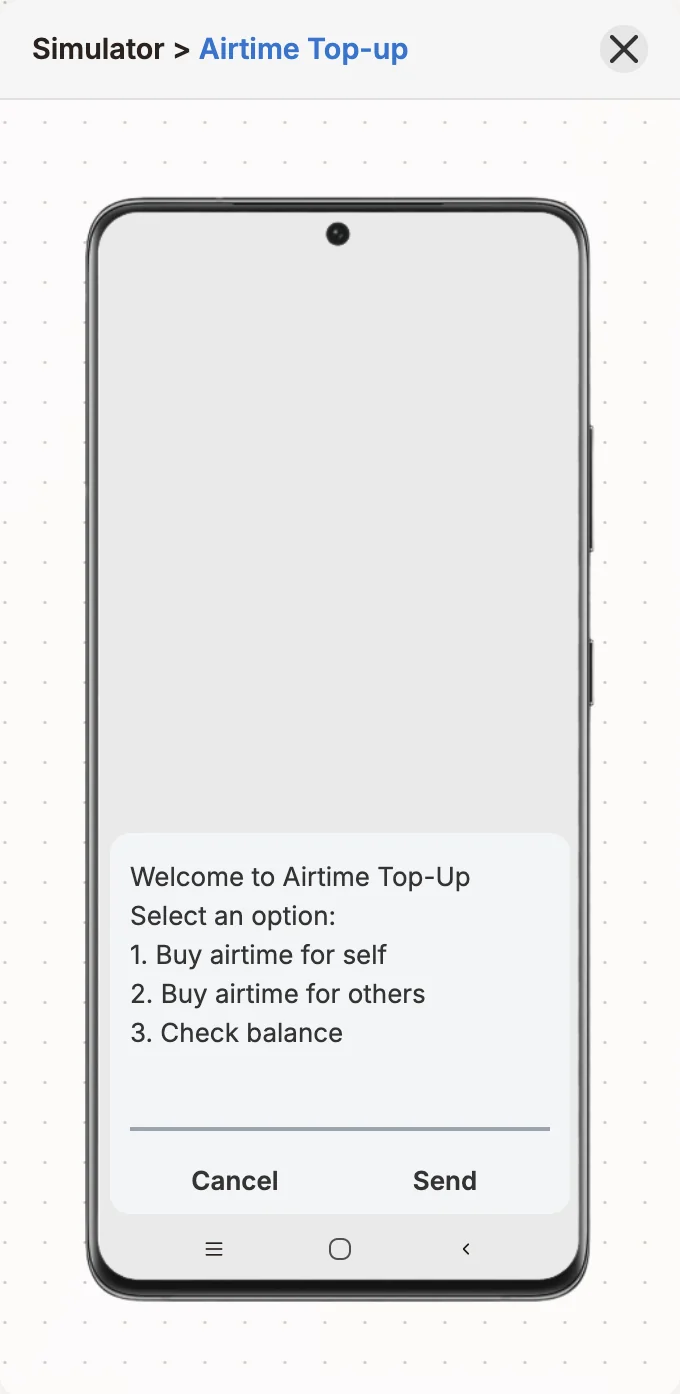
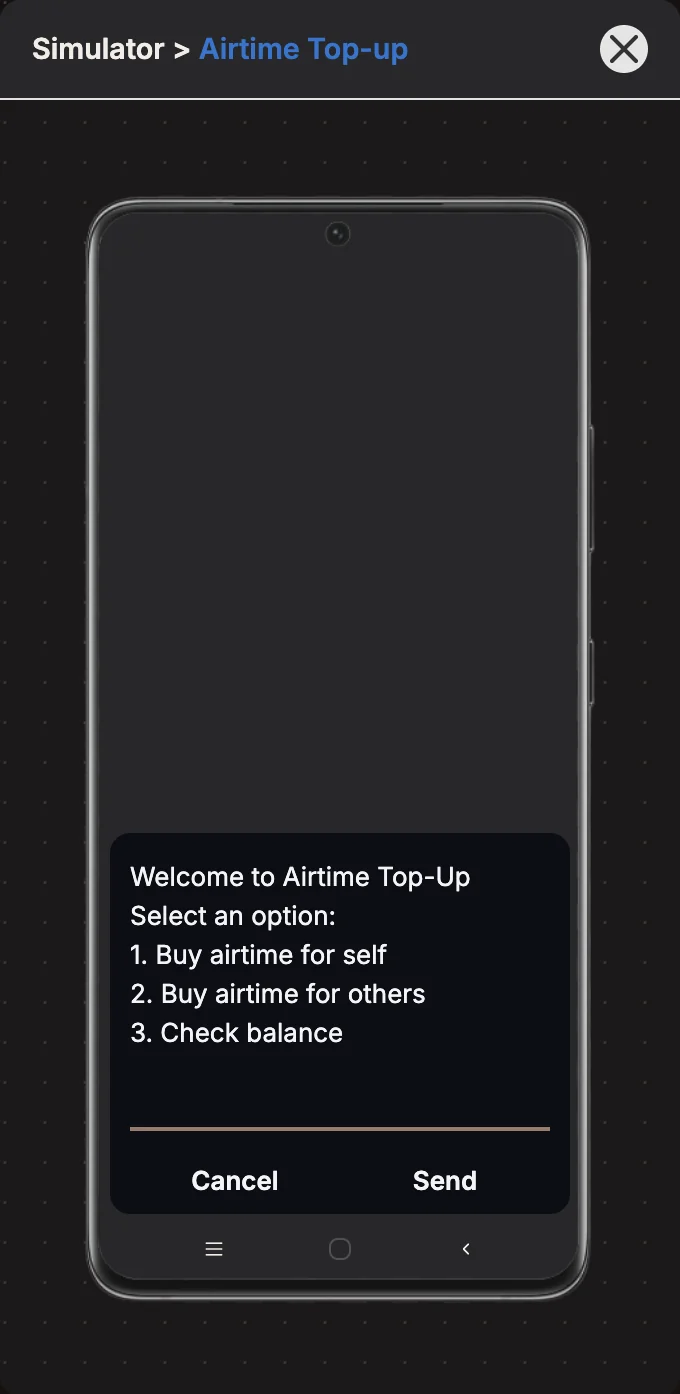
The USSD simulator is a phone on screen, headed Simulator › your project name.
- Select Simulate.
- Optionally, change the phone number the session comes from, in the phone number field at the top of the screen.
- Use the dial pad to enter a code, then press the call button. The code you dial is not checked; any code starts your flow.
- Answer each menu by typing into the prompt and sending, exactly as a user would.
The emulator shows USSD code running... while it waits for your flow. When the flow ends the session, start again from the dial pad.
Voice (IVR): call simulator
The Call simulator places a test call through your flow in the browser, and plays the audio a caller would hear.
- Select Simulate, then Start call.
- When the flow is waiting for input, either press keys on the keypad or type what the caller says into Type what the caller says and select Send.
- When the flow records the caller, select Stop recording to finish.
- When the flow transfers the call, choose what happens next: Answered or No answer for a transfer, and Accept, Decline or No answer for a warm transfer.
Collected so far lists the values the call has gathered. Use Replay this audio to hear a prompt again and the speaker button to mute the simulator. When the call ends, select Call again.
The simulator runs the real voice interpreter, so what you hear is what a caller gets. Simulated calls create no call records, use no call minutes and do not count against your concurrent-call limit.
The softphone is not a simulator
The softphone dock that appears for agents at the bottom right of the app is for answering real calls. To test a voice flow, use the call simulator.
Automation: run panel
In automation projects the button is Run. The first click opens the run panel, titled Automation Payload. Select Run again, in the panel or the action bar, to start a run.
- Enter the test payload. UI Form gives you a field for each value the trigger expects; Raw JSON lets you edit the payload directly.
- Under Request Settings, optionally set Event (it defaults to the trigger key) and choose the Environment: Staging runs the Draft version, Production runs the Live version.
- Check Required Schema Fields. It shows how many required values are missing.
- Select Run.
The panel then shows every step of the run. Filter by All, Success, Error or Running, select View Output on a step to see what it produced, and select a step to jump to its node. Last Result shows the run's final output.
Production runs are real
Choosing Production in the run panel, or selecting Execute Workflow on a published automation, runs the Live workflow. Its API calls, messages and data changes are real.
See Runs and logs.
Real-Time Logs
For chatbot, USSD and voice simulations, the Real-Time Logs panel docks under the canvas and shows each log entry from the simulator session as it arrives.
- Search logs and Filter log levels narrow the list.
- Select an entry to jump to the node that wrote it.
- Download logs saves the session's log, and Clear logs empties the panel.
- Collapse the panel when you need more room for the canvas.
To look back at older simulator runs, open the project's Logs tab and choose the Simulator environment. See Logs and activity.