
Documentation tab
Keep notes, specs and handover docs with the project in a shared rich-text editor, and have Buni write or update them from the flow.
Every project has a Documentation tab: a rich-text document stored with the project. Use it for the things a canvas cannot say, such as what the project is for, who owns it, what each path does, which systems it calls and how to test it.
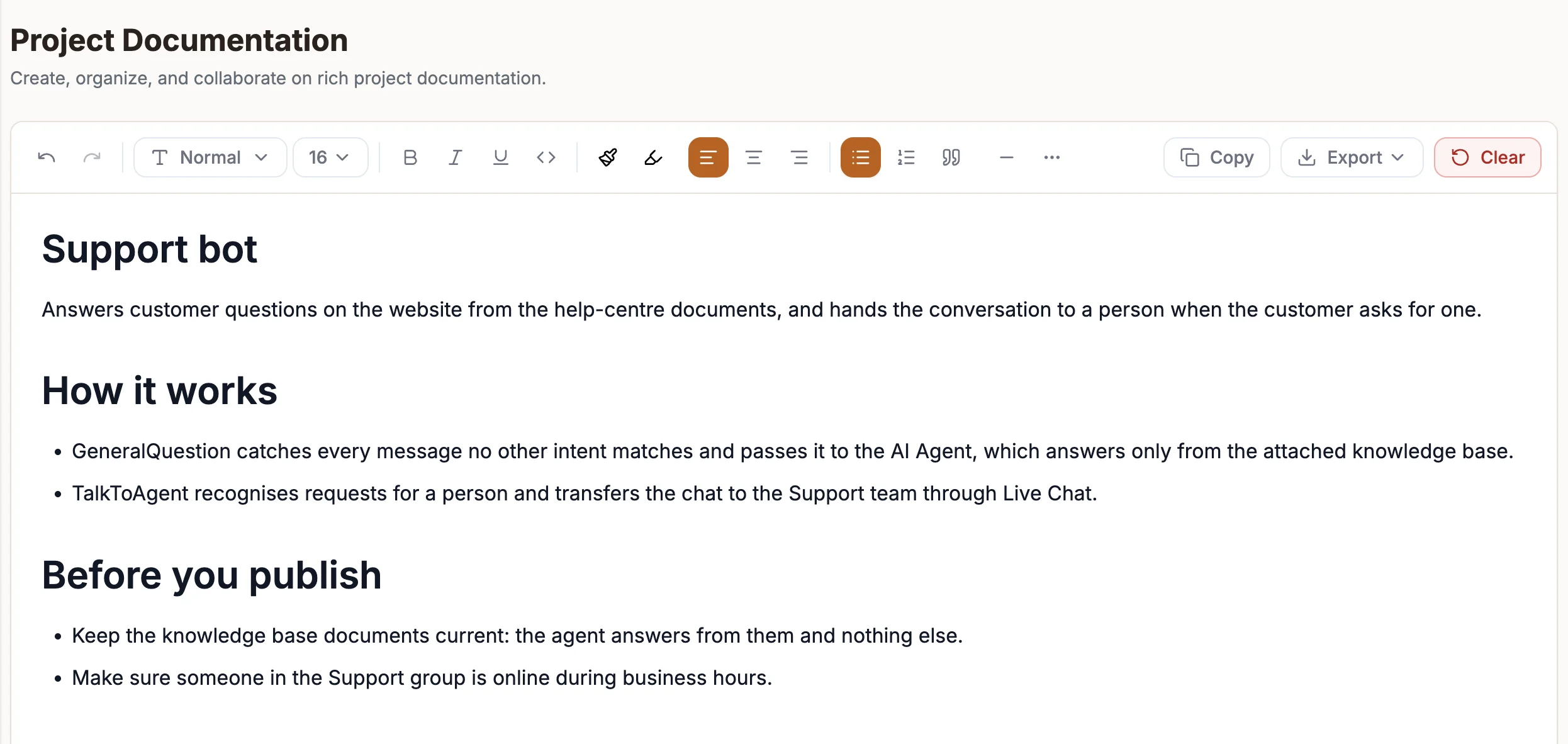
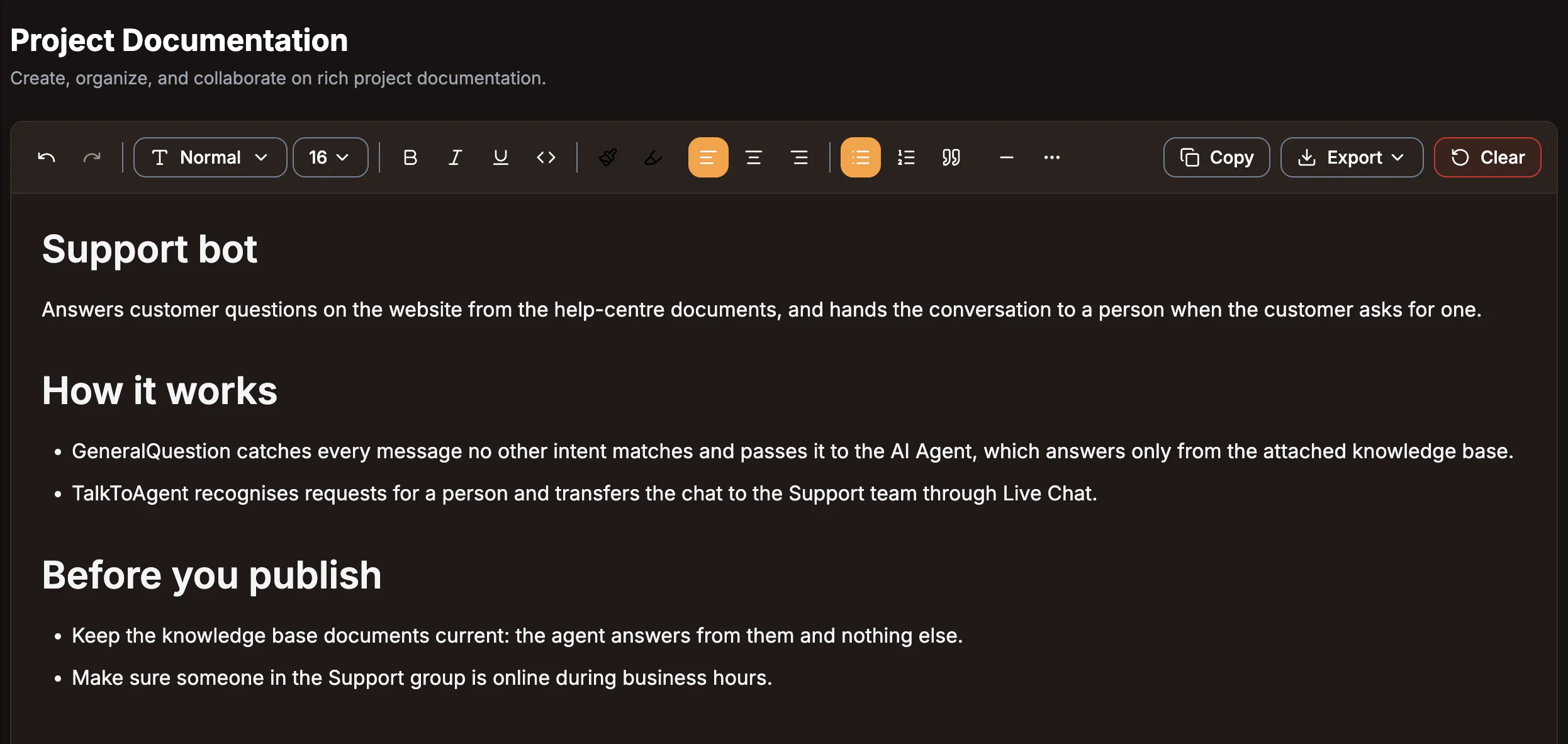
Write and format
Open the project and select the Documentation tab. The page is headed Project Documentation. Click in the editor and start typing.
The toolbar offers:
| Group | Controls |
|---|---|
| History | Undo, Redo |
| Text style | Normal and Heading 1 to Heading 6 |
| Formatting | Bold, Italic, Underline, Inline Code, Text Color, Highlight |
| Alignment | Align Left, Align Center, Align Right |
| Blocks | Bullet List, Numbered List, Quote, Horizontal Rule |
| Actions | Copy, Export, Clear |
Changes save with the project automatically, a moment after you stop typing.
Edit together
When other people have the project open, the document is shared live: you see their edits as they type, with a labelled cursor for each person.
Have Buni write it
Ask Buni, the AI assistant, to document the project, for example "write documentation for this flow" or "add a section on how the payment path works". Buni writes from the flow on the canvas and puts the result straight into the Documentation tab, either adding to what is there or replacing it. Review it like any other draft.
See AI assistant.
Export or copy
- Copy puts the document on your clipboard.
- Export downloads it as Export HTML, Export Text (.txt), Export Markdown (.md) or Export RTF (.rtf).
Clear empties the document.
Clear is not a draft
Clear removes the whole document, and the change saves automatically. Export a copy first if you might need the text again.
Related
Project workspace
A tour of the project screen, covering the action bar, the Canvas, Documentation, Logs, Activity, Feedback, Integrations and Settings tabs, and collaboration.
Simulators
Test a project's Draft version before anyone else sees it, with the chat simulator, USSD phone emulator, call simulator or automation run panel.