
Variables and templating
Read state, the previous node's output and secrets in any field with double-brace templates, and use the variable picker to insert them.
A flow remembers things in state: the phone number a user typed, the balance an API returned, the option they picked. You read state in any text field of a node by writing a template such as {{state.balance}}. When the node runs, the template is replaced with the value.
Writing a variable into state
Most nodes have an Output variable field: "Name this node's result so later nodes can read it." If you name a Menu node's output amount, whatever the user enters is saved as state.amount, and every node after it can read it.
| Node | How it writes state |
|---|---|
| Any node with Output variable | Saves its result under that name |
| Set Fields | Assigns one or more named fields at once |
| Function | Its return value is its result; the code can also read state directly |
| API and Integration | Save the whole response, or capture individual response fields into separate variables |
Output variable names use letters, numbers and underscores only, and cannot start with a number. Pick descriptive names such as transfer_amount or recipient_phone; you will see them again in the picker.
Reading a variable
Wrap the path in double braces:
Hi {{state.firstName}}, your balance is {{state.balance}}.| You write | You get |
|---|---|
{{state.name}} | A value saved in state under name |
{{state.order.id}} | A nested field of an object in state |
{{input}} | The value passed from the previous node |
input is the result of the node directly before this one. State is available everywhere in the session, so prefer state.* when a value has to survive more than one step.
Older syntax still works
Flows built before the double-brace syntax use ${state.name}. Both forms are accepted, and Buni.ai never rewrites the ones you already have. New references inserted by the picker use {{state.name}}, which is the only form voice (IVR) projects resolve. If a USSD, chatbot or automation project was last published before double braces were supported, republish it before relying on them.
Keep templates to plain paths. Voice projects substitute a path with its value and never evaluate an expression, so {{state.total * 2}} does not work there. Do arithmetic in a Set Fields or Function node and read the result.
Router conditions
A Router condition is compiled rather than displayed, so its value field has its own rules. Plain values are compared literally: true, 5000, yes. To compare against another variable, write it in braces: {state.tier} or {{state.tier}} both work. A value that starts with state. or is exactly input is also treated as a reference.
Secrets
Never paste an API key or password into a node. Store it once as a credential and reference it by name:
Authorization: Bearer ${CREDENTIALS.PAYMENTS_API_KEY}Credentials use the ${CREDENTIALS.NAME} form. Only the name is stored in the flow; the value is filled in when the flow runs.
The variable picker
Type {{ (or ${) in any field that supports templates and the picker opens under the cursor.
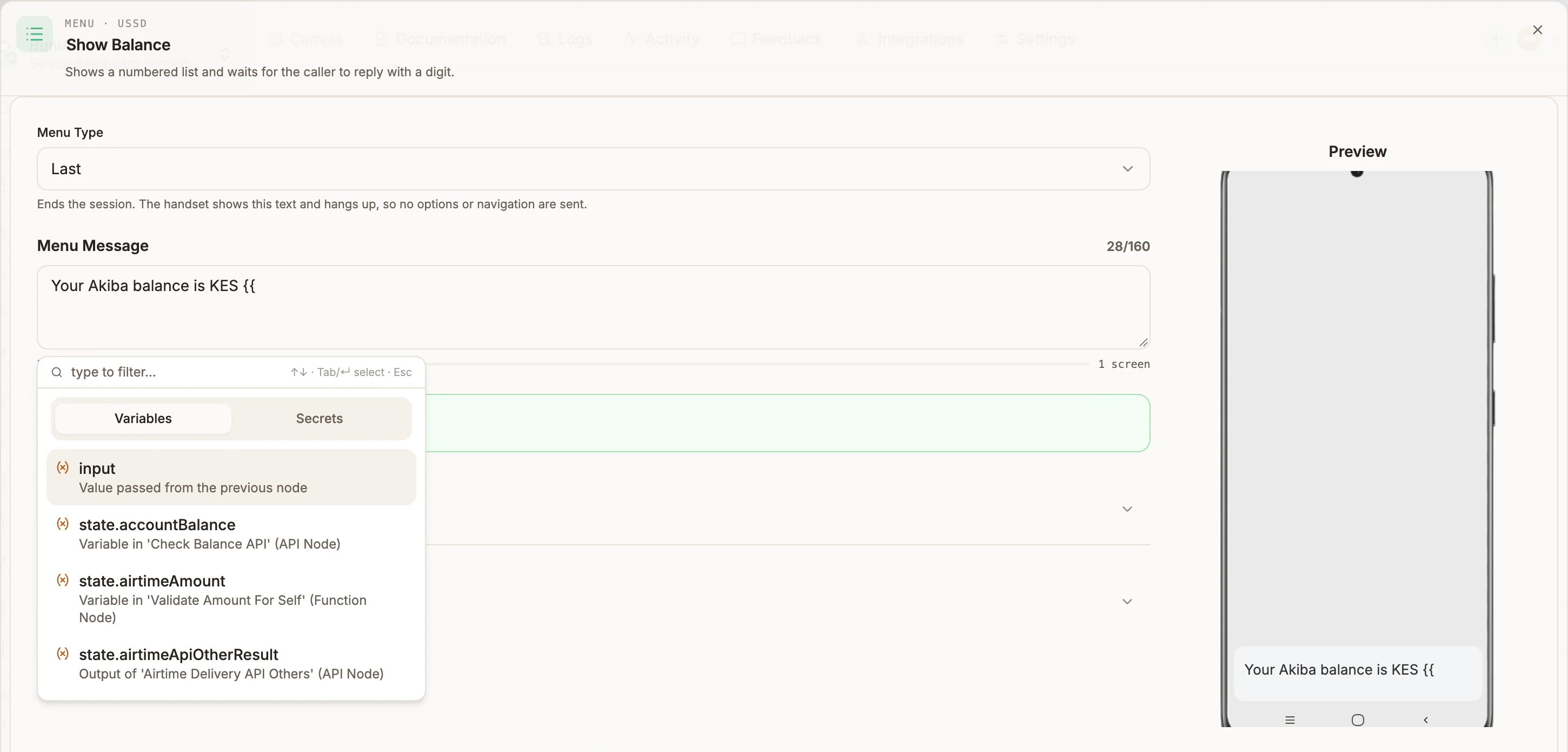
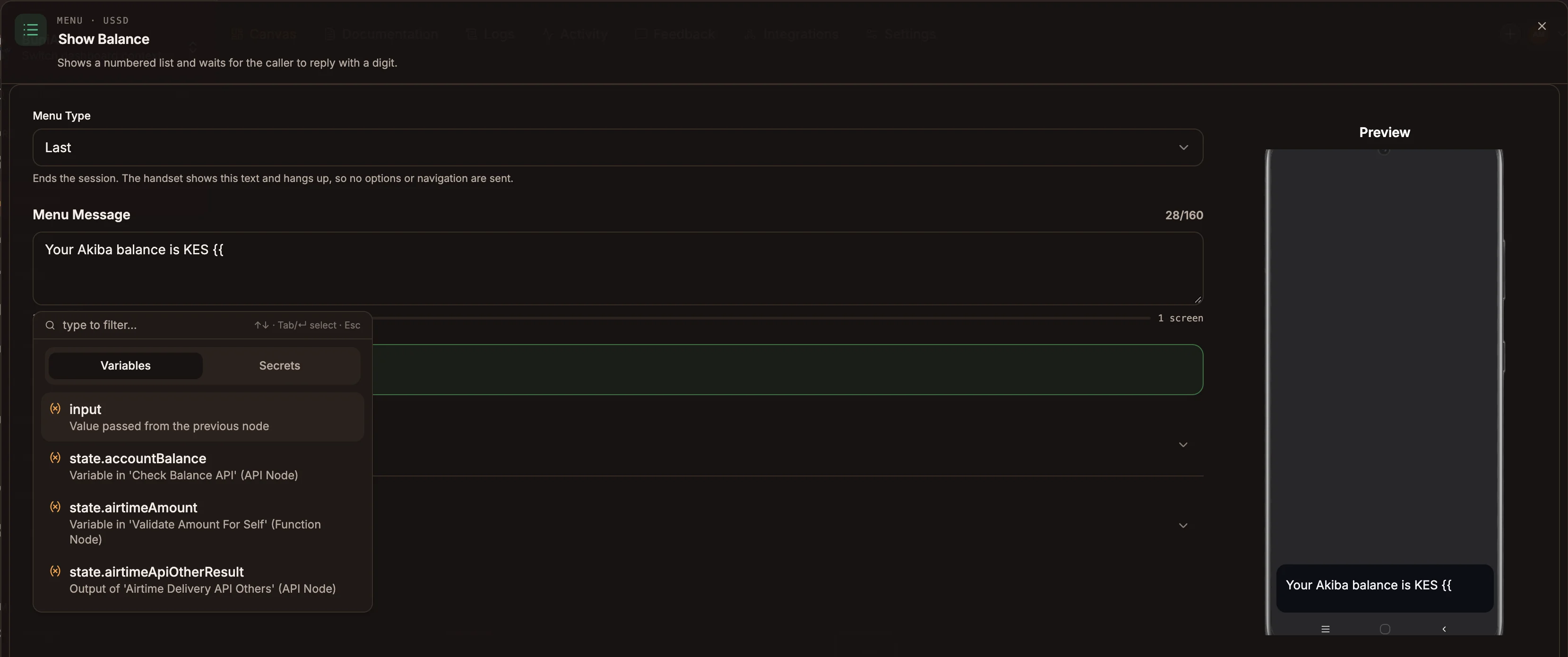
- Variables lists
input, every output variable and state reference used in the flow (with the node it comes from), and the platform variables for your project type. - Secrets lists your workspace credentials. Typing
CREDENTIALSswitches to this tab. - Keep typing to filter. Use the arrow keys to move, Tab or Enter to insert, and Esc to close.
- Create Variable and Create Credential at the bottom add a new one without leaving the node.
Choosing a variable inserts {{state.name}}; choosing a secret inserts ${CREDENTIALS.NAME}.
Chatbot platform variables
In chatbot projects the picker also offers values that describe the current message.
| Variable | What it holds |
|---|---|
intent.name | Name of the recognised intent |
intent.confidence | Confidence score of the intent recognition, 0 to 1 |
intent.inputTranscript | The user's original message that triggered the intent |
intent.state | Intent state: InProgress, ReadyForFulfillment, Fulfilled or Failed |
intent.slots | Slot values extracted from the message |
sessionAttributes.platform | Messaging platform, such as whatsapp, telegram or messenger |
sessionAttributes.sessionId | Session or conversation ID |
sessionAttributes.messageId | ID of the current message |
sessionAttributes.collectedSlots | Slot values collected during the intent |
sessionAttributes.from, sessionAttributes.chat | JSON strings describing the sender and the chat |
requestAttributes.platform | Messaging platform of this request |
requestAttributes.id | The user's ID on the platform |
requestAttributes.username | The user's username, if the platform provides one |
requestAttributes.fullName | The user's full name |
requestAttributes.timestamp | When the message was sent |
requestAttributes.messageId | The platform's ID for the message |
The picker also lists state.last_event, state.last_response, state.last_utterance, state.intent_confidence and state.ai_agent_content under System. The runtime does not currently fill these in, so do not build logic on them. Use intent.confidence and the AI Agent node's own output variable instead.
Troubleshooting
Related
Connections
Join nodes with connections, understand which handles each node has, and route failures and alternative outcomes to their own paths.
Error handling
Keep a flow working when input is invalid or a service fails, with the Error node, failure paths, retries, Filter and automation error workflows.