
Version history
See every saved and published version of a project, compare a version with the current Draft node by node, annotate versions and roll back.
Every time a project's Draft or Live version changes, Buni.ai keeps a snapshot of the flow. Version History lists those snapshots so you can see what changed, leave notes on them and roll back to an earlier one.
USSD projects
An older USSD project gets its version list the next time you publish it; the progress briefly shows Upgrading project environment... while it switches over. Until then, the version badge shows the current numbers but does not open a list.
Open Version History
Select the version badge, the first of the buttons on the right of the action bar, such as Dev: 12 | Prod: 9. Dev is the Draft version number and Prod the Live one. The numbers are version numbers, not counts of nodes, and Prod shows a dash until the project is published.
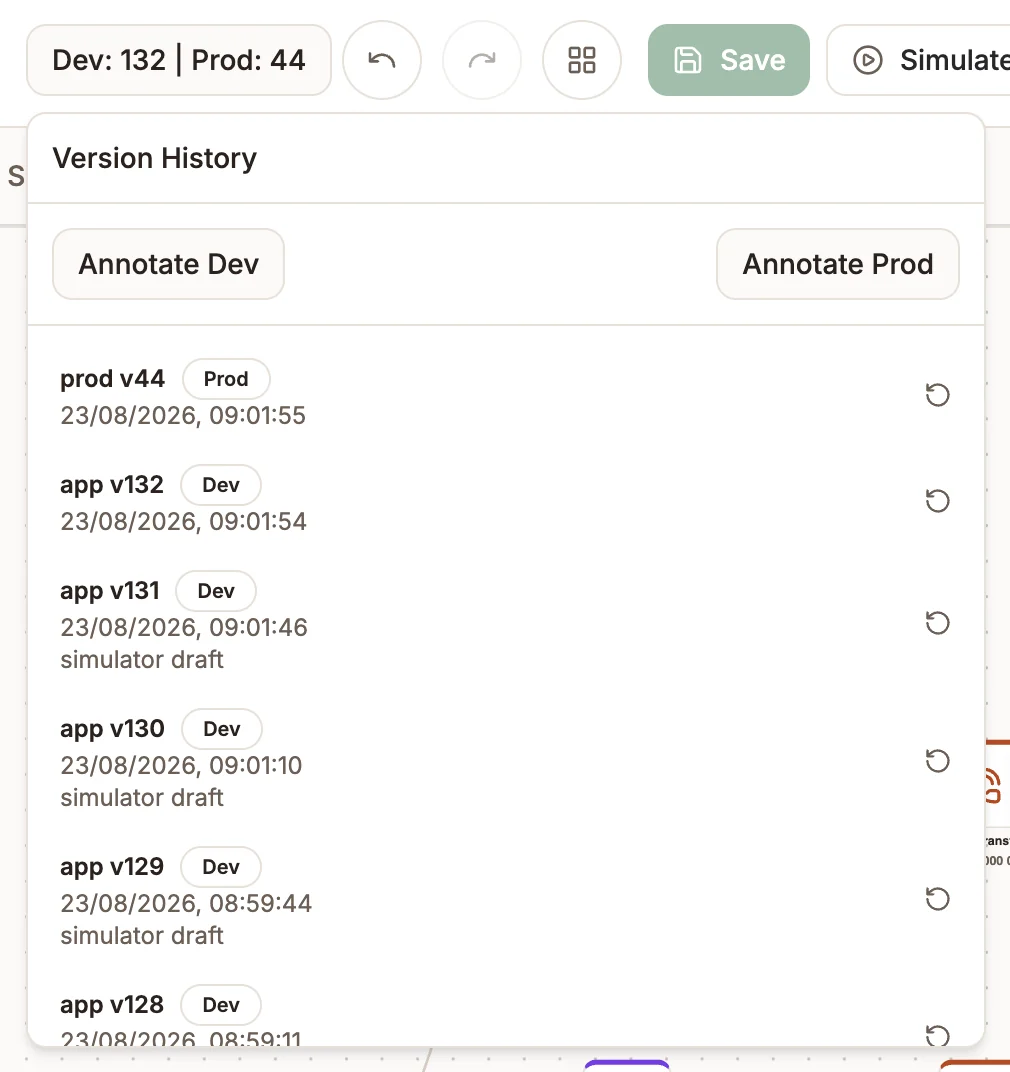
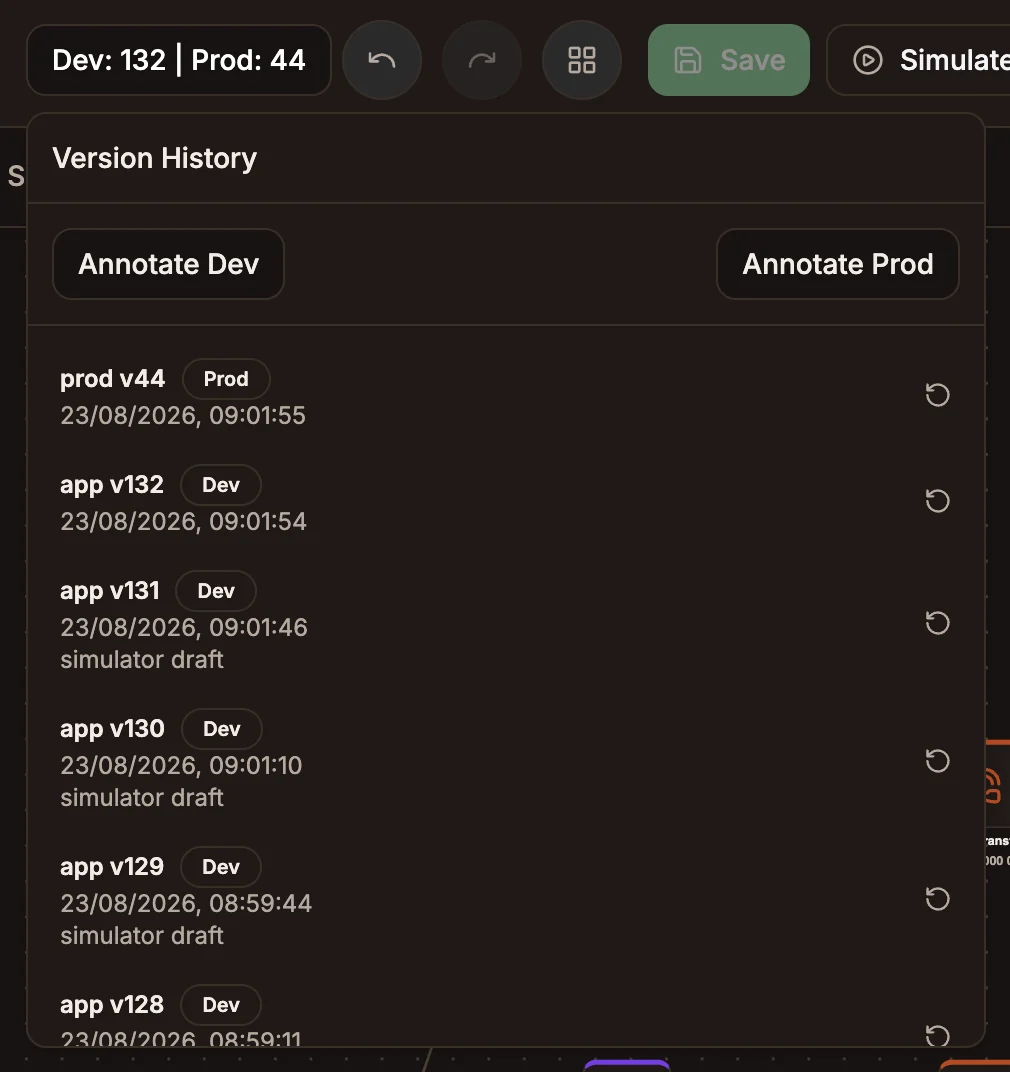
Each entry shows:
- The environment and number, such as
app v12orprod v9, with a Dev or Prod badge. - When it was created.
- Its note, if it has one. Automatic entries carry notes such as "Development update".
Annotate a version
Notes help your team understand why a version exists.
- Select Annotate Dev to note the current Draft version, or Annotate Prod for the current Live version. Annotate Prod is only available once the project has a Live version.
- In Add Annotation, write the note.
- Select Save.
Compare and roll back
Choose a version
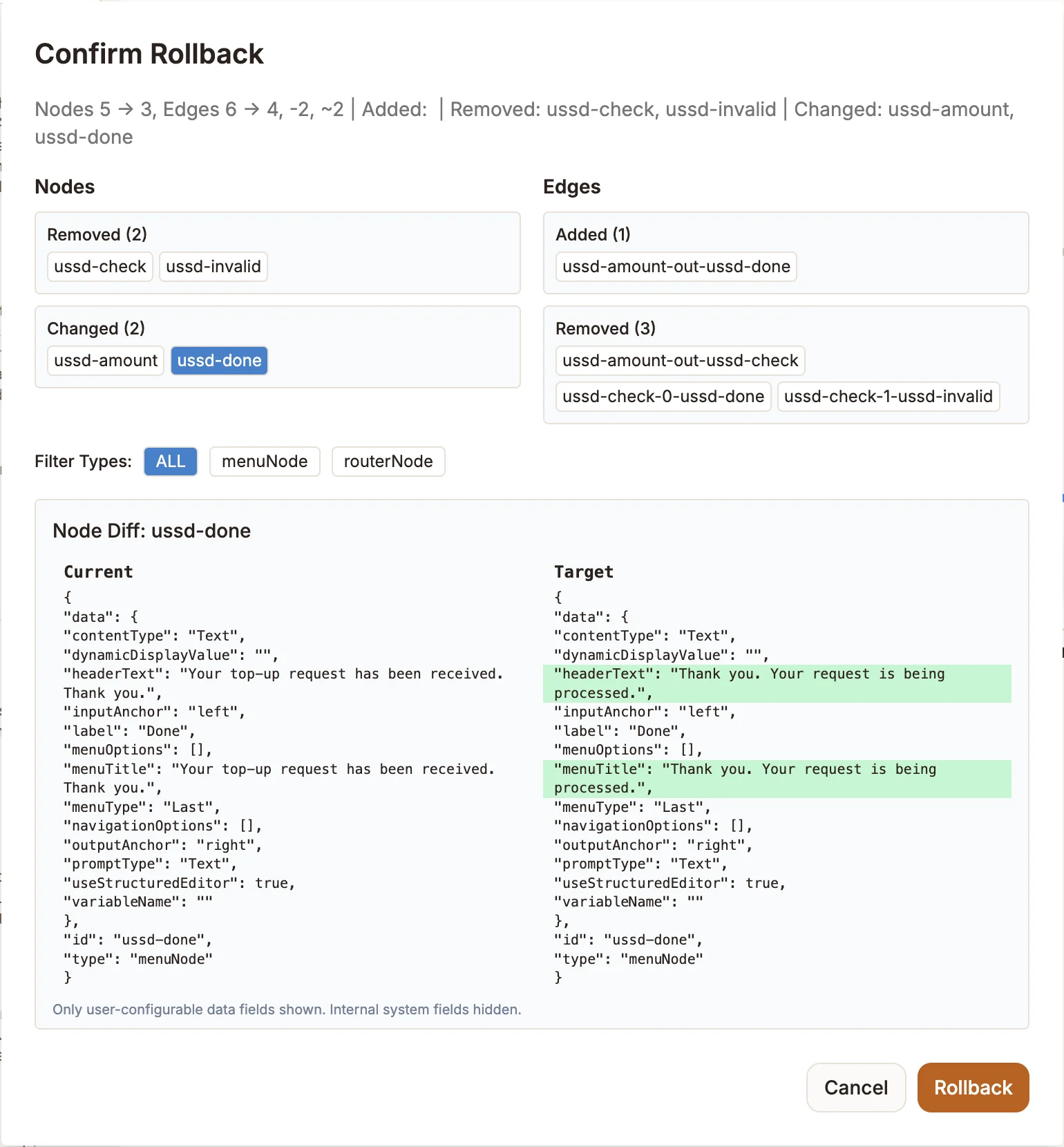
In Version History, select the entry you want to go back to. The Confirm Rollback dialog opens and compares that version with the current Draft version.
Review the differences
The dialog summarises the change, then lists:
- Nodes: node IDs grouped as Added, Removed and Changed.
- Edges: connections grouped the same way.
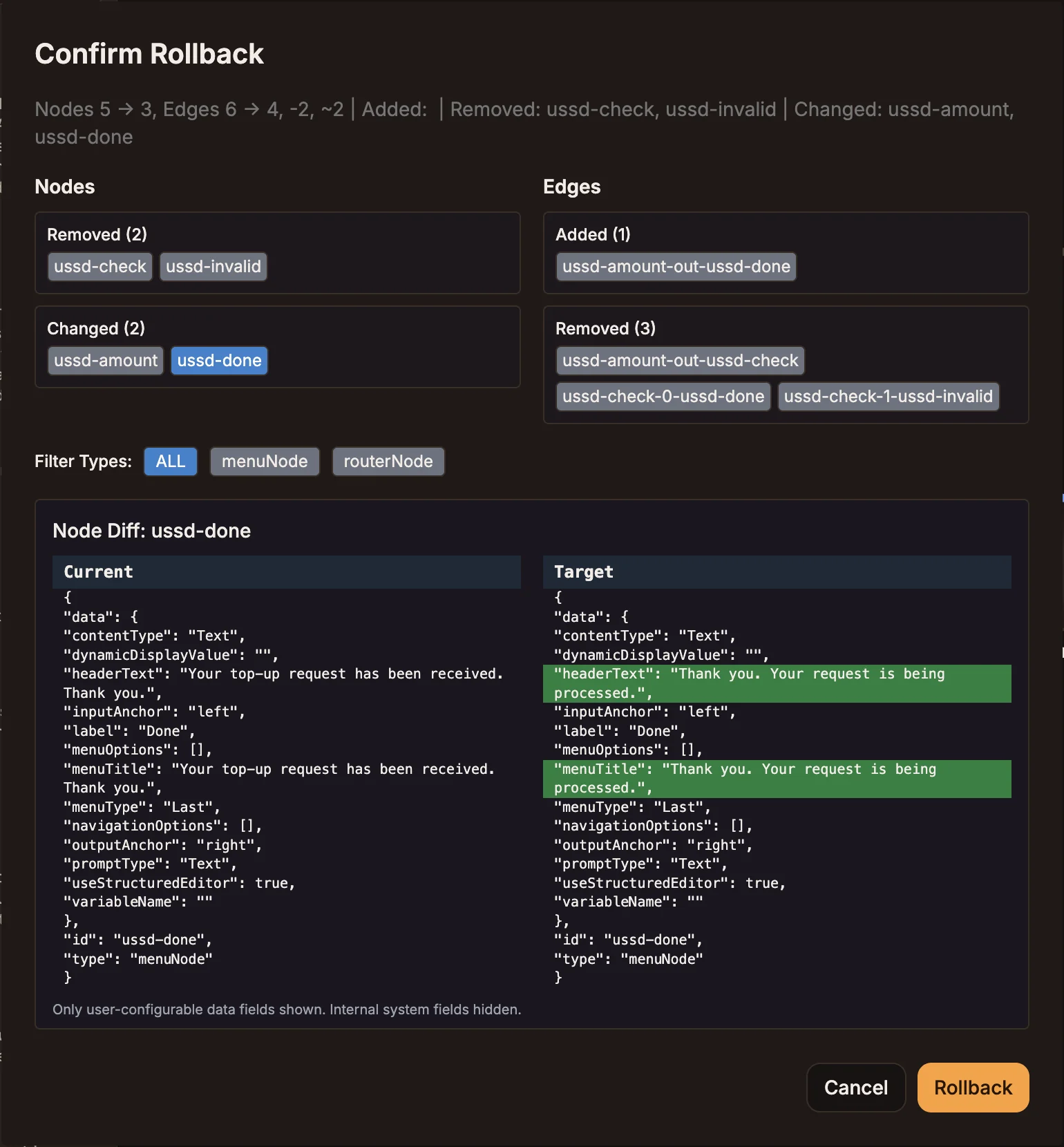
Use Filter Types to show only one kind of node. Select a node ID to open Node Diff, which shows the node's settings side by side, Current on the left and Target on the right, with changed lines highlighted. Only fields you can configure are shown.
Roll back
Select Rollback. In Rollback Notes, optionally say why, then select Save.
Rolling back does two things:
- It restores the canvas to the flow in the version you chose.
- It points that version's environment back at it. Rolling back to a Dev entry changes Draft; rolling back to a Prod entry changes what your users reach straight away.
The rollback itself is recorded as a new entry in Version History, so you can see it happened and undo it the same way.
Rolling back Live affects users immediately
Choosing a Prod entry changes the Live version without a separate publish. Check the diff before you confirm.