
Templates
Start a project from a ready-made flow on the Templates page or in the New project dialog, then adapt it to your use case.
A template is a ready-made flow you can start a project from. Creating a project from a template copies its flow into your new project, where you can change anything.
Not the same as WhatsApp Templates
The WhatsApp Templates page in the sidebar is a different feature: message formats approved by WhatsApp for sending outside the 24-hour window. See WhatsApp templates.
Browse the Templates page
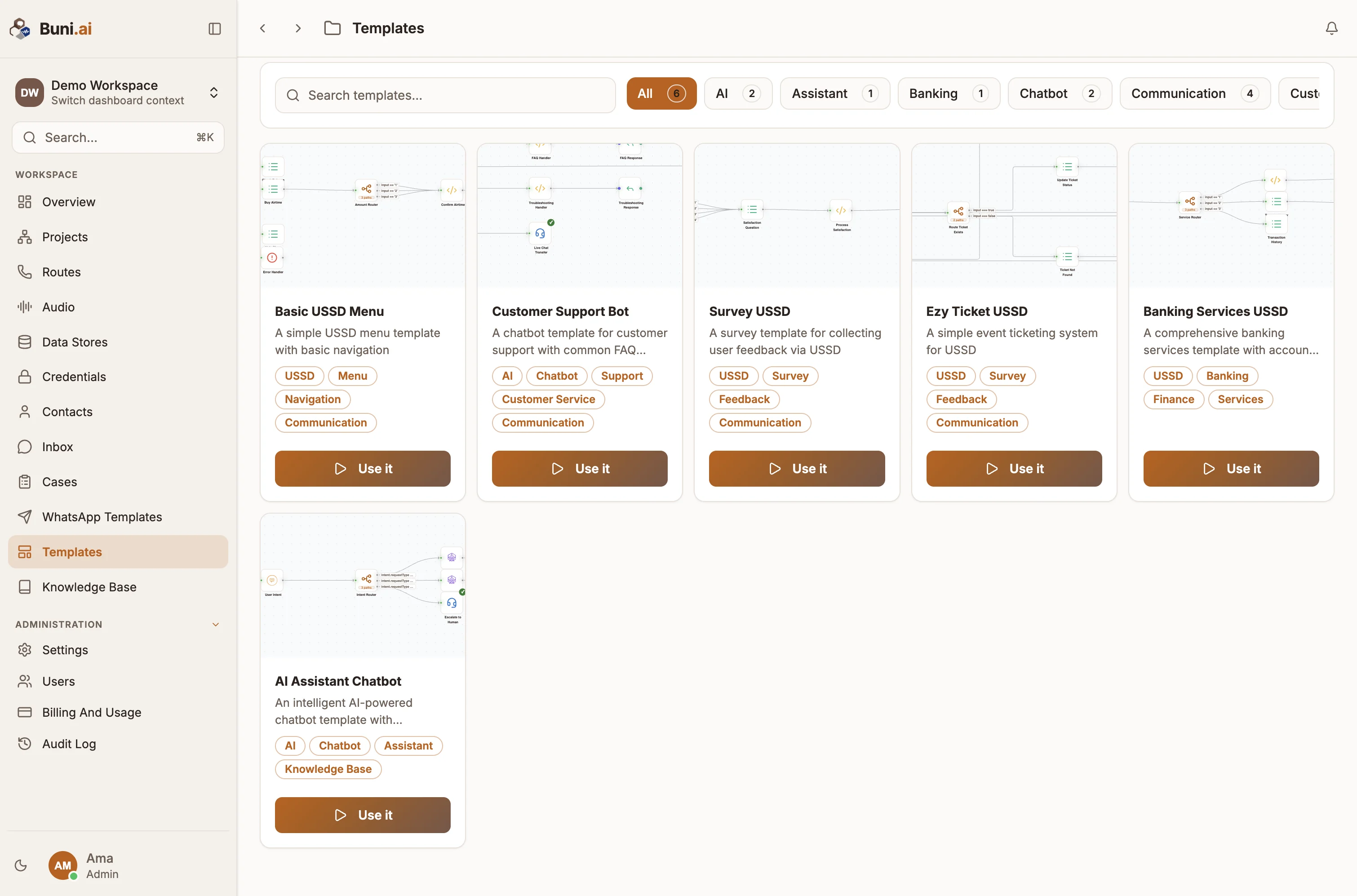
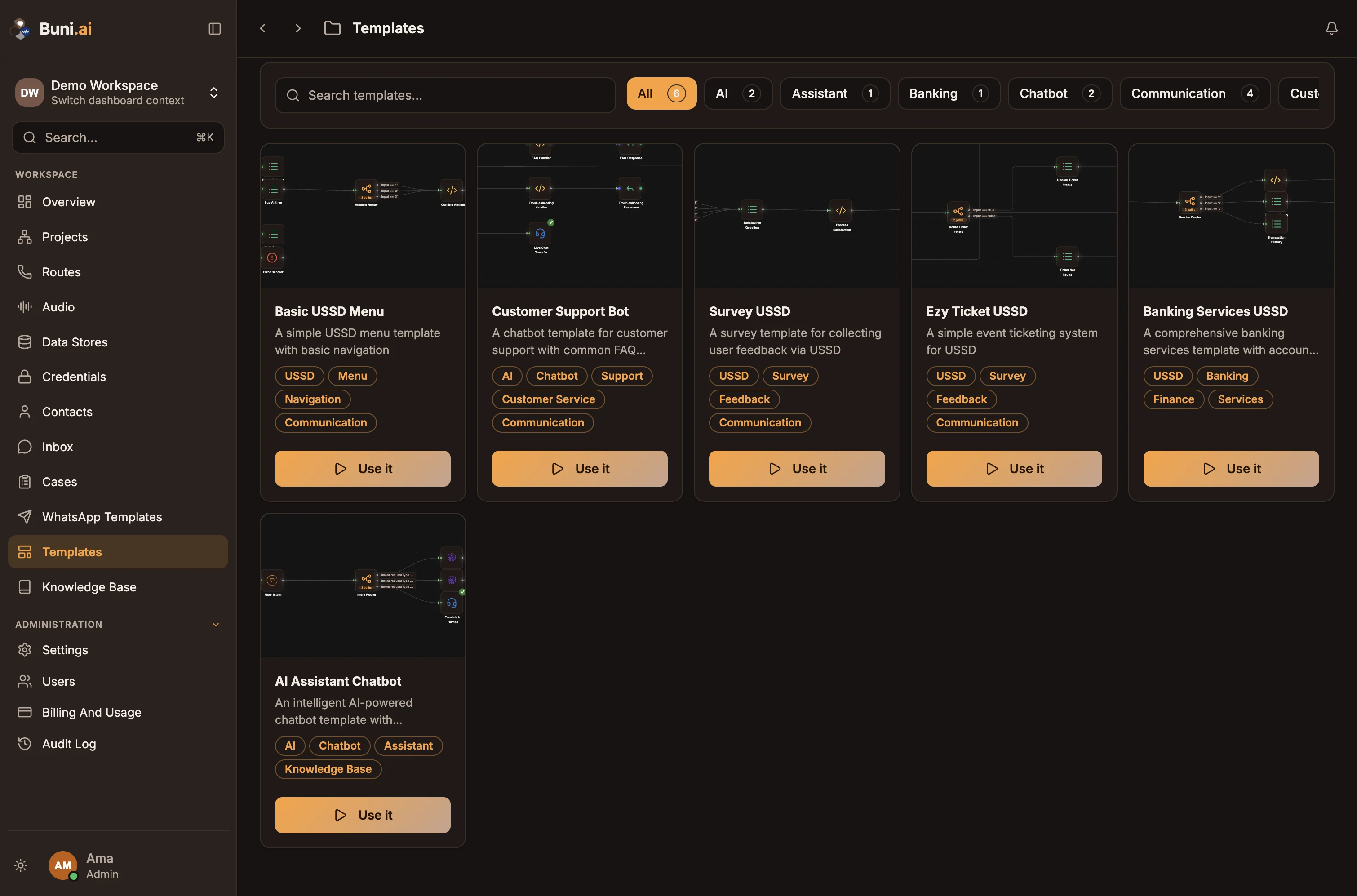
Select Templates in the sidebar. Each card shows a preview of the flow, its name and description, and category badges such as the channel it is built for.
- Search templates... filters by name and description.
- The category buttons filter by category, with a count for each. All shows everything.
- If nothing matches, Clear filters resets both.
Create a project from a template
- On a template card, select Use it.
- In the Use Template dialog, choose how to use it:
- Create New Project creates a project straight away, named after the template, and opens it.
- Replace Existing Project opens the New project dialog with this template already selected, so you can set the name, channel details and description before you create it.
- Select Create Project or Continue.
Pick a template while creating a project
You can also choose a template from the New project dialog:
- Set Channel. Only templates for that channel are listed.
- Set Start from to A template.
- Search with Search templates, and select a template. Each card summarises what the flow contains, such as "2 AI agents · 1 live chat", so you can tell templates apart without opening them.
- Select Create from Template.
See Create a project for the other fields.
After you create it
A template is a starting point, not a finished app. Before you publish:
- Replace sample text, menus and answers with your own.
- Point API nodes at your own endpoints and select your own credentials.
- Check Data Store nodes use a data store in your organization.
- Test every path in the simulator.
You can also ask Buni to adapt the template, for example "change this to take bookings for a dental clinic". See AI assistant.
Related
Create a project
Create a project by describing it for AI to draft, starting from a template or starting blank, and choose its channel and organization.
Project workspace
A tour of the project screen, covering the action bar, the Canvas, Documentation, Logs, Activity, Feedback, Integrations and Settings tabs, and collaboration.