
Project workspace
A tour of the project screen, covering the action bar, the Canvas, Documentation, Logs, Activity, Feedback, Integrations and Settings tabs, and collaboration.
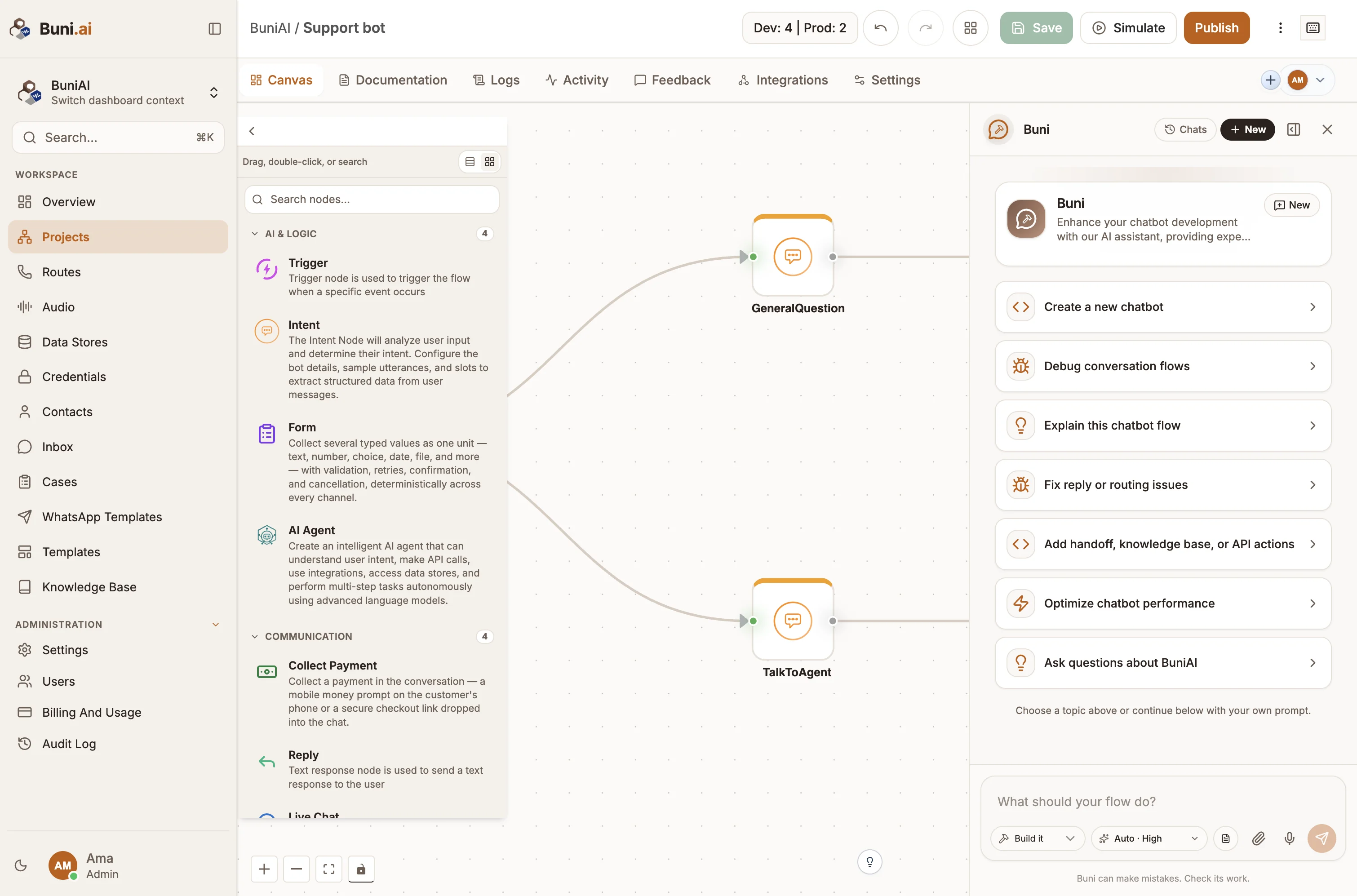
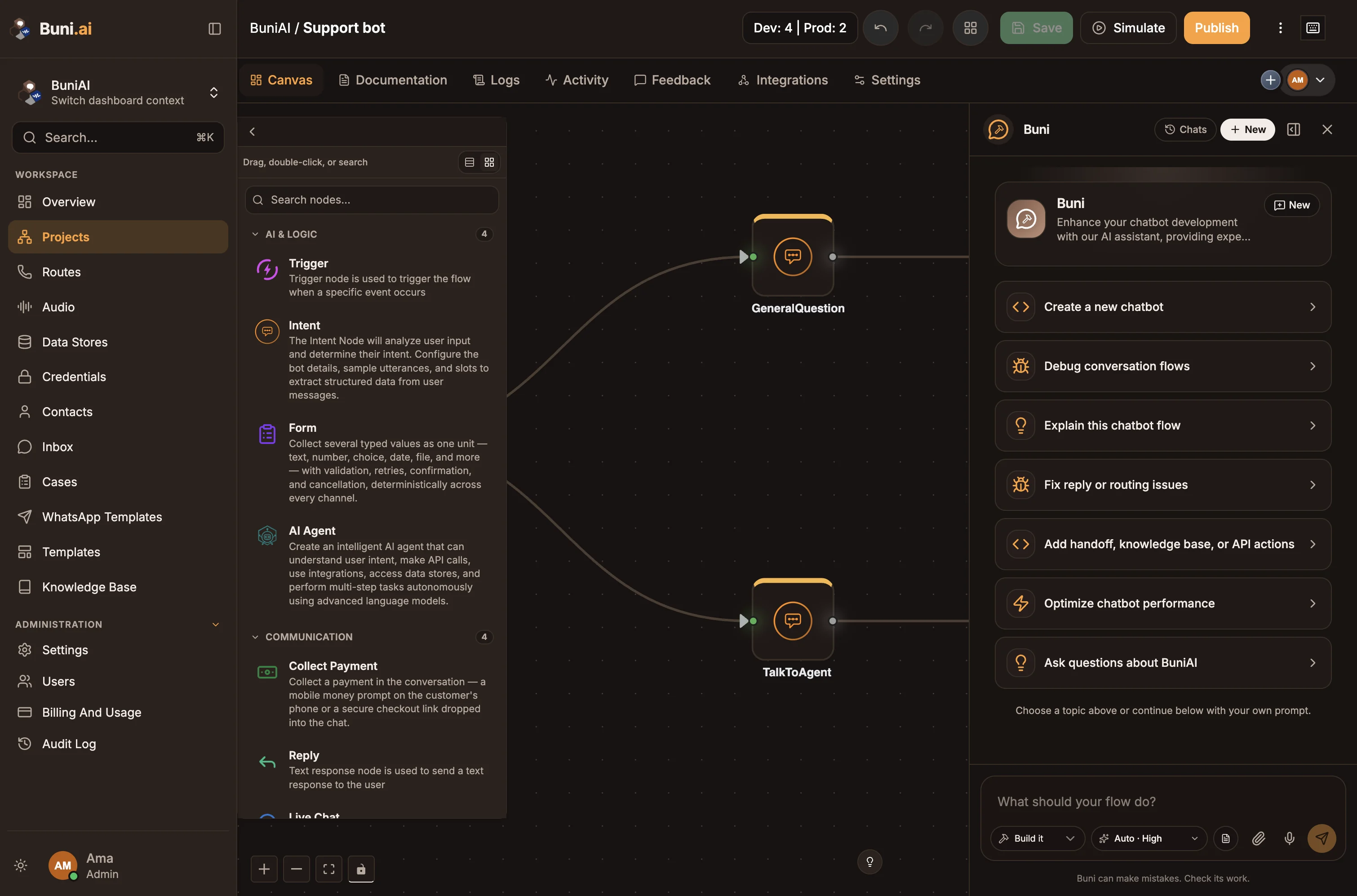
When you open a project, you land on its workspace: an action bar across the top, a row of tabs below it, and the Canvas tab open. This page walks through each part and links to the detailed pages.
The action bar
The top bar shows the organization and project name. Click the name to rename the project. On the right are the project's main actions:
| Control | What it does |
|---|---|
| Version badge, such as Dev: 12 | Prod: 9 | The current version number of the Draft (Dev) and Live (Prod) environments. It is a version number, not a node count. Select it to open Version History. See Version history. |
| Undo changes / Redo changes | Step backwards and forwards through your canvas edits. |
| Auto-layout nodes | Tidies the canvas by arranging nodes automatically. |
| Save | Saves your changes to the Draft version. It is enabled when there are unsaved changes. |
| Save status | Shows Saving…, Saved with the time, Unsaved changes or Auto-save failed, because the canvas also saves automatically. |
| Simulate (Run in automation projects) | Opens the project's simulator. See Simulators. |
| Publish | Makes the current flow Live. Once published, the arrow beside it offers Unpublish. See Publishing. |
| Execute Workflow | Published automation projects only. Runs the Live workflow once, after a confirmation. |
| More Options (three dots) | Copy Live URL (Voice webhook URL in voice projects), New Project and Settings. |
| Keyboard shortcuts | Lists the canvas shortcuts. You can also press ?. |
Tabs
| Tab | What it is for |
|---|---|
| Canvas | Build the flow. See The canvas. |
| Documentation | A shared rich-text document about the project. See Documentation tab. |
| Logs | Log entries from simulator runs and from the Live project, filtered by time range. See Logs and activity. |
| Activity | What happened in real use, summarised for the project type: chatbot sessions, USSD sessions, calls, or automation runs with a step-by-step timeline. See Logs and activity. |
| Feedback | Ratings and comments from users. Shown for chatbot, USSD and voice projects, and only has data once the project is published. See Feedback. |
| Integrations | The third-party services connected to this project. Filter by All or Connected. See Integration node. |
| Settings | Project settings, split into the sub-tabs below. |
Buni, the AI assistant, stays available on every tab, so a conversation with it carries on when you switch tabs. See AI assistant.
Settings
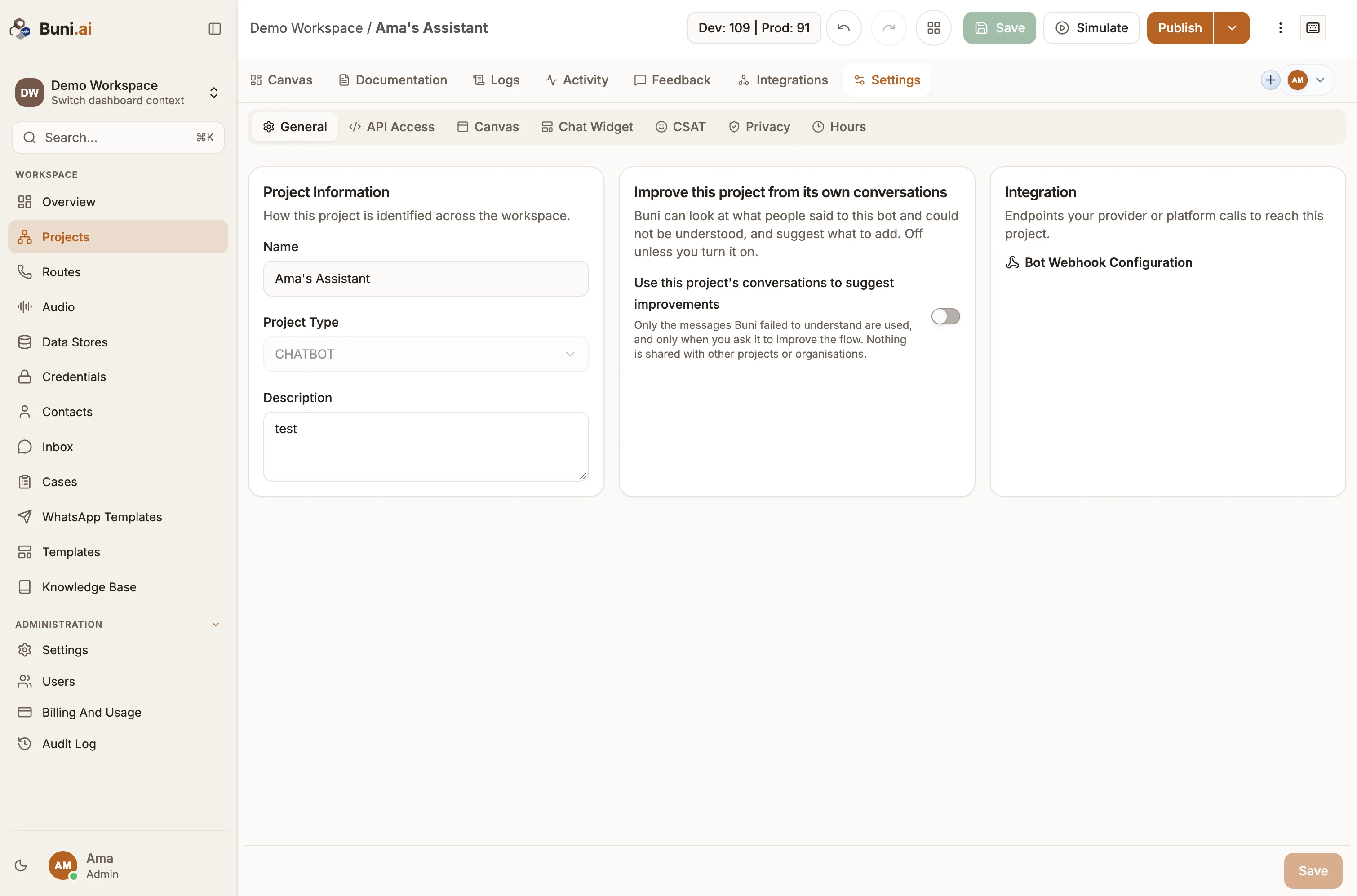
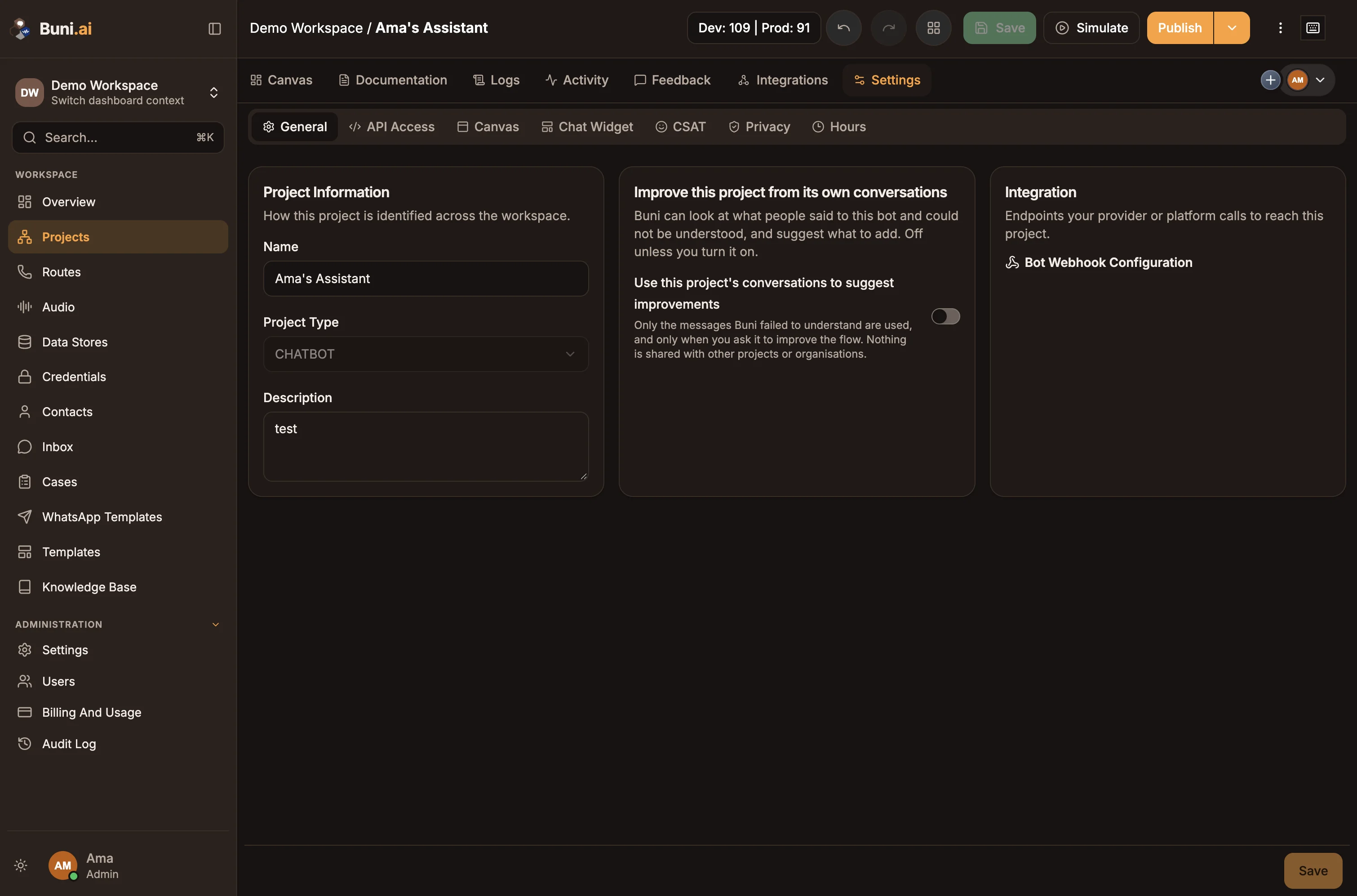
Open the Settings tab, or select More Options › Settings. Which sub-tabs you see depends on the project type. Select Save at the bottom after changing a field.
| Sub-tab | Project types | Detailed page |
|---|---|---|
| General | All | Below |
| API Access | Chatbot, Automation | Project API settings |
| Canvas | All | Below |
| Chat Widget | Chatbot | Web chat widget |
| CSAT | Chatbot | CSAT |
| Privacy | Chatbot | Privacy and data |
| Hours | Chatbot | Business hours |
| Voice | Voice (IVR) | Voice settings |
General
- Project Information: the project's Name, Project Type, USSD Provider (USSD projects) and Description.
- Improve this project from its own conversations: turn on Use this project's conversations to suggest improvements to let Buni look at messages the bot failed to understand and suggest what to add. It is off unless you turn it on. Only the messages Buni failed to understand are used, and only when you ask it to improve the flow. Nothing is shared with other projects or organizations.
- Integration: the endpoints a provider calls to reach the project. Chatbots show their bot webhook URL here. Published USSD projects show a Callback URL to paste into your USSD provider's dashboard.
API Access
Chatbot and automation projects can be run from your own systems through the public API. This sub-tab manages the project's API access. See Project API settings.
Canvas
Personal preferences for how the canvas behaves for you:
| Setting | Options |
|---|---|
| Navigation Mode | Trackpad (pan with two fingers, pinch to zoom) or Mouse (click and drag to pan, scroll to zoom) |
| Zoom Direction | Regular (scroll down to zoom in) or Inverse (scroll down to zoom out) |
| Connector Style | Straight Lines or Curved Lines |
| Canvas Grid | Show grid on canvas |
| Node Preview Style | Minimal or Detailed node cards. Affects only your view in collaborative sessions. |
Chat Widget
Customise the web chat widget and copy the code to embed it in a website. Available once the chatbot is published. See Web chat widget.
CSAT
Ask users to rate the conversation when it ends. See CSAT.
Privacy
Show a privacy notice in the chat. See Privacy and data.
Hours
Set the project's time zone and opening hours. The time zone gives AI Agent nodes the current local date and time, and the hours decide when live-chat handoff is offered. See Business hours.
Voice
Settings for voice projects: Voice output, AI voice, Speech recognition, Streaming audio, Call limits, AI disclosure and Recording calls. See Voice settings.
Working together
Several people can edit a project at the same time. Everyone's changes appear live.
- Presence: the avatars at the right of the tab row show who else is in the project. Open the panel to Follow someone's view, use Bring to me (or Bring everyone to me), and switch Show cursors and Show comments on or off. With the right permission, you can invite people from here.
- Live cursors: see where others are pointing. Press / to send a short message that appears beside your cursor.
- Comments: press C to enter comment mode, then click the canvas to pin a comment. Others can reply, and anyone can Resolve a comment once it is dealt with.
- Sticky notes: press Shift+N, then click the canvas to place a note. Press Esc to cancel. Notes do not affect how the flow runs.
- Frames: select nodes and press Cmd+G (macOS) or Ctrl+G (Windows and Linux) to group them in a frame, so they move together.
- Search: press Cmd+F or Ctrl+F to find a node on the canvas.
The Documentation tab is collaborative too, with live cursors in the text.