
Testing and publishing
Test a chatbot in the simulator, publish it to production, connect its channels, and check how it behaves once it is live.
A chatbot has two versions. The development version is rebuilt each time you save the canvas, and it is what the simulator talks to. The production version is what your channels talk to, and it changes only when you publish. The header shows both version numbers as Dev and Prod. See Environments.
Test in the simulator
- Save the canvas with the save button in the header (tooltip Save changes) and wait for Saved. The canvas also saves on its own after about 30 seconds without changes.
- Select Simulate.
- Chat with the bot in the window that opens. It runs your latest saved flow, including changes you have not published.
A log panel opens alongside the chat and lists each step as it runs. Select an entry to jump to its node on the canvas. You can filter the log levels, Download logs or Clear logs from the panel.
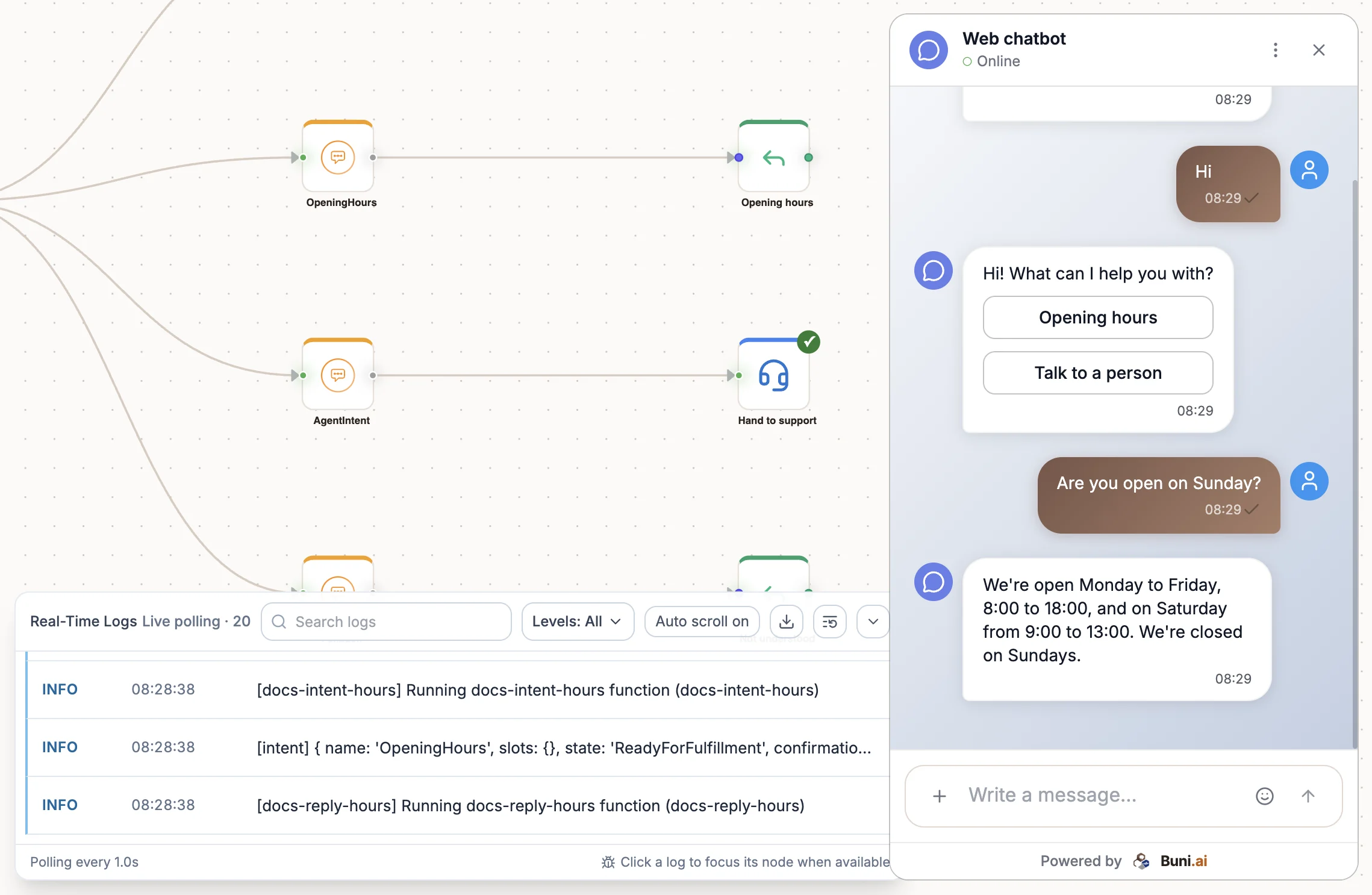
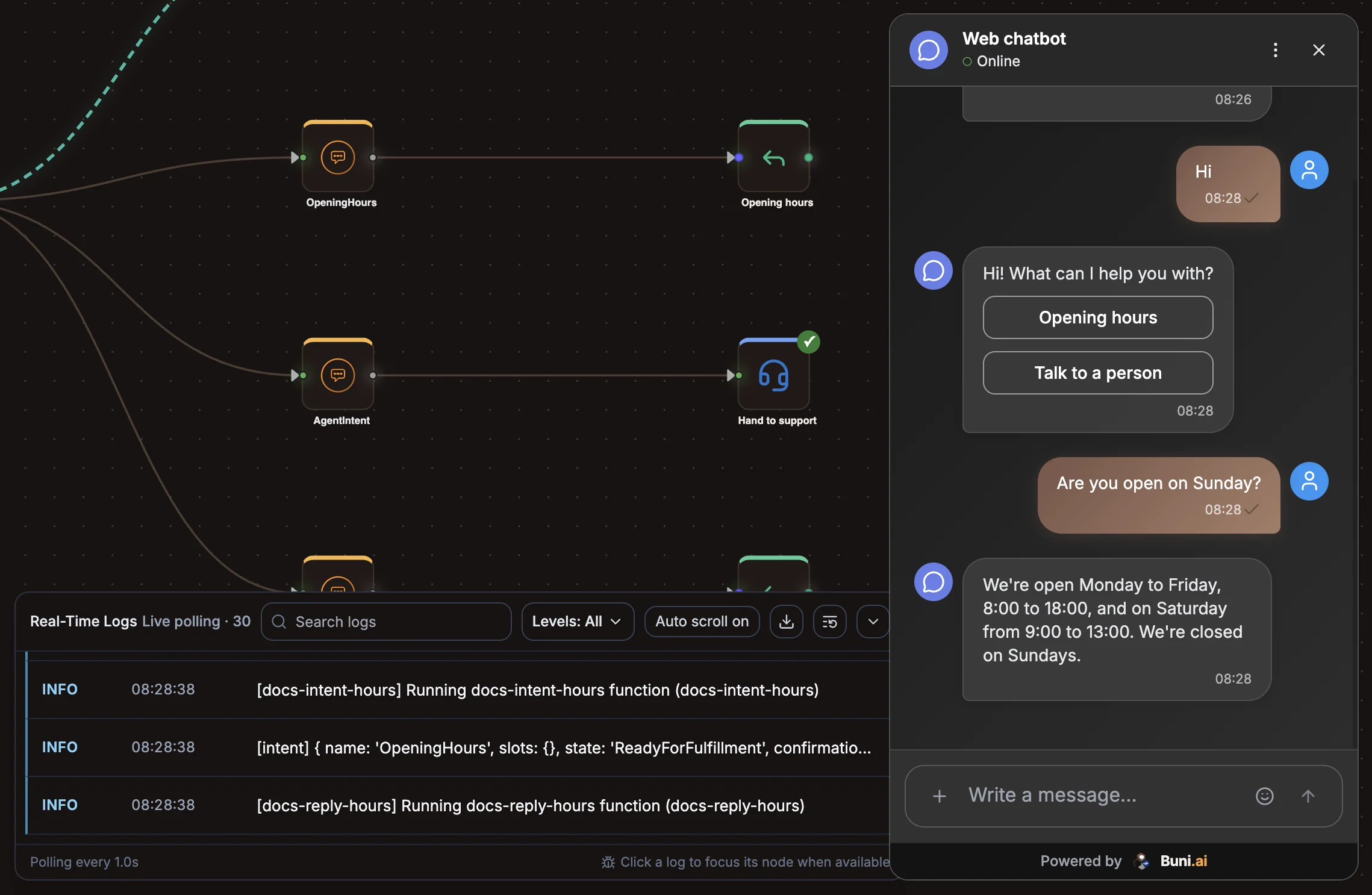
You can use the simulator before you have ever published. See Simulators for the simulators of other project types.
What to test
- Each intent with several phrasings, including ones that are not in your sample utterances.
- Each required parameter, by leaving it out so the bot has to ask for it.
- Every button, to check it reaches its Target Intent.
- The fallback, with a message the bot should not understand.
- Failure paths, such as an API returning an error or a record that does not exist.
- The handoff, if you use one. See Test the handoff.
The simulator shows the web version of each message. Check channel-specific behaviour, such as button limits on WhatsApp, on the real channel after you publish.
Fix validation issues
The canvas checks the flow as you build, for example that the Trigger has an introduction message, that intents have unique names and sample utterances, and that there is a fallback intent. Saving is blocked while there are critical issues, and publishing is blocked while there are critical or high-priority ones. The canvas shows the list of issues when that happens. See Checks before you publish.
Publish
- Select Publish in the header.
- Optionally add Release Notes and a Version Name. Leave the version name empty to generate one.
- Select Publish. (Create backup before publishing is on by default.)
Publishing promotes the current development version to production. If you change the flow later, save it and publish again. Your channels keep running the previous version until you do.
To take the bot offline, open the menu next to Publish and select Unpublish. The webhook stops accepting messages.
See Publishing and Version history.
Connect channels
Choose the channels
Double-click the Trigger node, open the Platforms tab, and select each channel under Messaging Platforms. Enter the credentials each one asks for, such as the WhatsApp phone number ID and access token. You can store them as credentials instead of pasting them in.
Publish
Publish the project so the bot has a production webhook.
Point the channel at the bot
Open Settings › General. Under Integration, copy the Webhook URL and follow the Platform Integration Guides shown for the channels you selected. Each channel page has the full steps:
- Messenger and Instagram
- Telegram
- Slack
- Web chat widget, which you style and embed from Settings › Chat Widget
Send a real message
Message the bot from the channel and check that it replies with your production flow.
After you go live
| Where | What you see |
|---|---|
| Logs tab | Each step of each conversation, for tracing problems. See Logs and activity. |
| Activity tab | Session counts, how many sessions the bot understood, and the unrecognised messages worth fixing first. |
| Feedback tab | Feedback analytics for the published bot. See Feedback. |
| Inbox | Conversations, including ones handed to your team. |
In Settings › General, you can also turn on Use this project's conversations to suggest improvements. Buni then looks at the messages the bot failed to understand when you ask it to improve the flow.
Troubleshooting
Related
Live chat handoff
Hand a chatbot conversation to a person on your team in the Inbox, what the customer sees at each step, and how the chat returns to the bot.
Chatbot best practices
Practical advice for chatbots that understand people, fail gracefully, respect channel limits and hand over to your team cleanly.