
Messenger and Instagram
Connect a chatbot to Facebook Messenger and Instagram direct messages through your Meta app.
 Messenger and Instagram direct messages both come through a Meta developer app, so their setup is almost the same. You can connect one or both to the same chatbot.
Before you start you need:
- A Meta developer app. For Messenger, add the Messenger product; for Instagram, add Instagram messaging.
- For Messenger, a Facebook Page you manage. For Instagram, an Instagram business account connected to that app.
- A chatbot project in Buni.ai.
Set up the connection
Collect the values from Meta
From your app in the Meta for Developers dashboard, collect:
- Messenger: a Page Access Token for your Page.
- Instagram: an Access Token for the Instagram account.
- The App Secret and App ID from App settings › Basic.
Choose a Verify Token: any string you make up. You will enter it in both Buni.ai and Meta.
Add the channels to the chatbot
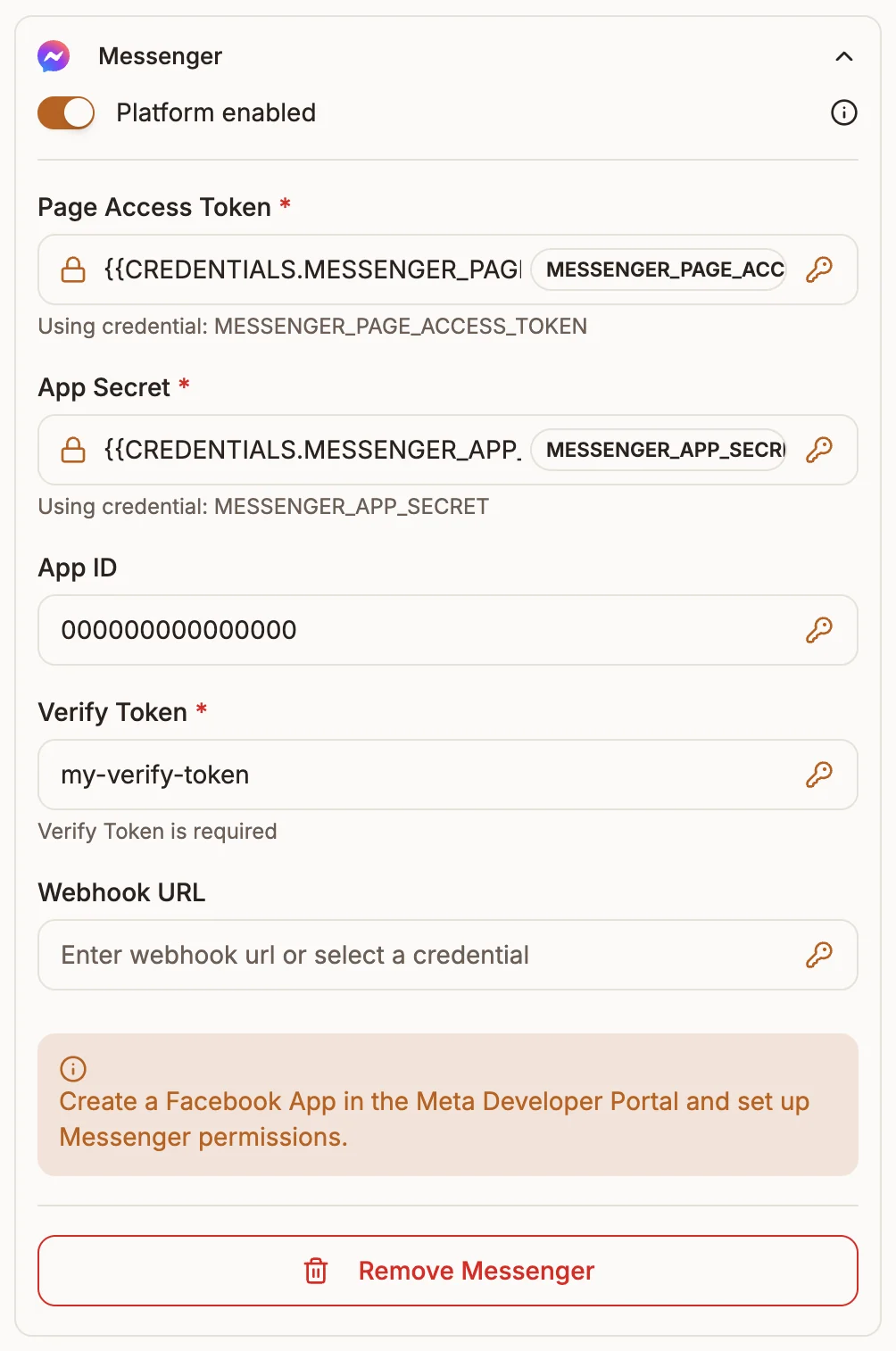
Open the chatbot's trigger node and go to the Platforms tab. In Messaging Platforms, select Messenger, Instagram or both. Under Platform Configuration, fill in each one's fields.
Store tokens and secrets as credentials and pick them with the credential selector.
Publish and copy the webhook URL
Publish the project and copy Your Bot Webhook URL from the Platform Setup dialog, or later from Settings›General›Bot Webhook Configuration.
Configure Meta's webhook
In your Meta app's webhook settings for Messenger (and for Instagram, if you use it):
- Set the Callback URL to your Bot Webhook URL.
- Set the Verify token to the same Verify Token you entered in Buni.ai.
- Subscribe to the message events.
For Messenger, also subscribe your Page to the app so its messages are delivered.
Test it
Send a message to your Page on Messenger, or a direct message to the Instagram account, from a personal account.
Fields
Messenger
| Field | Required | What to enter |
|---|---|---|
| Page Access Token | Yes | The token for your Facebook Page. |
| App Secret | Yes | Your Meta app's secret, used to verify incoming webhooks. |
| App ID | No | Your Meta app's id. |
| Verify Token | Yes | The string you chose for webhook verification. |
| Webhook URL | No | Filled in when the project is deployed. |
| Field | Required | What to enter |
|---|---|---|
| Access Token | Yes | The token for the Instagram account. |
| App ID | No | Your Meta app's id. |
| App Secret | Yes | Your Meta app's secret, used to verify incoming webhooks. |
| Verify Token | Yes | The string you chose for webhook verification. |
| Webhook URL | No | Filled in when the project is deployed. |
How requests are verified
Meta signs every webhook with an x-hub-signature-256 header. Buni.ai checks it against the App Secret for the channel and rejects anything that does not match with 403. If the App Secret is wrong, no messages get through even though Meta's verification step succeeded.