
Telegram
Connect a chatbot to a Telegram bot with a BotFather token. Buni.ai registers the webhook for you when you publish.
 Telegram is the quickest chat channel to connect: you need one bot token, and Buni.ai registers the webhook with Telegram itself when you publish.
Set up the connection
Create a bot with BotFather
In Telegram, open a chat with @BotFather, send /newbot and follow the prompts to choose a name and a username. BotFather replies with the bot's token, which looks like 123456789:AA....
Keep the token secret: anyone who has it can control the bot.
Add Telegram to the chatbot
Open the chatbot's trigger node and go to the Platforms tab. In Messaging Platforms, select Telegram. Under Platform Configuration, expand Telegram and set Bot Token.
Store the token as a credential and pick it with the credential selector rather than pasting it in.
Publish
Publish the project. Publishing registers the project's webhook URL with Telegram for your bot, so there is nothing to configure in BotFather.
Test it
Open your bot in Telegram (t.me/<your bot username>), select Start and send a message.
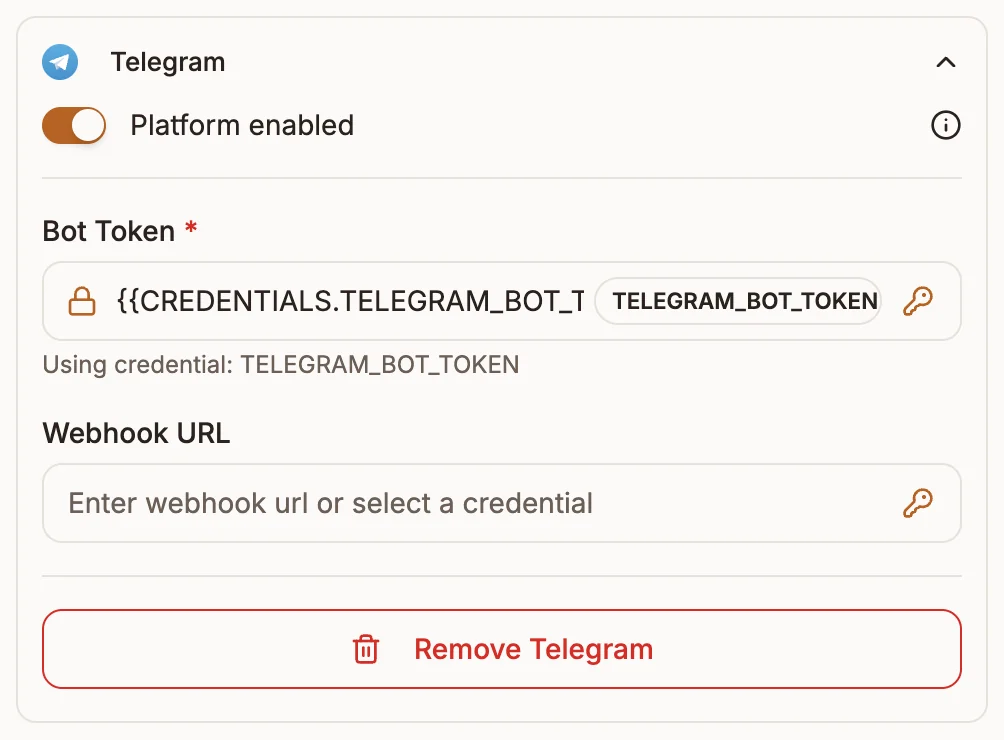
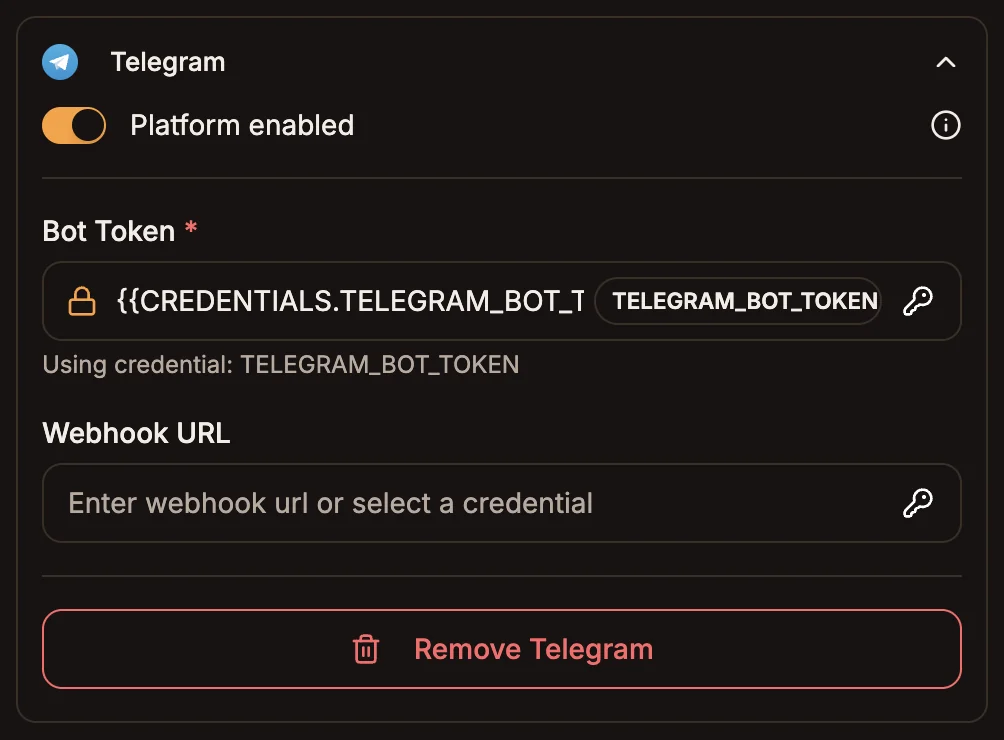
Fields
| Field | Required | What to enter |
|---|---|---|
| Bot Token | Yes | The token from BotFather. |
| Webhook URL | No | Filled in when the project is deployed. Leave it as it is. |
How requests are verified
The webhook Buni.ai registers with Telegram includes a secret token. Requests to the webhook without it are rejected, so only Telegram can deliver messages to your bot.
Things to know
- One webhook per bot. Telegram delivers a bot's messages to one URL. Connecting the same bot token to a second project, or to another service, takes the bot away from the first one the next time that one is published. Use one bot per project.
- Republish after changing the token. The webhook is registered at publish time.
- Automation triggers. An automation can also start from Telegram messages with the Telegram app trigger. A bot can feed only one of these at a time, and not a chatbot at the same time. See Triggers.