
Live chat handoff
Hand a chatbot conversation to a person on your team in the Inbox, what the customer sees at each step, and how the chat returns to the bot.
When the bot cannot help, a Live Chat node passes the conversation to a person on your team. The agent answers from the Inbox, the customer keeps writing in the same chat, and when the agent is done they resolve the chat or pass it back to the bot.
This page follows one conversation from the bot to an agent and back.
Before you start
- Invite the people who will answer chats to your organization. Each agent is an organization member.
- Decide which requests should reach a person. Usually that is an intent such as
TalkToPerson("I want to speak to someone", "agent", "human") and sometimes your fallback.
1. Set up agents and groups
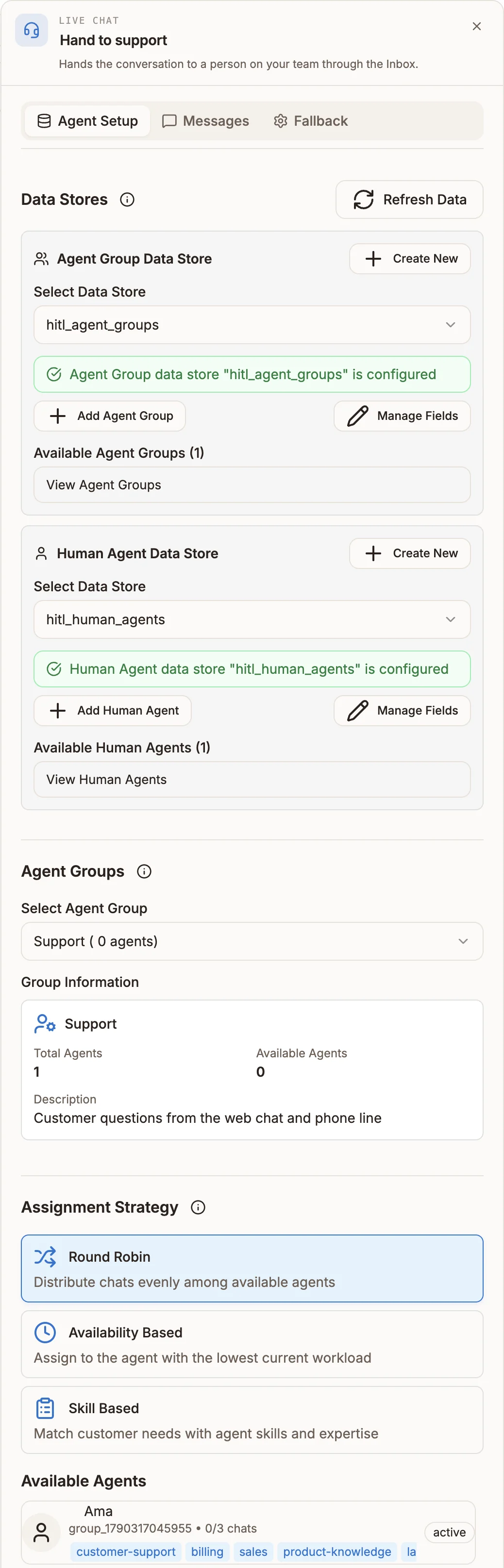
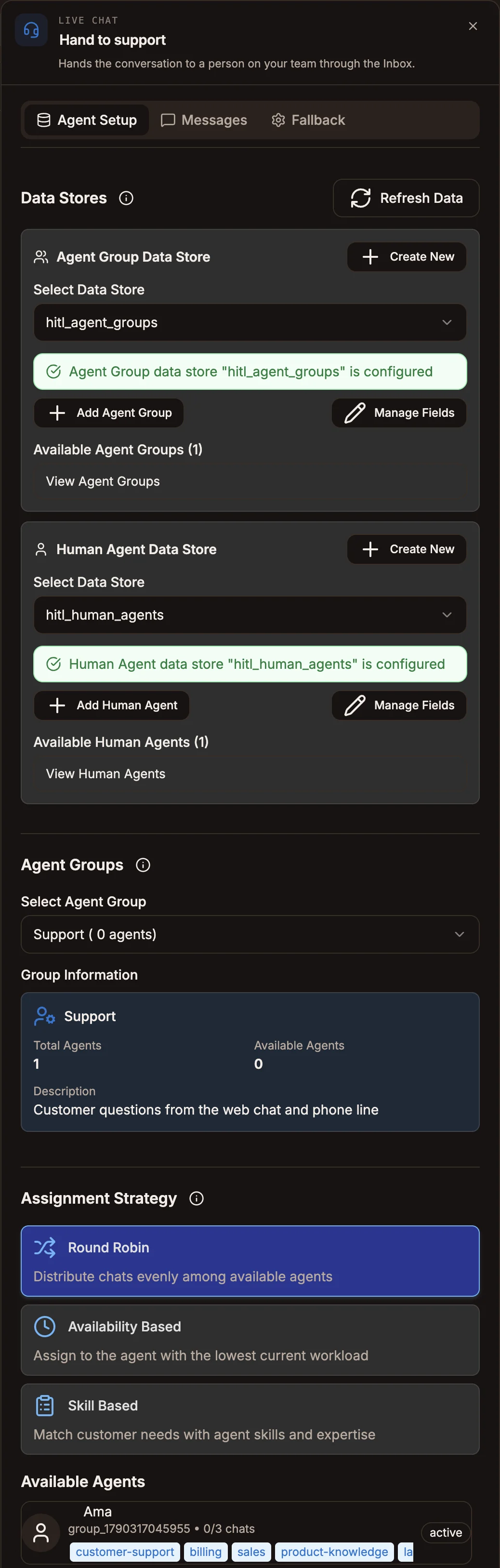
Agents and agent groups live in two organization-wide system data stores that the Live Chat node creates for you. You manage them from the node itself.
- Add a Live Chat node and connect the intent that should hand over to it.
- Double-click the node. On the Agent Setup tab, under Data Stores, both stores are selected automatically. If they are missing, select Create New.
- Select Add Agent Group to create a group, such as "Support".
- Select Add Human Agent. In Select Organization Member, pick the person, then set their group, Status, Skills and Max Concurrent Chats.
See Assignments and routing for managing agents from the Inbox.
2. Configure the Live Chat node
Agent Setup tab
| Field | What it does |
|---|---|
| Select Agent Group | Which agents can take the chat: one group, All Agent Groups, or a Custom Group name. Required. |
| Assignment Strategy | How an agent is picked. Round Robin spreads chats evenly. Availability Based picks the agent with the fewest chats. Skill Based matches the skills listed in {{state.requiredSkills}} to agents' skills. |
Messages tab
| Field | What it does |
|---|---|
| Transfer Message | Sent to the customer when an agent is assigned. Supports variables, including the agent's name as {{agent.name}}. Required. |
| Agent Note (Optional) | Context for the agent, such as {{state.orderId}}. The customer never sees it. |
Fallback tab
| Field | What it does |
|---|---|
| Fallback Message | Sent to the customer when no agent can be assigned. |
| Wait Reminder (optional) | Sent if a customer who is already waiting writes again, at most once every 5 minutes. Leave it empty to repeat the fallback message. |
| Other languages | Translations of the three messages above. Set Language comes from to an expression such as ${state.lang}, then Add language for each language code. See Advanced chatbot features. |
Settings that do not change routing yet
Priority Level, Max Wait Time, Include conversation history and Fallback Action are saved with the node, but the runtime does not act on them today. Whichever Fallback Action you pick, the customer gets the Fallback Message when no agent is free; the choice is only recorded in {{state.fallbackAction}}.
A Live Chat node has no output handle. It is the last step of the bot's part of the flow.
3. What happens when the flow reaches the node
Buni.ai looks for an agent in the chosen group who is online or available, has room under their Max Concurrent Chats, and has not already declined this chat.
An agent is found
- The chat is assigned to them and the customer receives the Transfer Message.
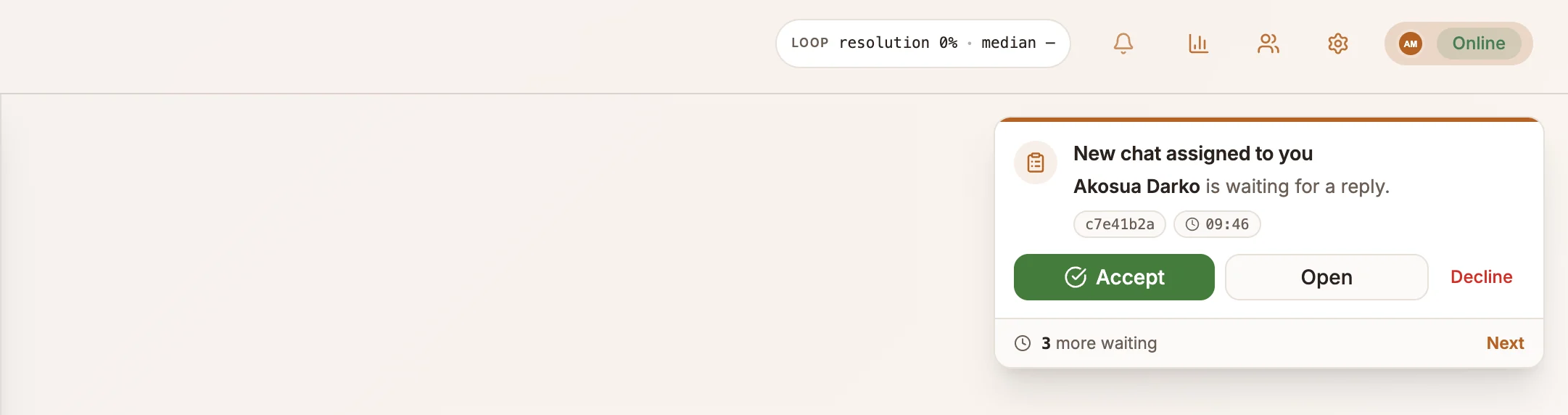
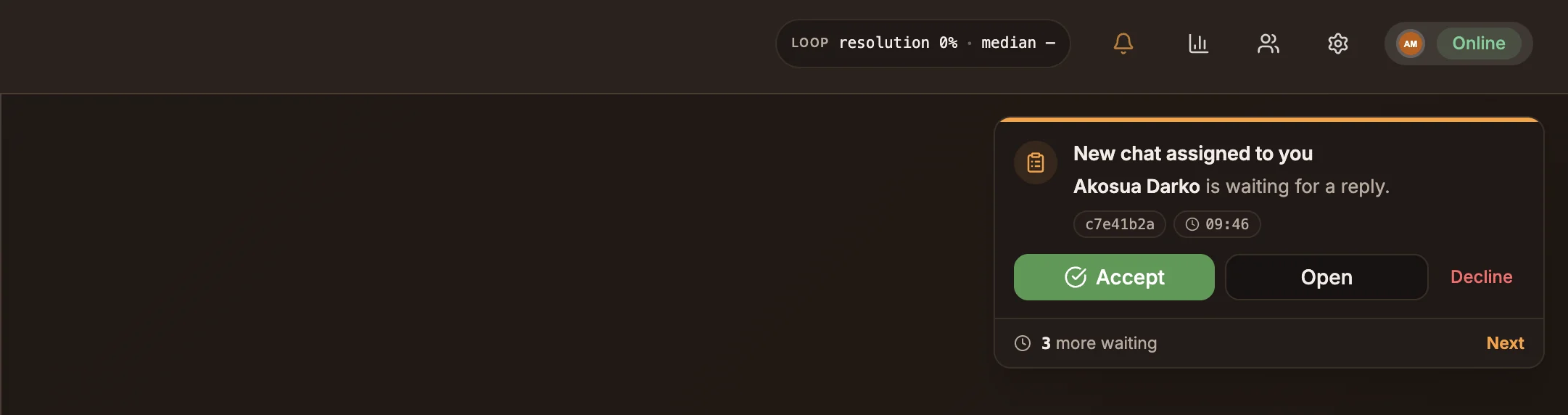
- The agent gets a New chat assigned to you card in the Inbox with Accept, Open and Decline.
- When the agent selects Accept, the customer receives "You are now chatting with" followed by the agent's first name.
- From then on, the customer's messages go to the agent, not the bot.
No agent is free
The customer receives the Fallback Message. If business hours are on and the team is closed, they receive your out-of-hours message instead.
The agent declines
The chat goes to the next available agent. If nobody is free, the chat is marked Waiting and the customer is told they are in the queue. Waiting chats are handed to the next agent who frees a slot, oldest first.
How agents are alerted
- In the Inbox: the assignment card appears straight away for agents who have the Inbox open. To skip it, an agent can turn on Auto-accept new assignments in the Inbox Settings.
- By email or WhatsApp: if a chat stays assigned but not accepted for a while (2 minutes by default), the agent gets an email, and a WhatsApp message if they turned on WhatsApp Alerts and have a phone number on their agent profile. Each agent sets this under Inbox Settings › Notifications, including quiet hours.
4. The agent takes over from the Inbox
Agents can also take a chat the bot is still handling. A bot-handled conversation shows Bot is handling this conversation with a Take Over button, and the conversation menu has Assign to Me and a list of teammates. Taking over sends the customer the same "You are now chatting with" message.
See Replying for working in the conversation.
5. Ending the handoff
An agent ends their part of the conversation in one of two ways.
| Action | Where | What happens |
|---|---|---|
| Resolve conversation | Conversation footer | Opens Resolve Conversation. The customer gets the Resolution Message (you can edit it), and a satisfaction survey if Request Customer Feedback (CSAT) is on. The chat is marked Resolved. |
| Pass to Bot | Conversation menu | The bot answers the customer's next message. No message is sent to the customer when you pass the chat back. |
In both cases the agent's slot is freed and the oldest waiting chat, if any, is assigned.
The flow does not resume where it left off. The customer's next message is handled like any new message: it is matched to an intent from the Trigger. If a customer writes again after a chat was resolved, the bot answers and the agent who resolved it is notified in the Inbox.
See Resolving conversations and CSAT.
Timeouts
| Situation | After | What happens |
|---|---|---|
| An accepted chat has no activity | 30 minutes | The chat is resolved automatically and the agent's slot is freed. The customer is not sent a message. |
| An assigned chat has no activity and the customer writes again | 30 minutes | The chat goes back to the bot. |
| A chat is waiting in the queue | Never | Waiting chats do not expire. |
Business hours
In project Settings › Hours, set the team's Time zone and Opening hours, and turn on Tell people when nobody is available. Outside those hours, when no agent can be assigned, the customer gets your What to say outside these hours message instead of the fallback message. Write {{nextOpen}} in it to include the next opening time, such as "Monday at 09:00".
Business hours do not stop Buni.ai from assigning an agent who is online outside those hours. Republish the project after changing them. See Business hours.
Test the handoff
- Add yourself as a human agent in an agent group, with status Available.
- Publish the project and open the Inbox in another tab.
- From your web chat widget or a connected channel, send a message that matches your handoff intent.
- Accept the chat in the Inbox, reply, then select Pass to Bot or Resolve conversation.
- Set your agent status to something other than available and try again to see the Fallback Message.
Related
Building chatbot flows
Design intents, collect details with parameters, send replies with buttons, handle unrecognised messages and connect data, AI and people.
Testing and publishing
Test a chatbot in the simulator, publish it to production, connect its channels, and check how it behaves once it is live.