
Chatbot quickstart
Create a chatbot project, teach it one question and its answer, add a fallback, and try it in the simulator.
In this quickstart you create a chatbot that greets people, answers "When are you open?", and replies politely to anything it does not understand. It takes about ten minutes and runs on the web channel, so you do not need any channel credentials yet.
You need a Buni.ai account with permission to create projects in your organization.
Create the project
- Go to Projects and select New project.
- Leave What should this project do? empty. (If you describe the bot there instead, the button changes to Create with AI and Buni drafts the flow for you.)
- Set Start from to A blank canvas.
- Set Channel to Chatbot.
- Enter a Project name, such as "Opening hours bot".
- Select Create Project.
The project opens on the Canvas tab.
Look at the starter flow
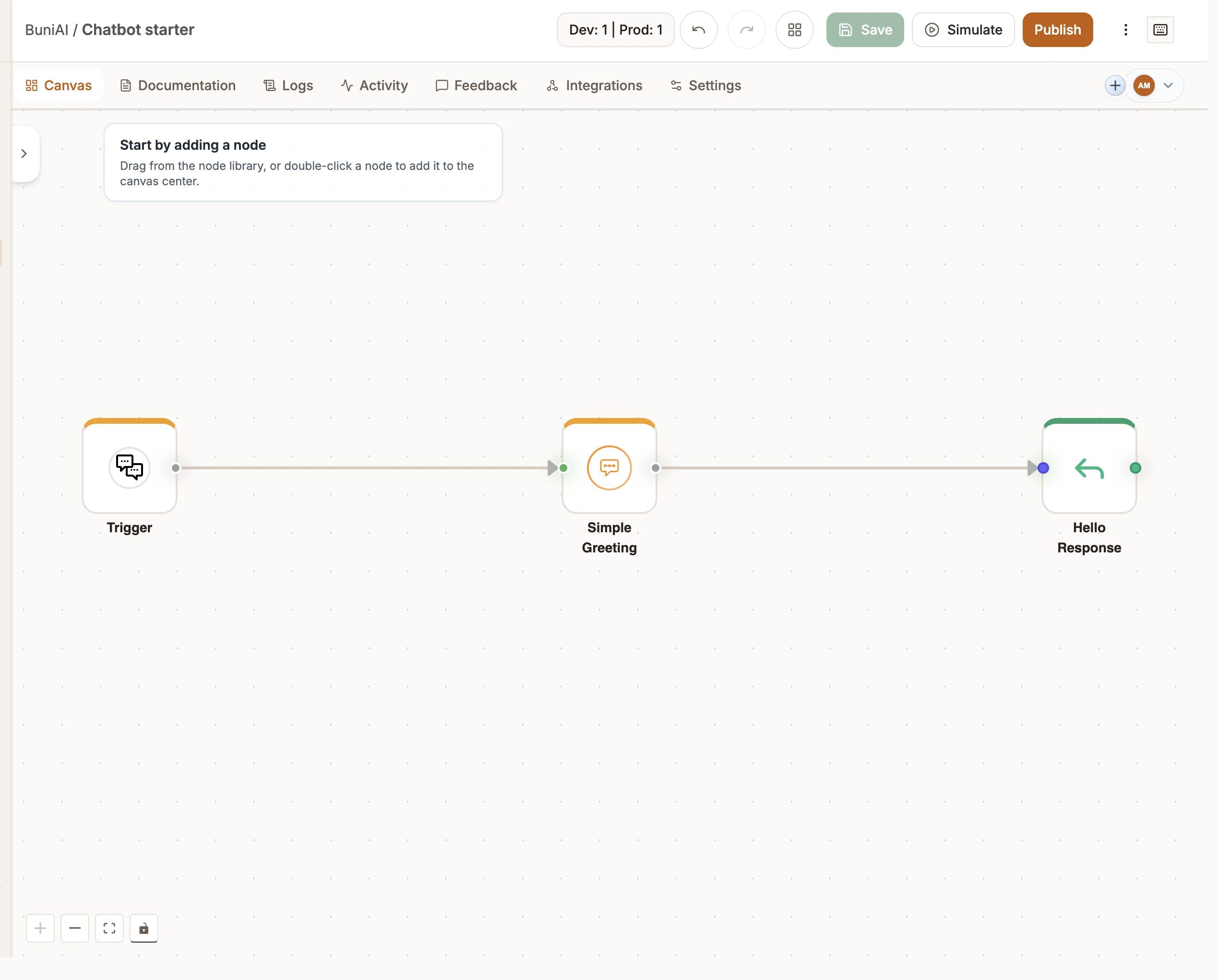
A new chatbot project already contains a working flow of three nodes:
| Node | What it does |
|---|---|
| Trigger | Starts every conversation. It listens on the Web channel and holds the introduction message. |
| Simple Greeting (Intent) | Recognises greetings such as "Hello", "Hi" and "Good morning". |
| Hello Response (Reply) | Sends a greeting back. |
Change the welcome message
- Double-click the Trigger node to open it.
- Open the Trigger Settings tab.
- In Introduction Message, write the message new users receive, for example: "Hi, I'm the Opening hours bot. Ask me when we're open."
- Leave Trigger Type set to Any Message.
- Select Save.
The Platforms tab shows Web already selected. You add WhatsApp, Telegram and the other channels there later.
Add an intent for the question
- Open the Nodes Library on the canvas, search for Intent, and drag it onto the canvas (or double-click it to add it).
- Double-click the new node. On Basic Settings, set Intent Name to
OpeningHours. - On the Utterances tab, type a phrase in Add new utterance and press Enter. Add several different ways of asking, such as "When are you open?", "What are your opening hours?", "Are you open on Saturday?" and "What time do you close?". The panel suggests aiming for at least 10.
- Select Save.
- Drag from the Trigger's output handle to the new intent's input handle to connect them.
Intent names must be unique and cannot be CancelIntent, FallbackIntent, HelpIntent, StartOverIntent or StopIntent.
Add the answer
- Drag a Reply node onto the canvas and double-click it.
- On the Response Content tab, select Add Text.
- In Text Content, write the answer: "We're open Monday to Friday, 9:00 to 17:00."
- Select Save.
- Connect the
OpeningHoursintent to the Reply node.
Add a fallback
Without a fallback, messages the bot does not recognise get a generic English apology. Give them your own answer instead:
- Add another Intent node. Set Intent Name to
Fallbackand give it one sample utterance:Fallback. - Connect the Trigger to it.
- Add a Reply node with the text "Sorry, I can only help with our opening hours for now." and connect the fallback intent to it.
Save and test
- Save the canvas with the save button in the header (tooltip Save changes) and wait for Saved.
- Select Simulate. A chat window opens on the canvas, with a log panel that shows each step as it runs.
- Try these messages:
- "Hi" gets the starter greeting.
- "Are you open on Sunday?" gets your opening-hours answer.
- "Can I order a pizza?" gets your fallback reply.