
Replying to customers
Write replies in the Inbox composer, attach files, use canned responses, and understand typing indicators, read receipts and the WhatsApp 24-hour window.
Once a conversation is assigned to you, the composer at the bottom of the conversation sends your replies to the customer on the channel they wrote in on. This page covers chat channels. USSD and voice conversations have no composer because the session has already ended; see Resolving conversations for how to reply to those.
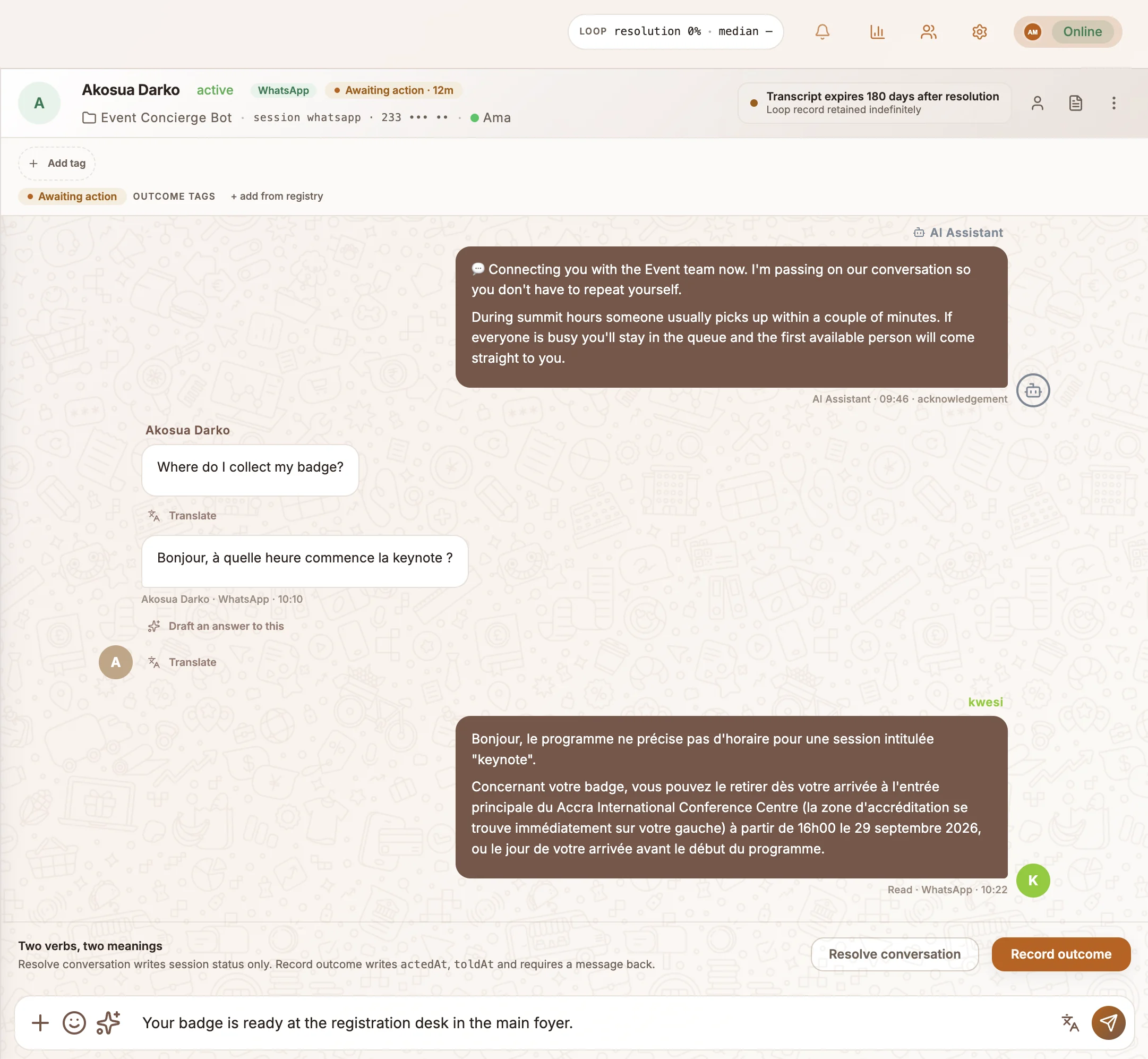
Send a reply
Type in the message box and press Enter to send. Press Shift+Enter for a new line.
The buttons at the start of the box:
| Button | What it does |
|---|---|
| + | Attach files. |
| Emoji | Opens the emoji picker. |
| Draft | Drafts a reply from your knowledge base (also Cmd+J or Ctrl+J). See AI drafts and translation. |
| Translate | Appears once you have typed something. Translates your text into the customer's language (also Cmd+Shift+L or Ctrl+Shift+L). |
If the bot is still handling the conversation, you see Bot is handling this conversation instead of the composer. Select Take Over to start replying.
Attach files
Select + and choose one or more files. You can attach images, PDF, Word (.doc, .docx), Excel (.xls, .xlsx), text, CSV and ZIP files. Each file uploads straight away and shows a preview; remove any you do not want before you send.
Canned responses
Canned responses are saved replies you insert with a shortcut.
Create one
In the Inbox header, open Settings and select the Canned Responses tab. Select Add Response and fill in Shortcut (for example greet), Category, Title and Content, then select Save.
Use it
In the composer, type / followed by the shortcut. Use the arrow keys to pick a response and press Enter or Tab to insert it. Press Esc to close the list. Edit the text if you need to, then send.
Message status
Your own messages show their delivery state under the bubble:
| Label | Meaning |
|---|---|
| Sending | On its way. |
| Delivered | Accepted by the channel. |
| Read | The customer has read it. WhatsApp, Messenger and Instagram report reads. |
| Not delivered | Sending failed. |
When a channel reports nothing, the label shows the agent's name instead.
Typing indicators and read receipts
In Settings›Chat Settings in the Inbox header:
- Show typing indicator tells the customer while you are typing. It stops after two seconds without typing, or when you send. The customer's own typing shows in the conversation as typing….
- Send read receipts tells the customer's channel you have read their message when you open the conversation. On WhatsApp this marks their latest message as read. It is on by default.
The WhatsApp 24-hour window
WhatsApp only allows free-form replies within 24 hours of the customer's last message. When you reply after the window has closed:
- Buni.ai sends the project's approved default WhatsApp template instead of your message. In the transcript it is marked Template: with the template name. Hover it to see why.
- Your actual reply is held. When the customer answers the template, the window reopens and your held reply is delivered.
Held replies are kept for 7 days; only the latest five turns are kept. If the project has no approved default template, nothing reaches the customer and project editors are notified. Set one up in WhatsApp templates before you go live.
Related
Assignments and routing
How conversations reach agents, how to accept, decline, reassign or pass a chat back to the bot, and how agents get notified.
AI drafts and translation
Let Buni draft Inbox replies from your knowledge base, choose which documents it can use, and chat with customers in another language.