
Data Stores
Create tables your flows read and write, define their fields, and view, import, export and edit records.
A data store is a table of records that your flows can read and write, for example registrations, orders or bookings. Data stores belong to the organization, so several projects can share one. Flows use them through the Data Store node.
Open Data Stores from the sidebar to see every data store in your organization.
Plan limit
Your plan sets how many data stores your organization can create. When you reach it, creating another asks you to upgrade. See Billing and usage.
Create a data store
Name it
Select Create Data Store. In Create New Data Store, enter a name and save.
Add fields
Open the data store, open the actions menu and choose Manage Fields. Select Add field for each field you need (see below).
Define fields
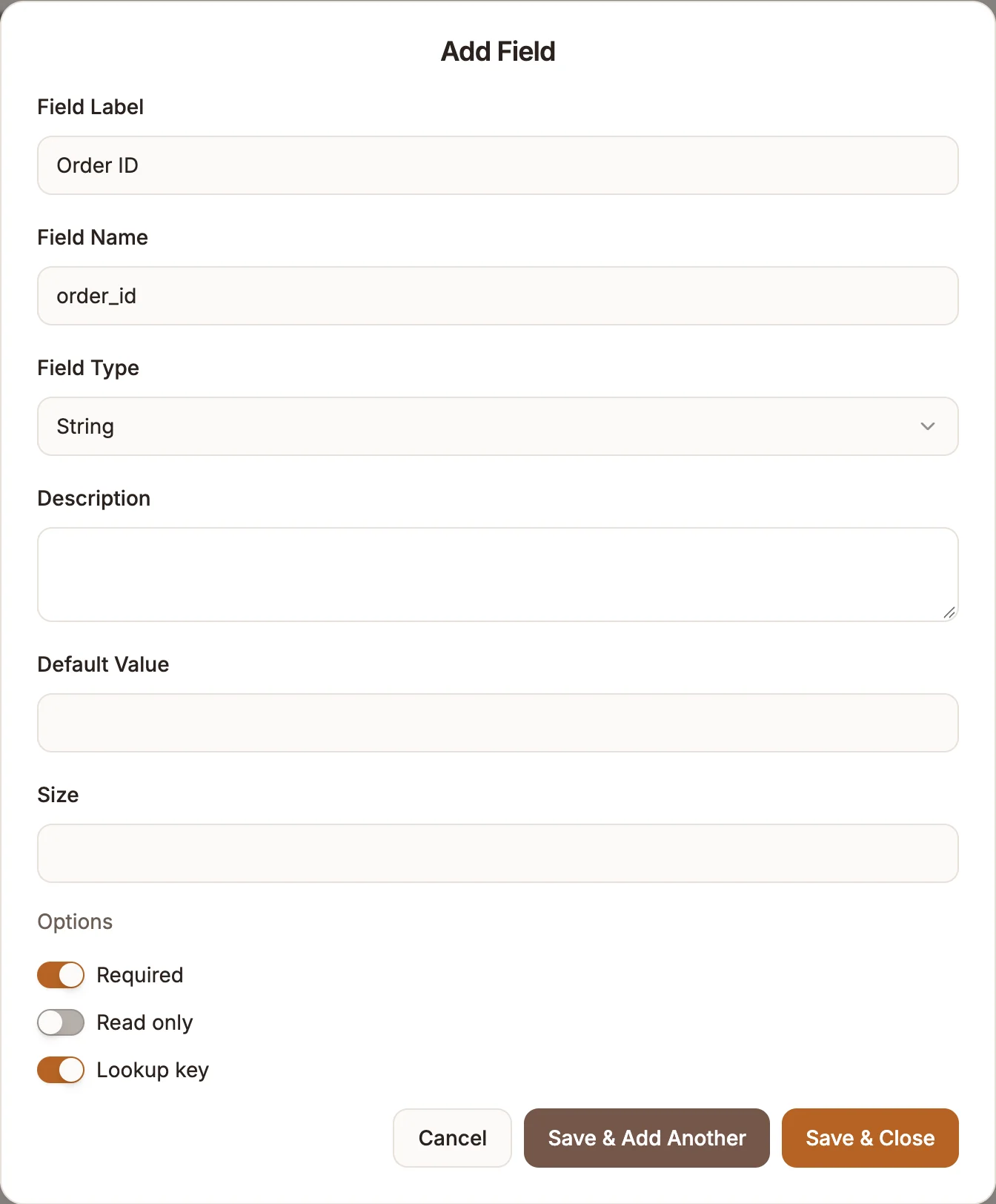
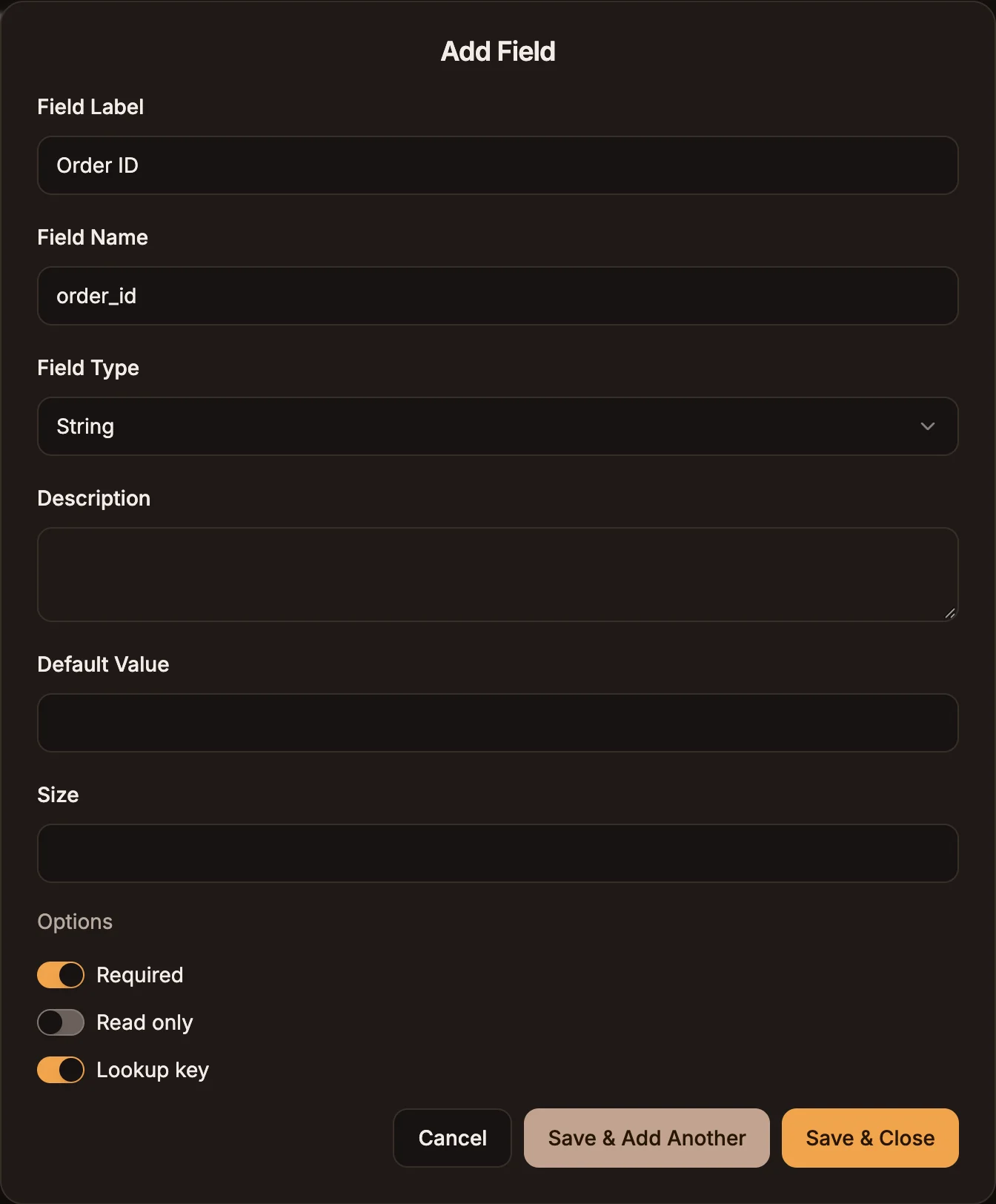
Each field has:
| Setting | Purpose |
|---|---|
| Field Label | The column heading people see. |
| Field Name | The name flows use to read and write the field. |
| Field Type | See the table below. |
| Description | Optional notes on what the field is for. |
| Default Value | Optional value used when a record does not set one. |
| Size | Optional size for the field. |
| Required | Every record must have a value. |
| Read only | The value cannot be edited in the table. |
| Lookup key | Marks the field as a key for finding records. |
Select Save & Add Another to add more, or Save & Close when you are done.
Field types:
| Type | Holds |
|---|---|
| String | Text. |
| Number | A number. |
| Boolean | True or false. |
| Date, Time, Timestamp | A date, a time of day, or a date and time. |
| List of Strings, List of Numbers, List of Booleans, List of Dates, List of Times, List of Timestamps | A list of values of one type. |
| Map | A JSON object. |
| Map List | A list of JSON objects. |
| Null | No value. Cannot have a default. |
The Manage Fields page lists every field with its label, name, type and settings. Deleting a field removes it from the schema only; values already stored in records are not removed.
Work with records
Open a data store to see its records as a table.
- Add Record adds a record through a form built from the fields.
- Use the row icons to edit or delete a single record.
- Tick several records to Export, Duplicate, Copy or Delete them together.
Import records
From the actions menu, choose Import Data and upload a CSV file. Map the file's columns to your fields, then run the import. The dialog tells you whether the import succeeded or failed; select Try Again after a failure.
Export records
From the actions menu, choose Export Data to export every record, or tick records and select Export for just those.
- Enter a File name. A timestamp is added to it.
- Choose CSV (comma-separated values) or JSON (JavaScript Object Notation).
- Optionally, pick which fields to include and, for CSV, whether to add field names as the first row.
One export holds at most 50,000 records. For a larger store, filter the table first.
Delete a data store
From the actions menu choose Delete Table, or use Delete this data store on the Manage Fields page. This permanently deletes all of its fields and records, and flows that use it will stop working. It cannot be undone.