
Audio
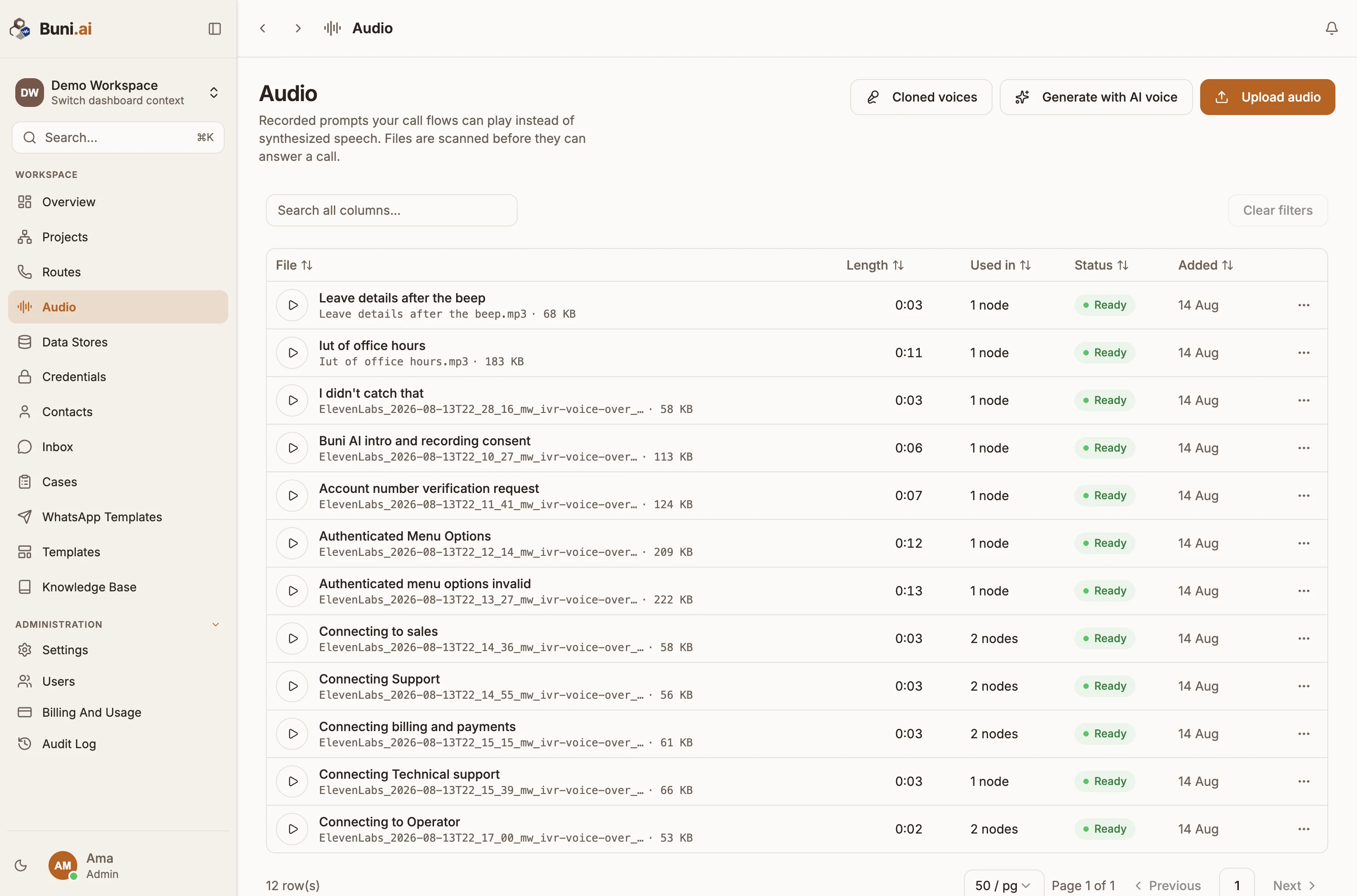
Keep the recorded prompts your voice flows play, upload or generate audio files, and manage cloned voices.
The Audio library holds recorded prompts your call flows can play instead of synthesized speech, such as a greeting or hold message. The library belongs to the organization, so any voice project can reuse a file.
Audio appears in the sidebar once your organization has a Voice (IVR) project.
Add audio
You can upload a recording or have a voice engine generate one.
Upload a file
- Select Upload audio.
- Choose an MP3 or WAV file, up to 5 MB. Other formats may play in a browser but are silent on a phone call.
- Give it a Name. This is what you see in the node picker.
- Select Upload.
Generate with an AI voice
- Select Generate with AI voice.
- Choose the engine and voice, and type the Text to speak.
- Give it a Name and select Generate.
The generated file plays on any carrier, like an upload. Engines appear once you add the vendor's API key on the Credentials page.
File status
Every file is scanned before it can play on a call.
| Status | Meaning |
|---|---|
| Scanning | Being checked. It cannot play yet. |
| Ready | Available to your flows. |
| Blocked | Failed the scan and cannot be used. |
| Scan stalled | The scan did not finish. |
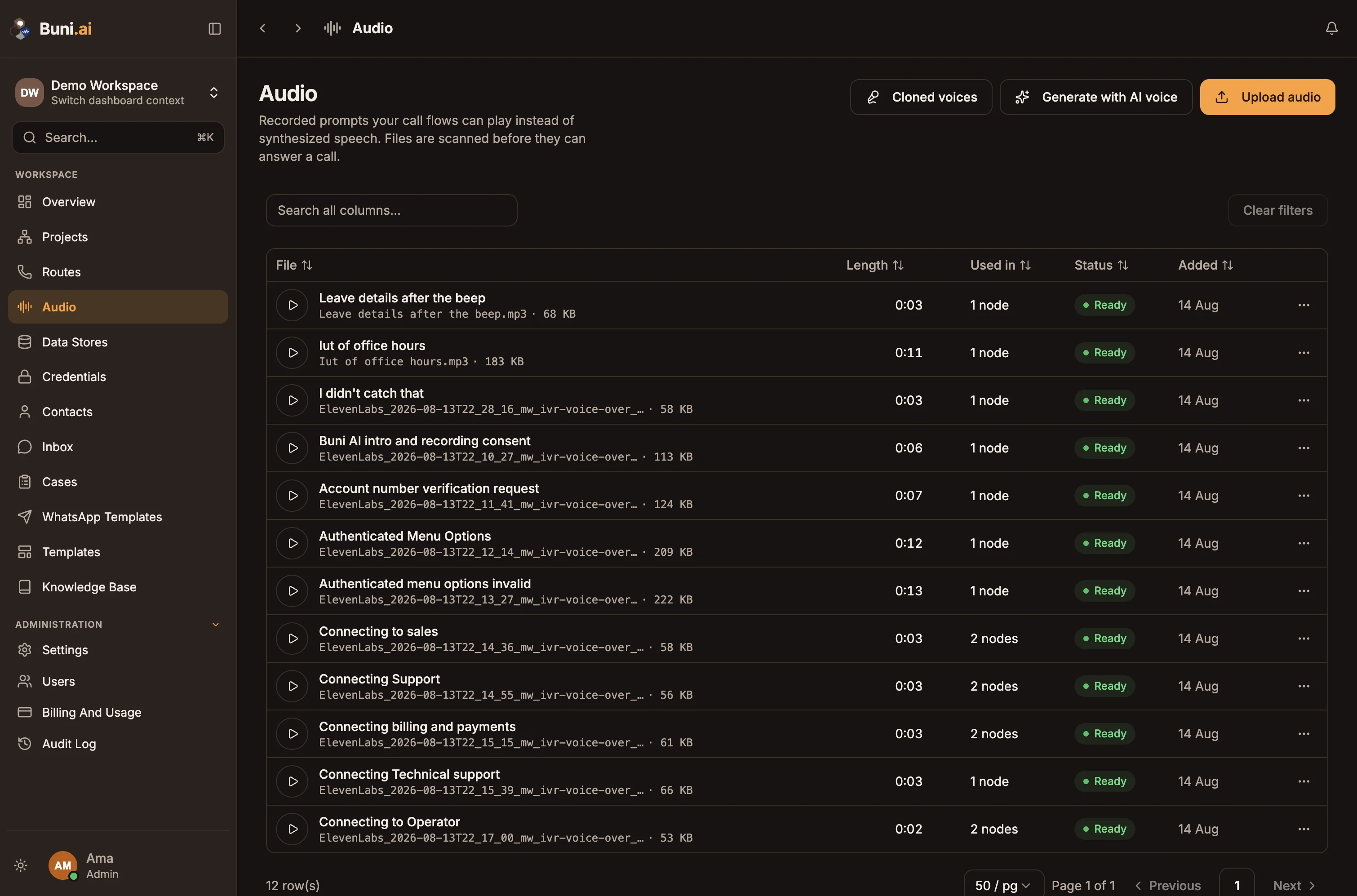
The table also shows each file's Length, where it is Used in, and when it was Added. Use the row menu to Rename or Delete a file. Renaming changes the name you see, not the uploaded file.
Cloned voices
Cloned voices creates a voice from recordings of a real person, using ElevenLabs. The clone lives on your ElevenLabs account and appears in every voice picker.
- Add an ElevenLabs API key on the Credentials page, or enter one in the dialog.
- Enter a Voice name and Whose voice is it?
- Add Recordings: up to 3 files, 10 MB each. A minute of clear speech with no background works better than a long noisy recording.
- Confirm that the speaker has consented to their voice being cloned. The confirmation is recorded with your name and the date.
- Select Clone voice.
Plan limit
If your plan limits the number of audio files, the library shows a meter such as "3 of 10 files", and Upload audio is disabled once you reach it. See Billing and usage.
Use audio in a flow
Pick a library file in a Play node or any voice node that plays a prompt. For the project's default voice and speech settings, see Voice settings.