
Knowledge Base
Upload the documents your AI nodes and agents answer from, check how they were indexed, and replace a file without republishing.
The Knowledge Base holds your organization's reference documents, such as schedules, price lists and FAQs. AI Agent nodes search it to ground their answers, and the Inbox uses it to draft replies for agents. Documents belong to the organization, so any project can use them.
Open it from Knowledge Base in the sidebar.
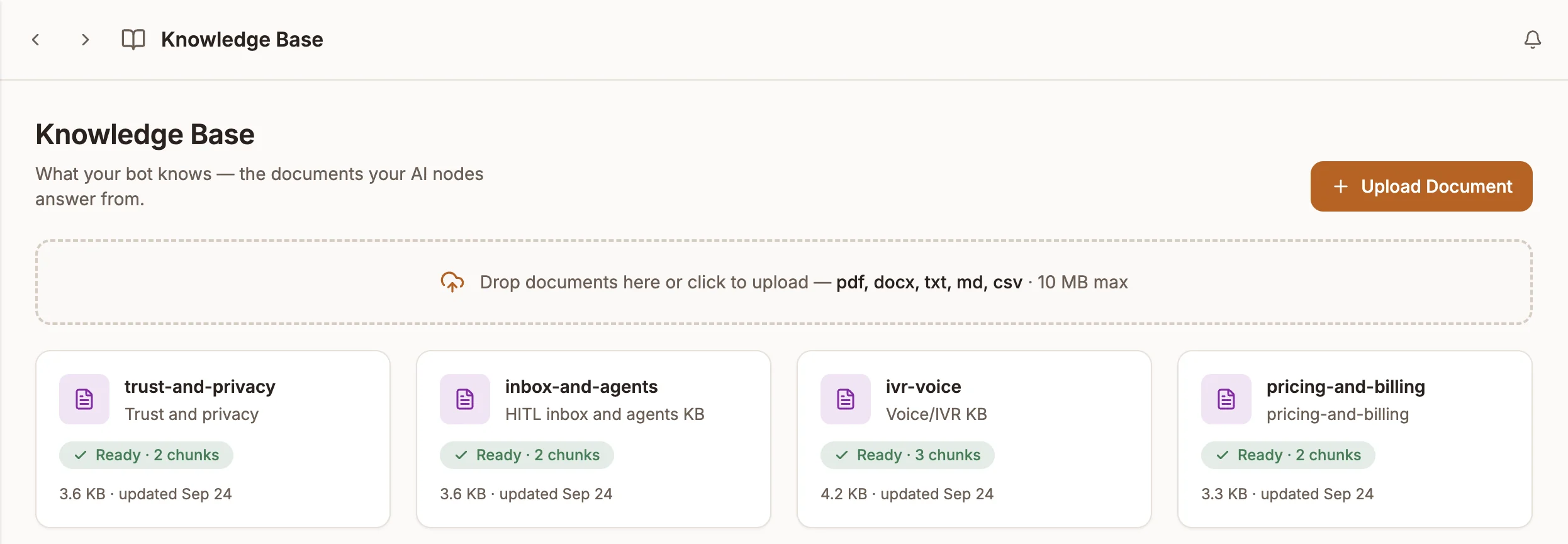
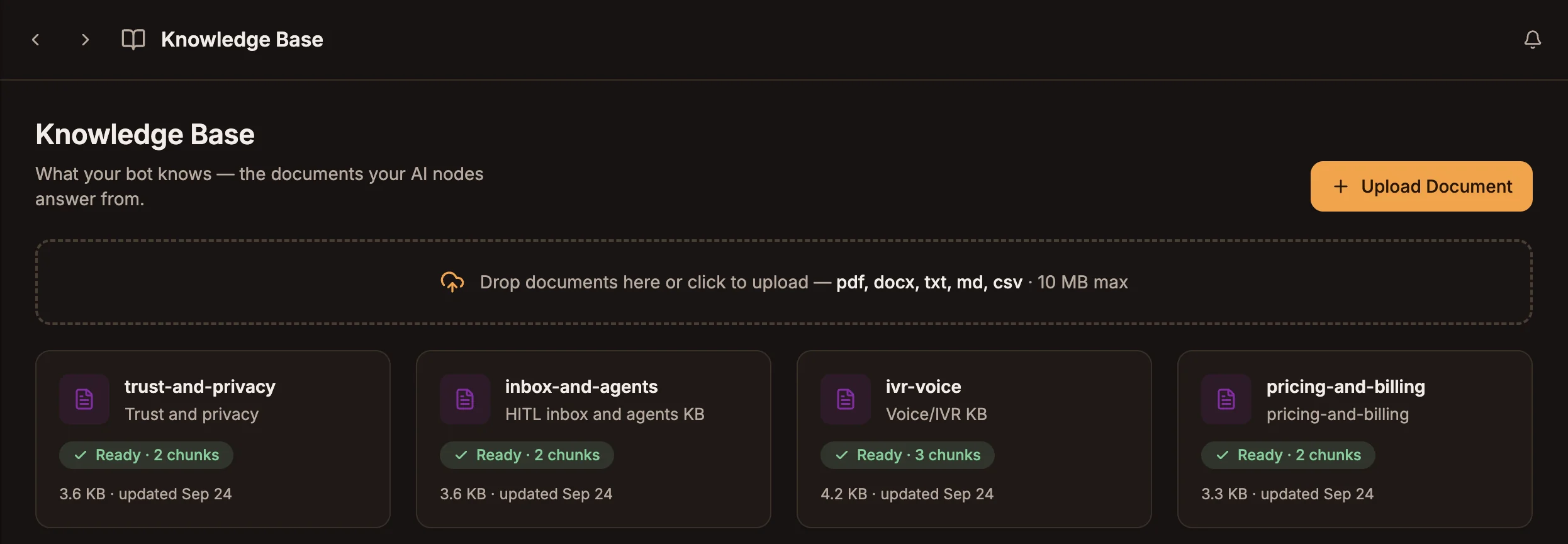
Upload a document
Start the upload
Select Upload Document, or drop files anywhere on the page.
Choose the file
Pick a file. Supported types are PDF, TXT, DOC, DOCX, CSV and MD, up to 10MB each.
Name it
Give it a Document Name and, optionally, a Description, then select Upload Document.
After upload, Buni.ai indexes the document for search. Each document card shows its status:
| Status | Meaning |
|---|---|
| Indexing… | Being indexed. Check back shortly. |
| Ready | Searchable. The card shows how many chunks it was split into. |
| Not indexed | Not part of what your bot can answer from yet. Select Index now. |
| Failed, or Indexing stalled — retry | Indexing did not finish. The card shows the error; select Reindex to try again. |
See what the AI sees
Select a document to open its details. Under As your bot sees it, you see the chunks the document was split into. Chunks are what retrieval returns to your AI nodes. Each is roughly 500 tokens, split at paragraph and sentence boundaries where possible, and carries the heading it sits under.
From the details panel, or the icons on the card, you can:
| Action | What it does |
|---|---|
| Open | Opens the original file. |
| Replace | Swaps in a new file (see below). |
| Reindex | Indexes the document again. |
| Copy link | Copies a link to the file. |
| Delete | Removes the document. |
Replace a file in place
When a document changes, replace its file instead of deleting and re-uploading it.
- Open the document and select Replace.
- Choose the new file and select Replace File.
The new file is re-indexed and the document keeps its ID. Any AI node already using it picks up the new content automatically, with no republish needed. Deleting and uploading instead creates a new document that your nodes do not reference.
Use it in an AI Agent node
In an AI Agent node, open the Knowledge base section, select Browse knowledge base and choose the documents the agent may search. You can also select Upload new files there without leaving the canvas. The agent searches only the documents you select.
Write documents that retrieve well
Retrieval returns a limited number of passages per question, and caps how much of any one document reaches the model. This matters most for list-shaped documents such as timetables, price lists or directories.
- Keep long lists short, or split them. If a list is too long to reach the model whole, the model sees part of it and may fill in the rest instead of saying it does not know. Split a long list into several documents, for example one per day or per category.
- Put the answer near its heading. Headings travel with each chunk, so a clear heading helps a passage match the question.
- Keep lists in a sensible order. Sort a timetable by time and a directory alphabetically, so each chunk holds a coherent run.
- Check the chunks. After uploading, open As your bot sees it and confirm the information you care about is there.