
WhatsApp templates
Create WhatsApp message templates, submit them to Meta for approval, and use them to reach customers outside the 24-hour window.
A WhatsApp template is a message Meta has reviewed and approved in advance. It is the only kind of message WhatsApp lets a business send to a customer who has not written in the last 24 hours. The WhatsApp Templates page is where you create templates, send them to Meta for review and assign them to projects.
Before you start, the project's WhatsApp connection must have both an API Token and a WhatsApp Business Account ID (WABA ID). Templates belong to a WhatsApp Business Account, and Buni.ai uses these two values to submit and sync them.
Open the page
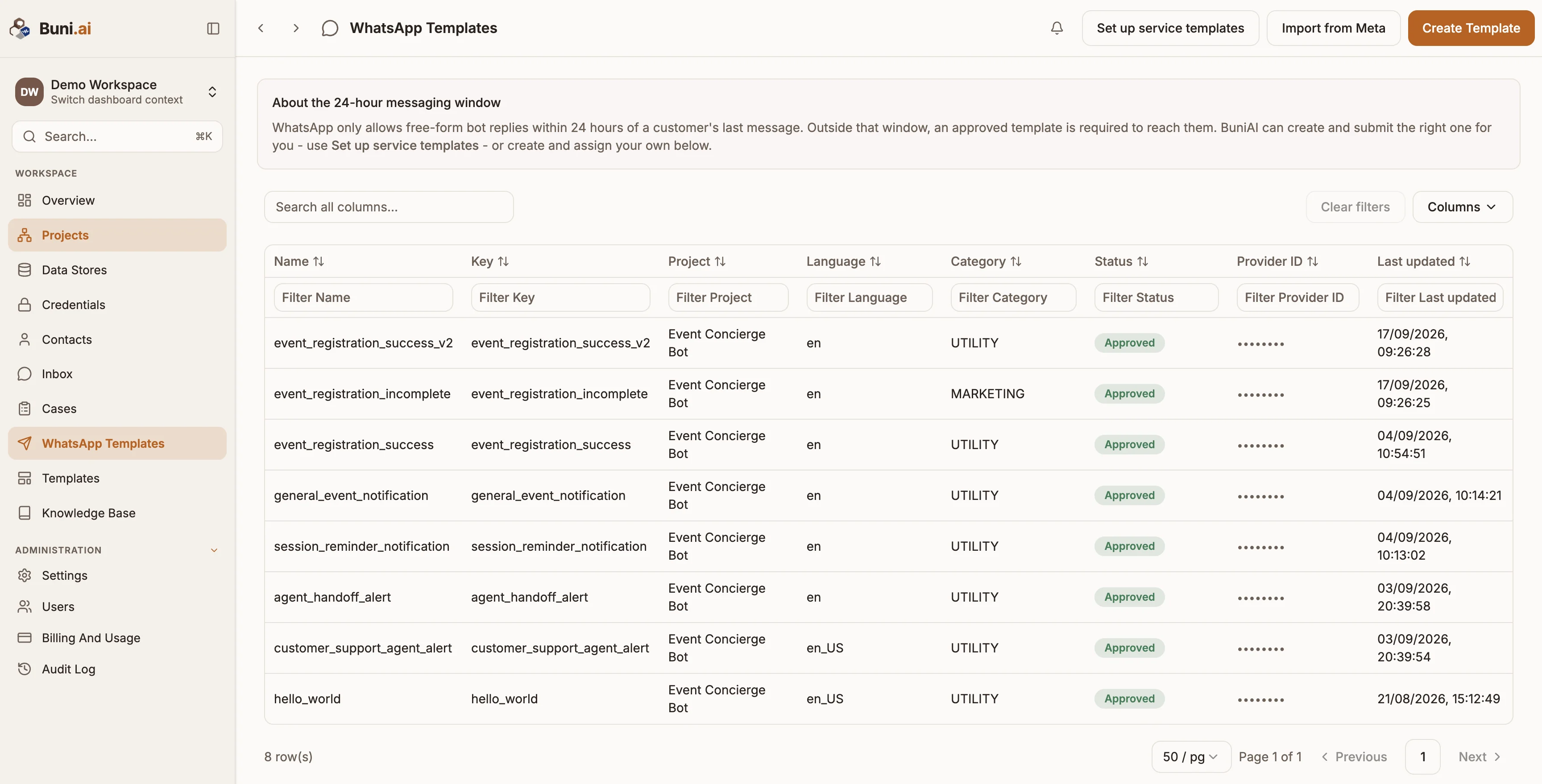
Select WhatsApp Templates in the app's left sidebar. (Templates, a separate item, holds flow templates for new projects.)
The list shows each template's Name, Key, Project, Language, Category, Status, Provider ID (Not synced until Meta knows about it) and Last updated.
Set up the service templates first
Two platform features need an approved template before they work:
- Service window fallback: replying to a customer more than 24 hours after their last message.
- Agent assignment alert: telling an agent on WhatsApp that a chat is waiting for them.
Select Set up service templates, then Set up templates. Buni.ai creates both with the right wording and variables and submits them to Meta. Each shows Not set up or In use. They do not count against your plan's template limit.
Create a template
Start the template
Select Create Template and choose the Project. To draft it for you, select Generate with AI, describe the message in a sentence (for example "Notify a customer their order has shipped, with the order number and a tracking link") and select Generate.
Fill in the details
| Field | What to enter |
|---|---|
| Key | An internal id, unique in the project, such as order_update. It cannot be changed later. |
| Meta template name | The name registered with WhatsApp: lowercase letters, digits and underscores only. |
| Language | A language code such as en_US. |
| Category | Utility (the default), Marketing or Authentication. |
| Body text | The message. Use {{1}}, {{2}} and so on for variables, for example Hi {{1}}, your order {{2}} has shipped! |
| Fallback text | Text used only if the template feature is turned off. |
| Enabled | Whether the template can be used. |
Map the variables
Under Variable mapping, select Add variable for each placeholder and set where its value comes from when the message is sent: a contact field, a session attribute or a static value. Set a Fallback (for example there) for values that might be missing. A Required variable with no value and no fallback blocks the send.
Add buttons (optional)
Under Buttons, select Add button and choose Quick reply, Visit website or Call phone number. The editor allows up to 10 buttons; Meta applies its own stricter rules at review.
Create and submit
Select Create template. Open the template and select Submit for review. Submitting is always a deliberate step: saving a template never sends it to Meta.
Statuses
| Status | Meaning |
|---|---|
| Draft | Saved in Buni.ai, not yet sent to Meta. |
| Awaiting review / Pending review | Sent to Meta and waiting for a decision. Buni.ai checks for updates periodically. |
| Approved | Meta approved it. Only approved templates are ever sent. |
| Rejected | Meta rejected it. The template page shows Meta's reason under Rejected by Meta. Edit it and submit again. |
| Paused / Disabled | Meta paused or disabled it. It is not sent until it is active again. |
| Sync error | Buni.ai could not sync it with Meta. Check the project's WhatsApp token and WABA ID. |
After editing an approved template, select Resync with Meta to submit the new content. Pull from Meta refreshes the template from Meta's copy. Archive template removes it from use.
Assign a template to a project
Open an approved template and:
- Select Set as project default to use it automatically when the 24-hour window is closed. This takes effect the next time you publish the project.
- Select Use for assignment alerts to use it for agent alerts. The body must use the three named parameters
agent_name,customer_nameandproject_name.
Import existing templates
If templates already exist on the WhatsApp Business Account, created in Meta Business Manager or for another project on the same account, select Import from Meta and Import the ones you want. Their Meta status is kept, so an approved template does not need to be reviewed again.
Send a template from a flow
In a chatbot flow, add a template to a Reply node: select Add Whatsapp template, then under WhatsApp Template Library pick one in Template (Select a synced template). Select Refresh if a new template is missing. Set Fallback Text (Optional) for channels that don't support templates.