
AI drafts and translation
Let Buni draft Inbox replies from your knowledge base, choose which documents it can use, and chat with customers in another language.
Buni can help you answer faster in two ways: it drafts a reply grounded in your knowledge base, and it translates messages in both directions so you can help someone who writes in a language you do not read. Neither ever sends anything on its own. You always read, edit and send.
Drafts and translations use your workspace's AI credits. Drafts are not offered on USSD or voice conversations.
Draft a reply from your knowledge base
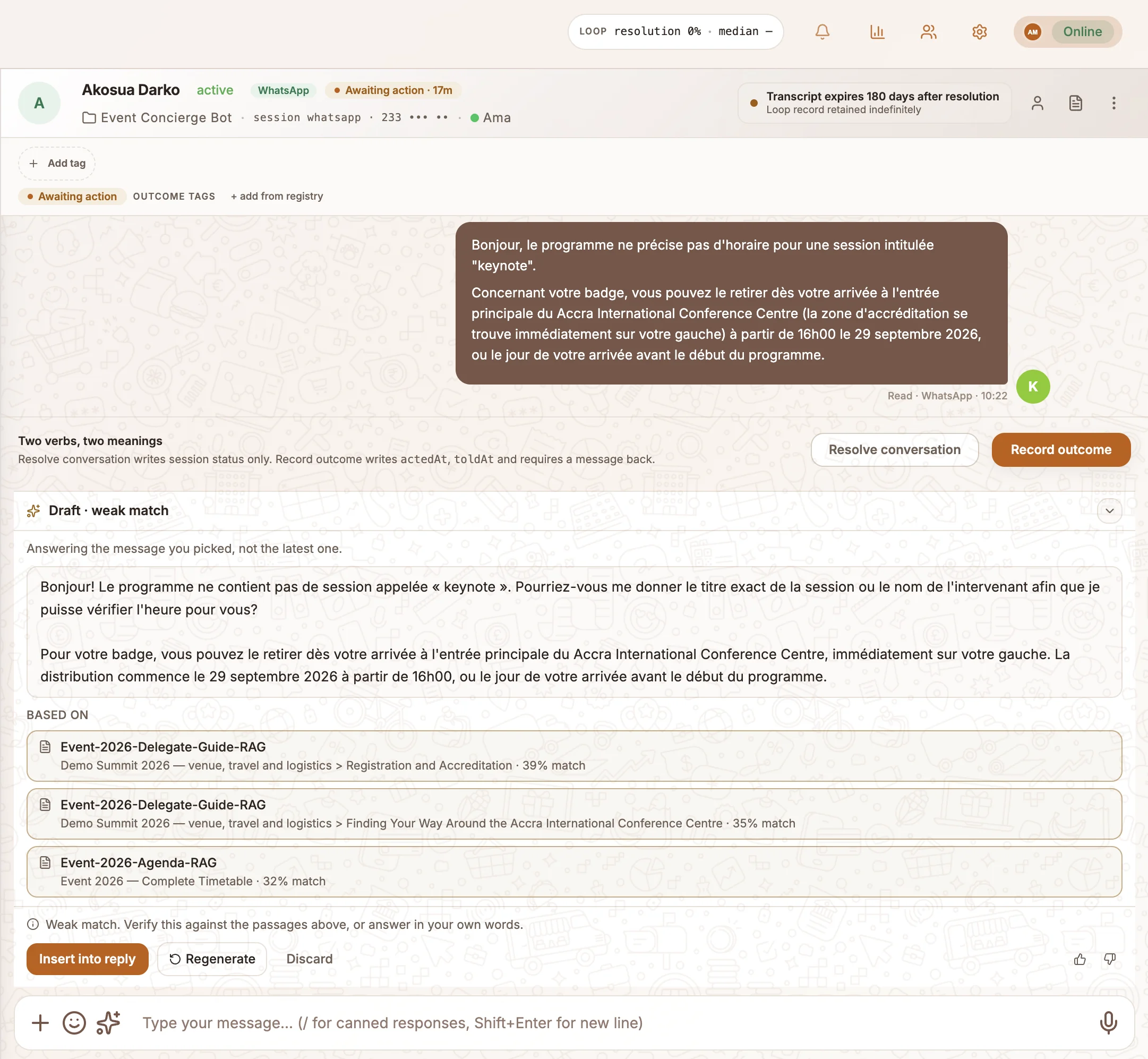
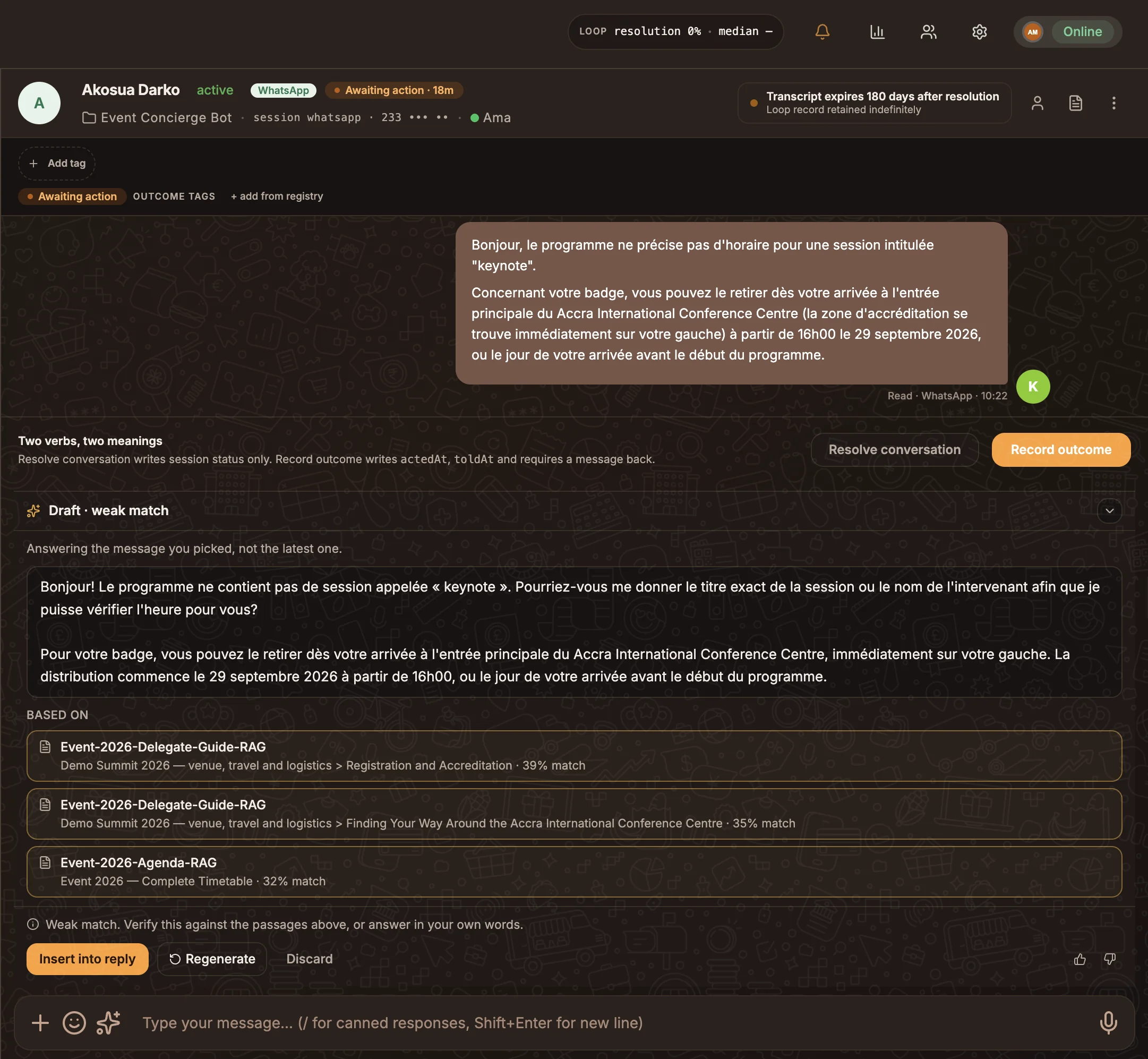
When a customer writes, Buni quietly checks whether your documents contain anything relevant. This check does not use credits. Writing a draft is always something you ask for:
- Select the draft button in the composer, or press Cmd+J (Mac) or Ctrl+J (Windows).
- To answer an earlier message rather than the latest, select Draft an answer to this under that message. The dock then says Answering the message you picked, not the latest one.
The Draft reply dock opens above the composer while Buni searches your knowledge base and writes. Select Stop to give up waiting.
Use the draft
The ready draft shows the passages it was Based on, each linking to its document. Then:
| Action | Effect |
|---|---|
| Insert into reply | Puts the draft in the composer. If you have already typed something, the button reads Add to reply. |
| Regenerate | Writes it again. Choose a style: Shorter, Warmer, More formal, More detail, or Same again. |
| Discard | Throws the draft away. |
| Thumbs up or down | Rates the draft. A thumbs down asks What was wrong?: Wrong information, Missed the point, Wrong tone or Too long. |
When the match is weaker, the draft carries a note such as "Buni wrote this from the passages above. Read them before you send." Check the passages before sending.
A draft belongs to the conversation as it was when you asked. If the customer writes again, the draft no longer applies.
When Buni does not write a draft
Buni does not guess. If it cannot answer from your documents, it tells you why instead of drafting:
| Message | What to do |
|---|---|
| No documents are attached to this project | Choose documents for agents (below). |
| None of this project's documents has finished indexing yet | Try again in a few minutes. |
| Some documents are still being indexed | Try again in a few minutes. |
| I searched the documents and found no passage that answers this | The answer is not in your documents. Answer it yourself, and consider adding it to the knowledge base. |
| I read passages and couldn't answer from them without guessing | The passages are shown under What I read; the answer may be in one of them. |
From here you can Search again, Open knowledge base or Dismiss.
Choose which documents drafts use
By default, drafts use the documents the project's bot uses. To give agents more material:
Open the setting
In the Inbox header, open Settings›Chat Settings.
Pick the project and documents
Choose a project. Documents under Already used by the bot are always searched. Add others under Extra documents for agents.
Only admins, supervisors and project editors can change the document list. Everyone else sees what their drafts can draw on.
Turn drafts off for yourself
Turn off Suggest replies from your knowledge base in Settings›Chat Settings. It is on by default.
Chat in another language
Read a customer's message
Under any customer message, select Translate to see it in your language. If it already is, you see Already in your language.
Reply in the customer's language
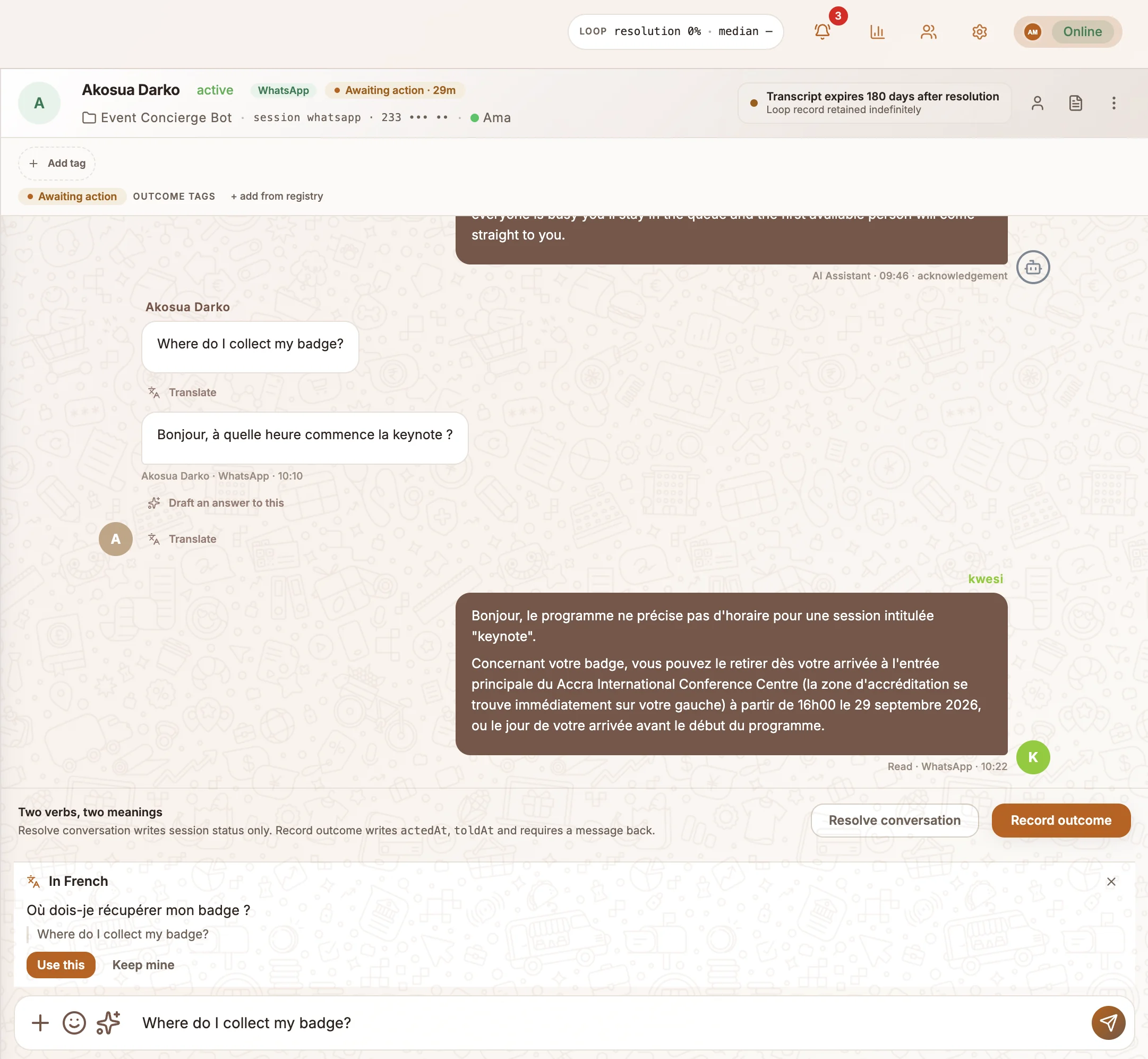
Write your reply
Type your reply in your own language.
Translate it
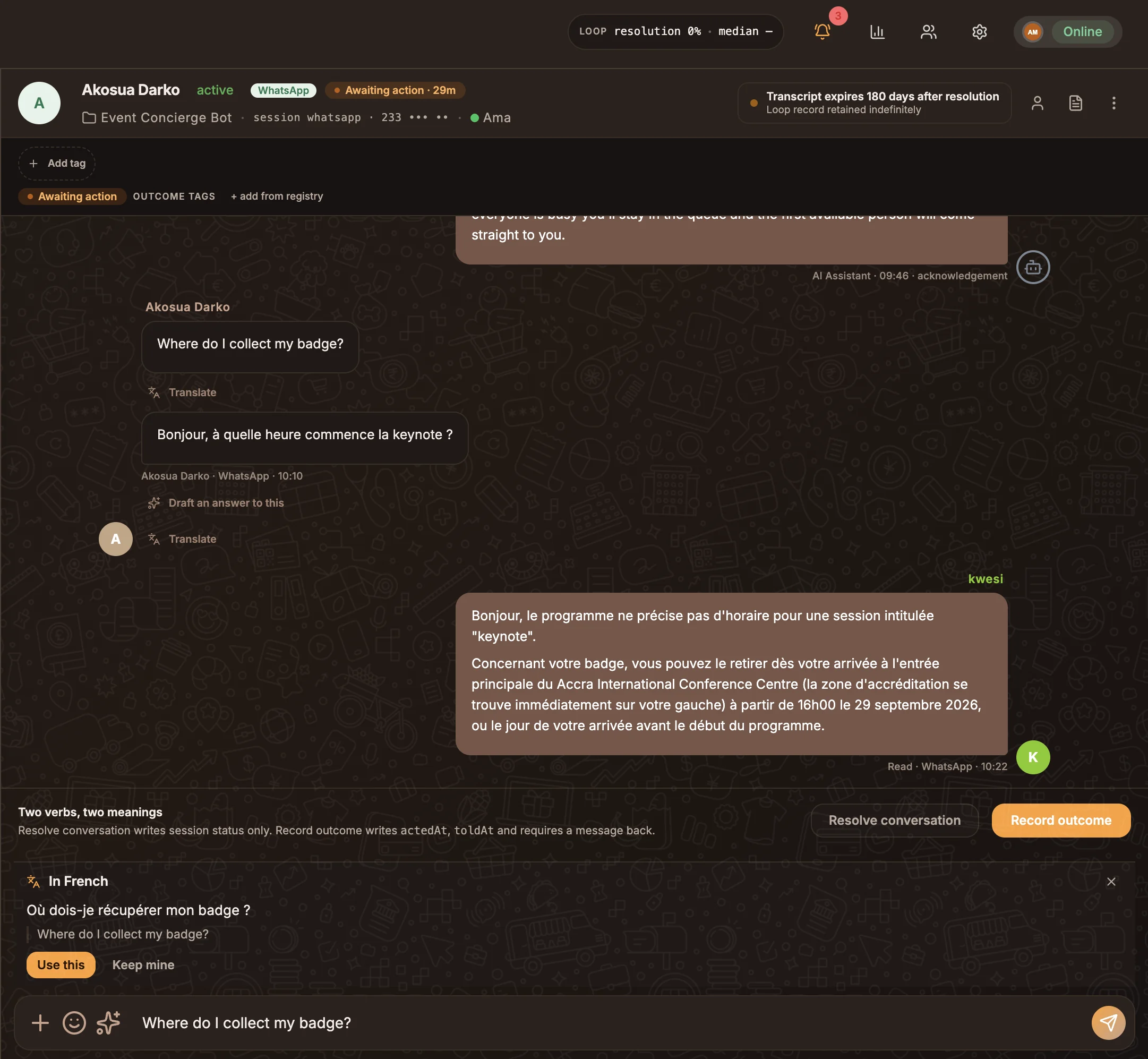
Select the translate button in the composer, or press Cmd+Shift+L (Mac) or Ctrl+Shift+L (Windows). The translation appears above the composer, headed with the target language, with your original underneath.
Check and send
Select Use this to put the translation in the composer, or Keep mine to keep your text. Then send as usual.
The customer's language is learned from the first message they type. Until then the dock shows No language on file for this person yet; this also happens when they have only tapped buttons. If your text is already in their language, you see Already in their language — send as is.
Related
Replying to customers
Write replies in the Inbox composer, attach files, use canned responses, and understand typing indicators, read receipts and the WhatsApp 24-hour window.
Notes, tags and customer profile
Leave private notes for your team, tag conversations, and see who a customer is and how they have contacted you before.