
Privacy and data
Tell people how their data is used, control how long transcripts and recordings are kept, and disclose AI and call recording on voice projects.
Your organization decides what its flows collect and why. Buni.ai gives you settings to tell people what is happening and to limit how long their data is kept. Which rules apply depends on where you and the people you talk to are; these settings help you meet them but do not decide that for you.
For how Buni.ai itself handles data, see the Buni.ai privacy policy and data privacy principles.
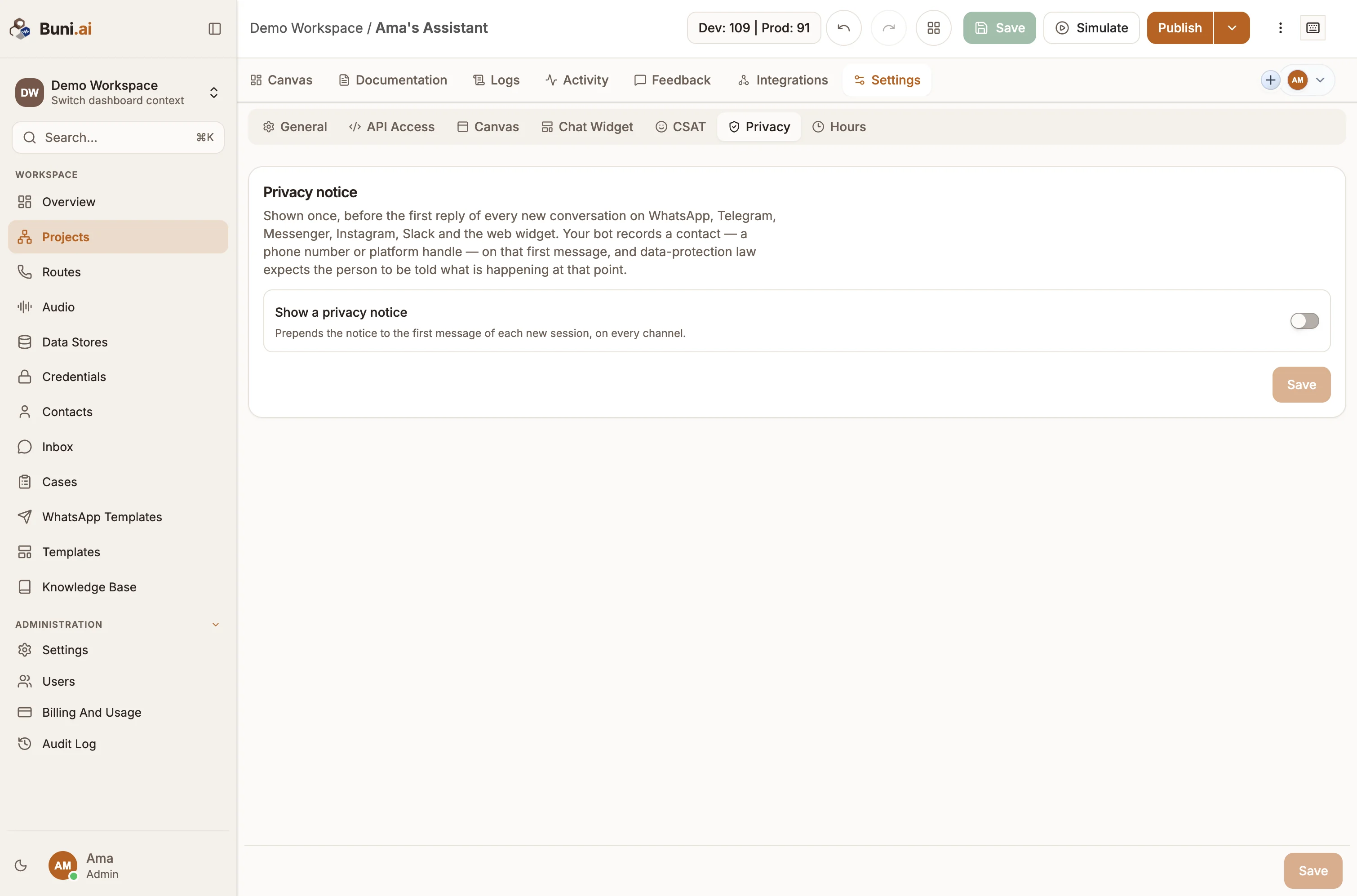
Show a privacy notice (chatbot)
A chatbot records a contact, such as a phone number or platform handle, from the first message. The privacy notice tells people this at that moment.
Open the Privacy tab
Open the project and go to Settings›Privacy. The tab is on Chatbot projects.
Turn it on
Turn on Show a privacy notice. The notice is added to the first message of each new conversation, on WhatsApp, Telegram, Messenger, Instagram, Slack and the web chat widget.
Write the notice
Enter the Notice text. Name your own organization, not Buni.ai, since you decide what the flow collects. Optionally add a Link to your full privacy policy.
Save and republish
Select Save, then republish the project. The notice is built into the bot when you publish.
Data retention
In Organization settings, Data retention sets how long conversation data is kept after a conversation is resolved. It applies to every project.
| Setting | Options |
|---|---|
| Transcripts | 30, 60, 90, 180 or 365 days (30 by default), or switch expiry off to keep them. |
| Call recordings | Their own window, 30 days by default, never longer than the transcript window. |
When a window ends, these are deleted:
- Message bodies, inbound and outbound
- Free-text answers captured in form nodes
- Call recordings and their transcripts
- Attachments and voice notes
- Platform handles held on the session record
These are kept indefinitely, so reporting still works:
- Loop events: reported, acknowledged, acted, told
- Resolved subject id, channel, programme reference
- Typed outcome and the indicator it maps to
- Who recorded the outcome, and when
The window starts when a conversation is resolved. Changing it is not retroactive: conversations that already have an expiry keep it. Select Preview run to see how many messages holding personal data the next expiry would remove; previewing deletes nothing.
Voice: AI disclosure and call recording
On a Voice (IVR) project, Settings›Voice has two disclosure settings. See Voice settings.
- AI disclosure is spoken once, before an AI Voice Agent first replies. Several jurisdictions require telling callers they are speaking to a machine.
- Recording calls controls calls between an agent and a caller, which are recorded from the moment they connect. Choose Tell them, then record (with the message they hear before they are connected), Record without telling them, or Do not record agent calls.
Recording without telling people
Several markets require telling someone before recording them. Choose Record without telling them only where you have checked that you may.
An agent can pause a recording while a caller reads out something private, and can stop it entirely if the caller asks, in which case nothing from that call is kept.
Phone numbers on the Activity tab
On a voice project's Activity tab, the full caller number is hidden until someone chooses to show it, and showing it is recorded in the audit log.
Limit who sees data
Use section access to keep Members out of areas such as Contacts, Data Stores or Inbox, and share projects only with the people who need them.