
Going live
Publish a USSD project, give its Callback URL to your aggregator, and record the short code on the Routes page.
Going live connects a real short code to your flow. Buni.ai does not sell short codes: you get one from a USSD aggregator or directly from a mobile network, and point it at your published project.
Before you start, you need:
- A USSD project that works end to end in the simulator. See the quickstart.
- A short code provisioned with an aggregator or carrier, and access to its dashboard.
- Permission to publish the project, and to add routes if you want to record the code in Buni.ai.
Draft and Live
A USSD project has two versions. See Environments for the full picture.
| Environment | What updates it | What runs it |
|---|---|---|
| Draft | Saving the project | The simulator |
| Live | Publishing the project | Requests to the project's Callback URL, which is what your aggregator calls |
Saving never changes what callers on your short code see. Only publishing does.
Check the provider
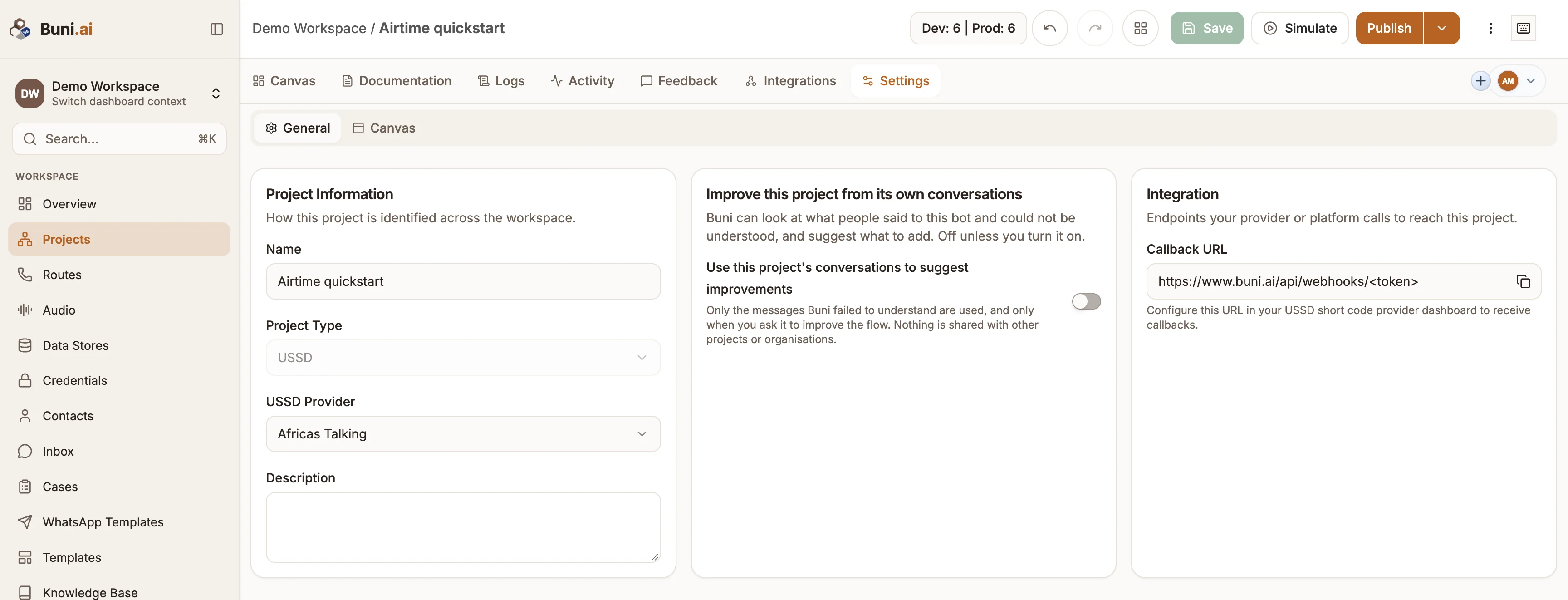
Open the project's Settings tab. Under General, USSD Provider should match the aggregator your short code is provisioned with. The provider decides the request fields your app reads and the response format it sends back, so a mismatch means the aggregator cannot read your screens.
Publish
- Select Publish in the project header.
- Optionally add Release Notes and a Version Name. If you leave the version name empty, one is generated.
- Leave Create backup before publishing on unless you have a reason not to.
- Select Publish.
Publishing builds the Live version from the current flow. See Publishing and Version history.
Copy the Callback URL
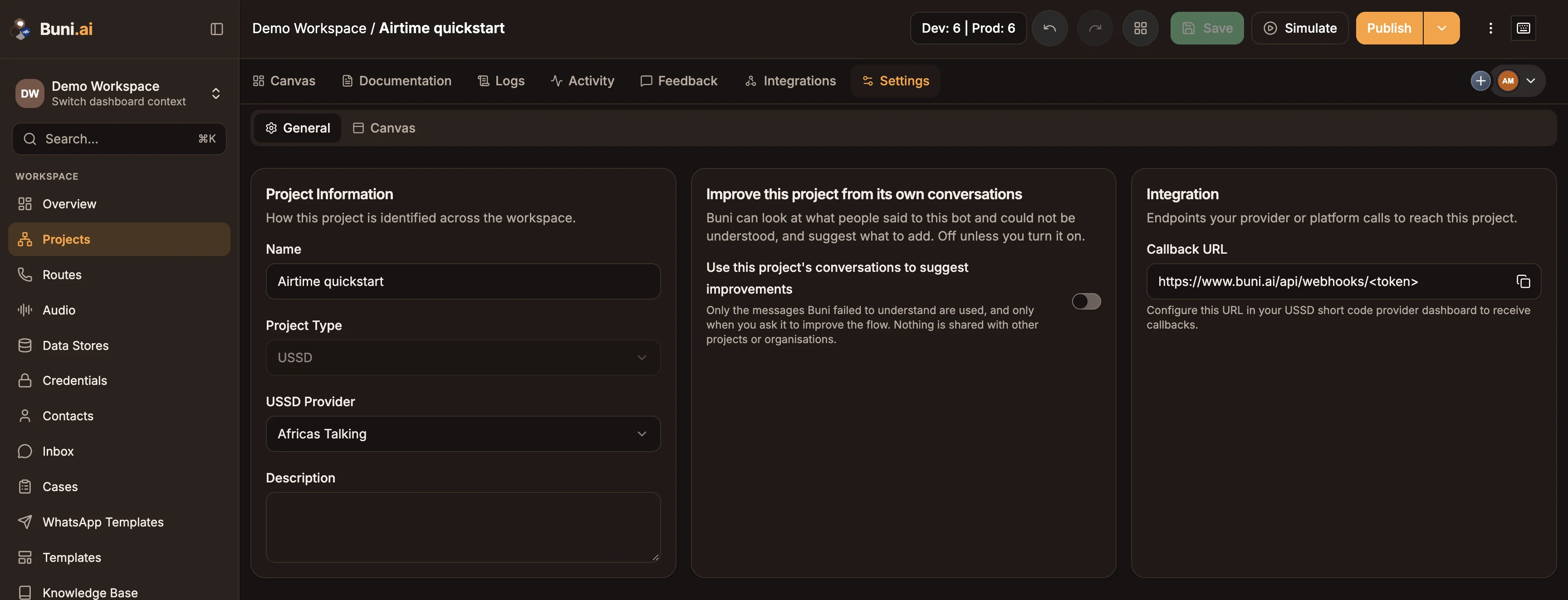
Once the project is published, the Settings tab shows an Integration section with the project's Callback URL. Copy it. You can also copy it from the project header: open More Options (the three-dot menu) and select Copy Live URL.
Point your short code at it
In your aggregator's dashboard, set the callback (sometimes called the webhook or service URL) for your short code to the Callback URL. Where to find that setting depends on the aggregator; see USSD codes.
Requests to this URL always run the Live version of the flow.
Record the short code on Routes
Recording the code in Buni.ai is optional, but it lets everyone on your team see which code reaches which project.
- Open Routes in the main sidebar. It appears once your workspace has a USSD or voice project.
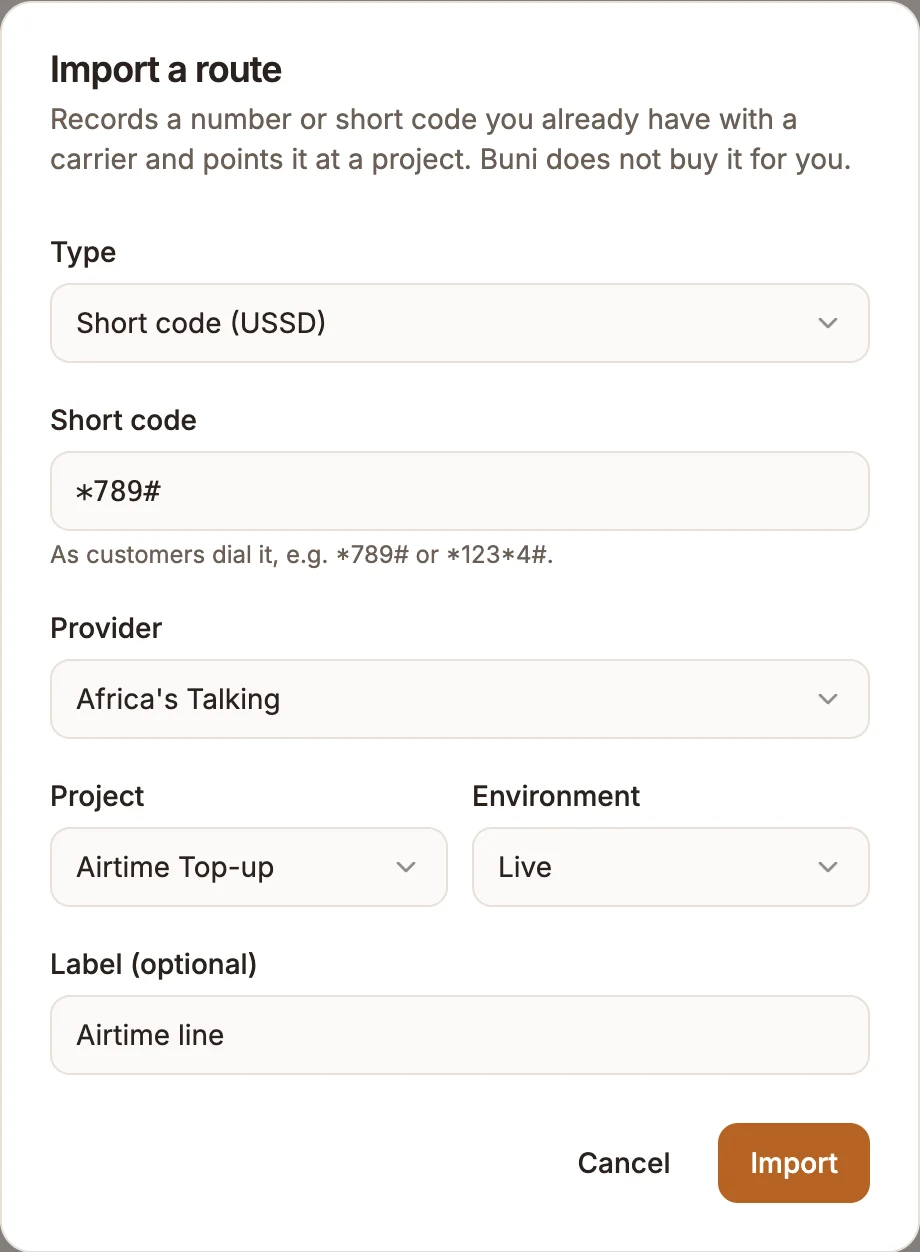
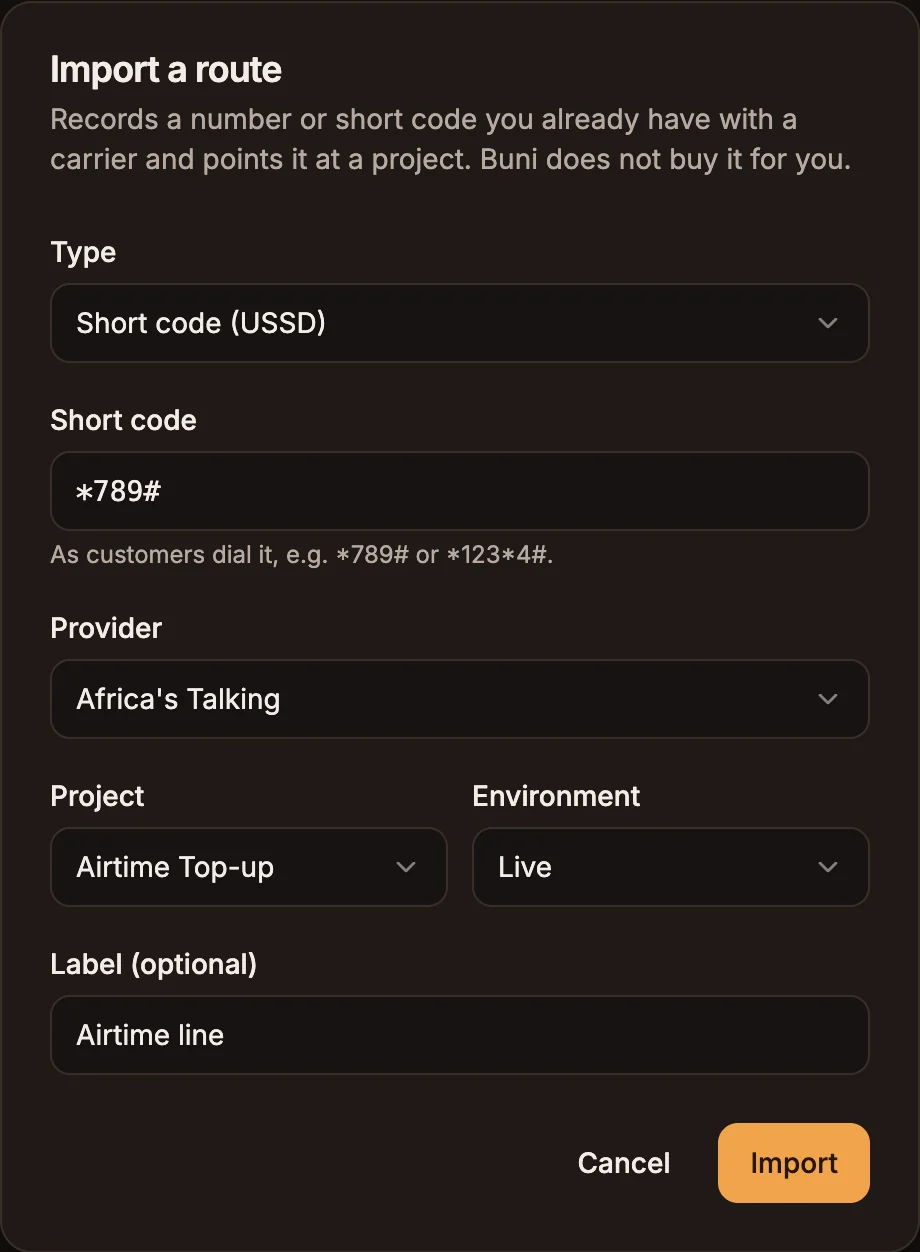
- Select Import route.
- Set Type to Short code (USSD).
- Enter the Short code as customers dial it, for example
*789#or*123*4#. - Choose the Provider: Africa's Talking, Infobip, Hubtel or Direct carrier.
- Choose the Project and the Environment, and optionally add a Label.
- Select Import.
A short code can only be recorded once for each provider. See Routes for editing and removing routes.
Dial it
Dial the short code from a phone on a network your aggregator covers. You should see your Main menu. Then open the project's Activity tab to confirm the session was recorded.
Routes records a short code; it does not connect it
For USSD, the Routes page keeps a record of which project and environment a code is meant for. The connection itself is the Callback URL you set at the aggregator, and that URL always runs the Live version. Setting a short-code route to Draft does not send its callers to the draft. To test unpublished changes, use the simulator.
Updating a live service
- Make and save your changes. Callers are unaffected.
- Test them in the simulator.
- Publish. New sessions use the new version. You do not need to change anything at the aggregator: the Callback URL stays the same.
If you change USSD Provider in Settings, publish again: the response format is built into the published app.
Taking a service offline
Open the arrow menu next to Publish and select Unpublish. The project stops answering its Callback URL until you publish again.