
Carrier setup
Bind a phone number to your Voice (IVR) project and point your Twilio, Infobip or Africa's Talking account at its webhook.
Calls run on your carrier account: you keep the carrier relationship, the number and the carrier's bill. Supported carriers are Twilio, Infobip and Africa's Talking. See Voice carriers for the carrier-side details.
Bind the number
- Save your carrier account as a credential on the project. A route cannot answer calls without one.
- Open Routes in the workspace navigation and select Import route.
- Set Type to Phone number (voice) and fill in Phone number, Provider, Project, Environment and Credential.
See Routes for the rest of the page.
The two things a carrier needs
On Routes, open Webhook details on the number's row:
- Webhook URL: where the carrier sends call events.
- Shared secret: sent as the
x-buni-voice-secretheader. Where your carrier uses it, requests without it are rejected, so calls will not connect until it is set.
The same details are on the canvas under the Publish menu, as Voice webhook URL.
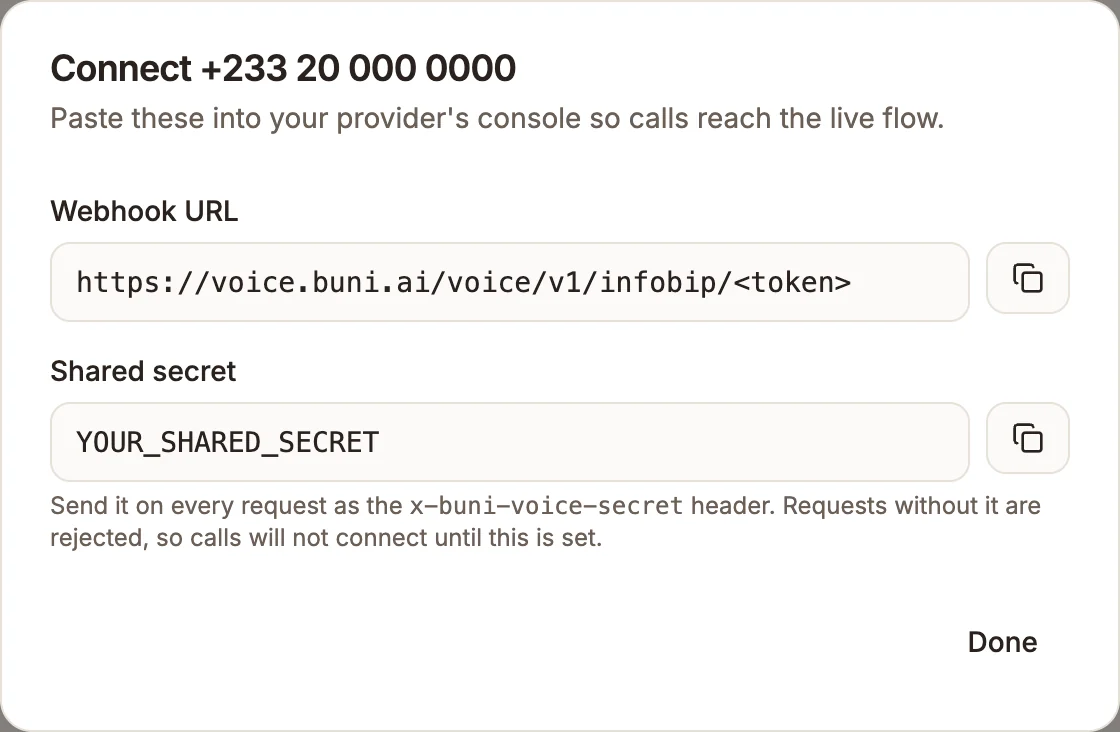
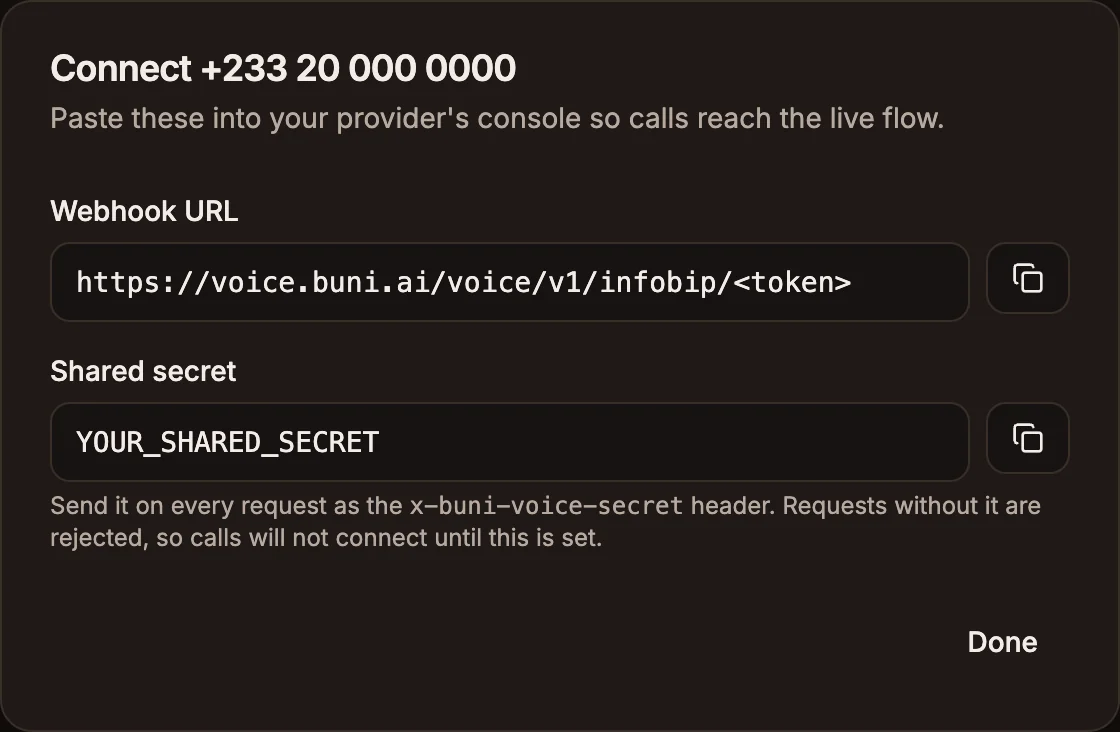
The URL contains the carrier's name, because that decides which adapter reads the request. Re-binding a number to a different carrier changes the URL, so copy it again from Routes rather than reusing an old one.
Environments
Each route points at one environment:
- Live: the published flow.
- Draft: the working copy.
Keeping a second number on Draft lets you dial a flow before customers can. It is the closest thing to a staging phone line.
Per carrier
Infobip
- Point your Infobip calls configuration's inbound call events at the Webhook URL.
- Send the shared secret as the
x-buni-voice-secretheader.
Infobip does not take call control in the webhook response; it delivers events, and Buni.ai answers and drives the call through Infobip's Calls API.
Twilio
- In your number's configuration, set the incoming-call webhook to the Webhook URL, method POST.
- Twilio requests are verified by Twilio's own signature.
Africa's Talking
- Set the number's callback URL to the Webhook URL.
- Africa's Talking has no signature scheme, so the unguessable URL is what authenticates it.
What each carrier can do
| Twilio | Infobip | Africa's Talking | |
|---|---|---|---|
| Keypad input | Yes | Yes | Yes |
| Speech input | Yes | Yes | No |
| Text to speech | Yes | Yes | Yes |
| Play audio files | Yes | Yes | Yes |
| Voicemail recording | Yes | Yes | Yes |
| Background whole-call recording | Yes | Yes | No |
| Transfer | Yes | Yes | Yes |
| Keypress during a prompt | Yes | No | Yes |
| Repeating hold audio in a queue | Yes | Yes | No |
| Streaming audio | Yes | Yes | No |
The canvas warns you when a flow asks for something the number's carrier cannot do. On Africa's Talking, a Collect Input set to speech lets callers press keys but not speak, so use Keypad only there. On Infobip, keys pressed while a prompt is still playing are ignored, so keep menu prompts short.
Verifying the connection
Call the number, then open the project's Activity tab. If the call is not listed, the carrier never reached the webhook: check the URL, the secret and the credential on the route.