
Users and roles
Invite people to your organization, choose their role, share projects with them and limit which sections of the app they can use.
Access in Buni.ai works on three levels:
- An organization role decides what someone can do across the workspace.
- Project permissions decide which projects a Member can open, and what they can do in each.
- Section access can narrow which areas of the app a Member can reach.
Manage all three from Users in the Administration group of the sidebar. The page is titled User Management.
Organization roles
| Role | What it allows |
|---|---|
| Admin | Everything, including billing, the audit log and organization settings. Sees every project. |
| Supervisor | Manages users and Inbox agents. Sees every project without it being shared. |
| Member | Sees only the projects shared with them. Can be limited further with section access. |
Admins and supervisors are never restricted by section access.
Invite people
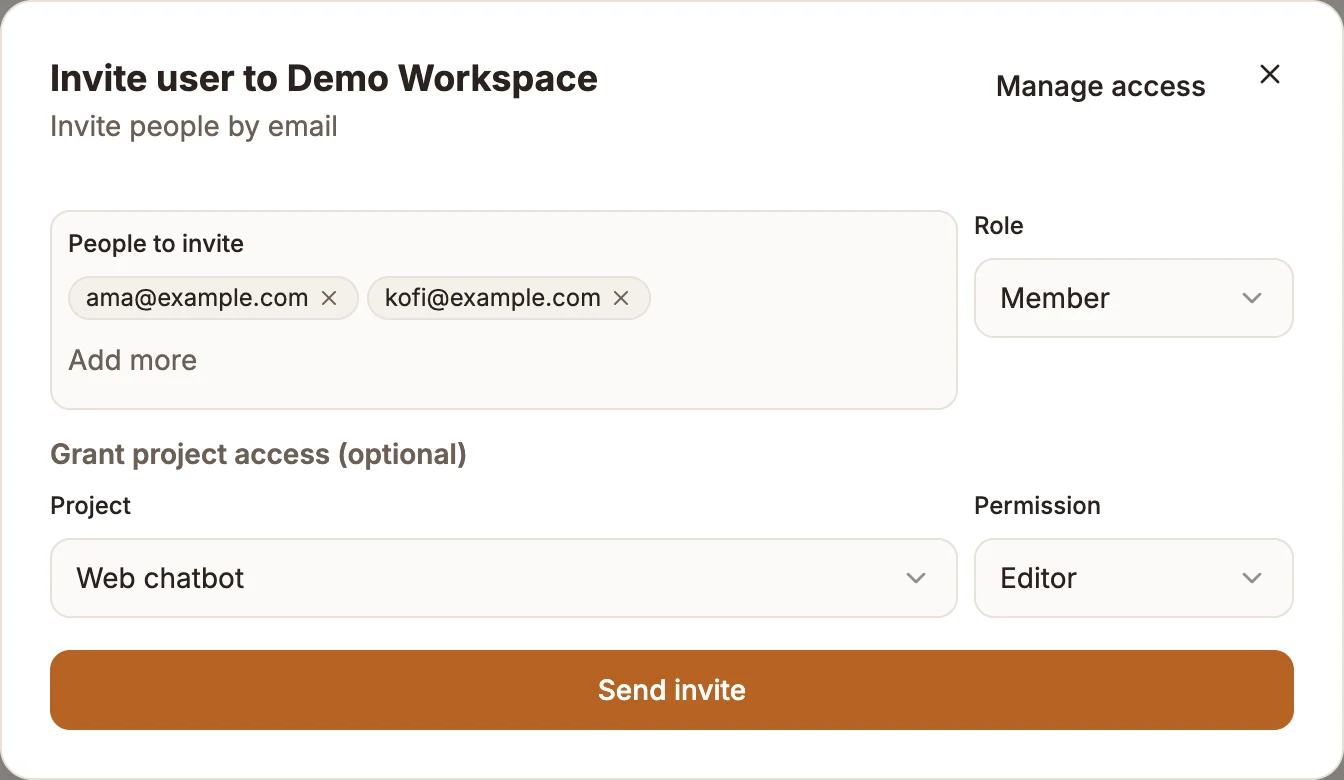
Open the invite dialog
On User Management, select Invite user.
Add email addresses
Under People to invite, enter one or more email addresses, separated by commas.
Choose a role
Pick a Role: Admin, Supervisor or Member.
Share a project (optional)
Under Grant project access (optional), choose a Project and a Permission.
Send
Select Send invite. Each person gets an invitation email with a link to join.
Your plan limits how many team members an organization can have. When you reach it, you need to upgrade before inviting more. See Billing and usage.
The page shows Active Members, Pending Invitations and Total Users & Invites. For a pending invitation, use Manage invitation to revoke it; the link stops working and the person has to be invited again.
Project permissions
A project can be shared with a person at one of these levels:
| Permission | What they can do in the project |
|---|---|
| Owner | Everything, including deleting the project and sharing it with others. |
| Editor | Create and change things in the project. Cannot delete the project. |
| Viewer | Open and read the project. |
| Commenter | Open and read the project. |
| Agent | Open the project and answer its conversations. Sharing a project with someone as Agent also adds them to the project's human agents in the Inbox. |
Project owners can share the project with others.
To change a user's permissions after they have joined, open their row on User Management and choose Permissions. The dialog has three tabs: Data Stores, Projects and Sections. In this dialog the Viewer permission is labelled Reviewer and Owner is labelled Admin.
Section access
Section access narrows which areas of the app a Member can use. It restricts; it never grants more than their role allows.
On the Sections tab of a user's permissions, set a level for each section: Projects, Templates, Contacts, Credentials, Data Stores, Settings, Routes, Audio and Inbox.
| Level | Meaning |
|---|---|
| Unrestricted | No limit set. The default. |
| Full | Everything, including delete. |
| Can edit | View and change, but not delete. |
| View only | Read, with no changes. |
| No access | Cannot open the section. |
You cannot change your own section access.
Remove someone
Open the user's row and choose to remove them. This is permanent: it removes them from the organization, removes their project and data store permissions, and revokes their access to organization resources. To give them access again, invite them again.
Related
Organization settings
Edit your organization's profile and logo, control emails and data retention, set up outcomes and outbound calling, and switch between organizations.
Credentials
Store API keys, tokens and other secrets once, choose which projects can use them, and reference them in flows by name.