
Organization settings
Edit your organization's profile and logo, control emails and data retention, set up outcomes and outbound calling, and switch between organizations.
An organization is your workspace: its projects, people, data and billing belong to it. Organization settings apply to every project in it.
Open Settings in the Administration group of the sidebar. The page is titled Organization Settings. You need permission to update the organization to save changes.
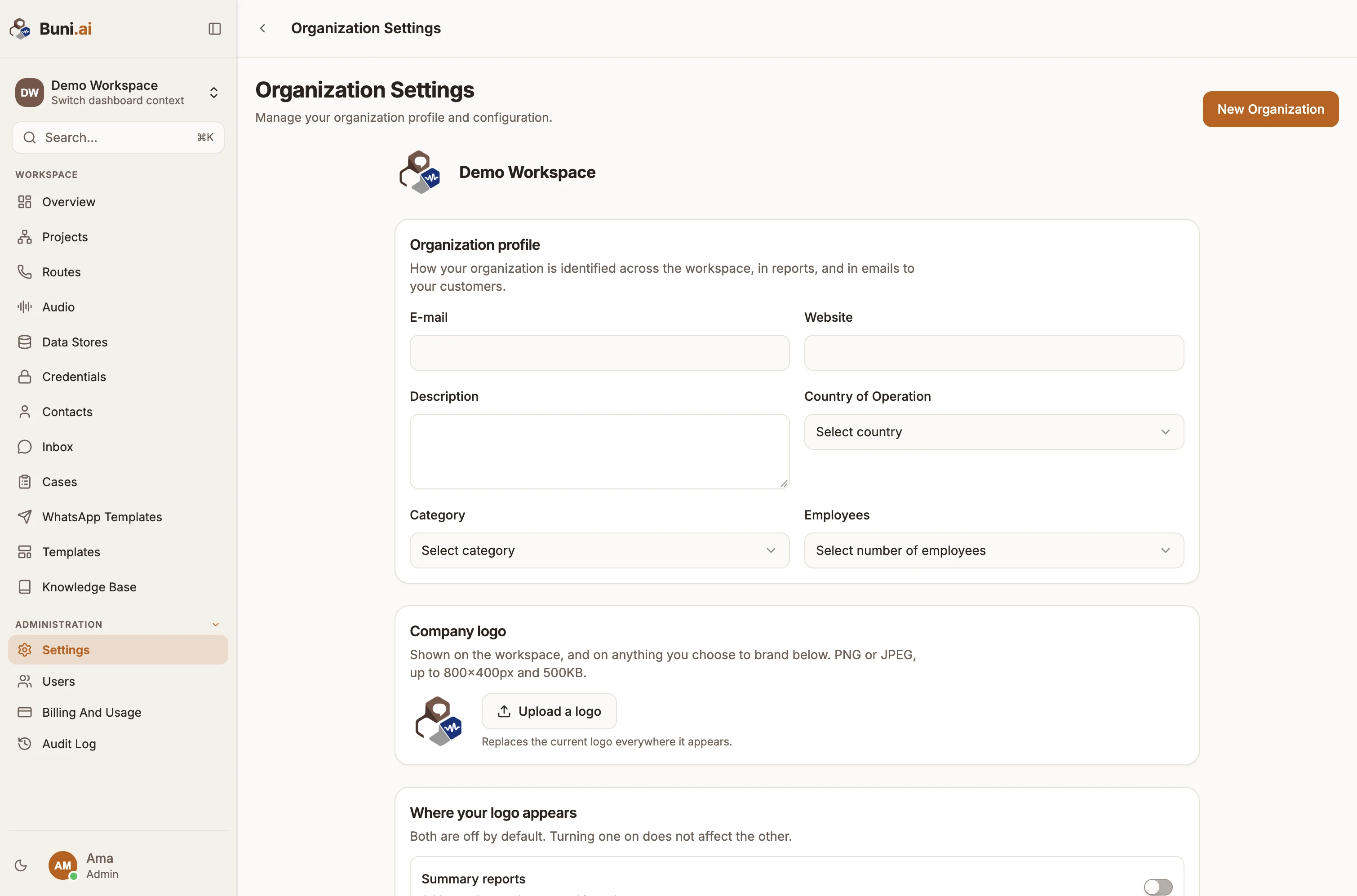
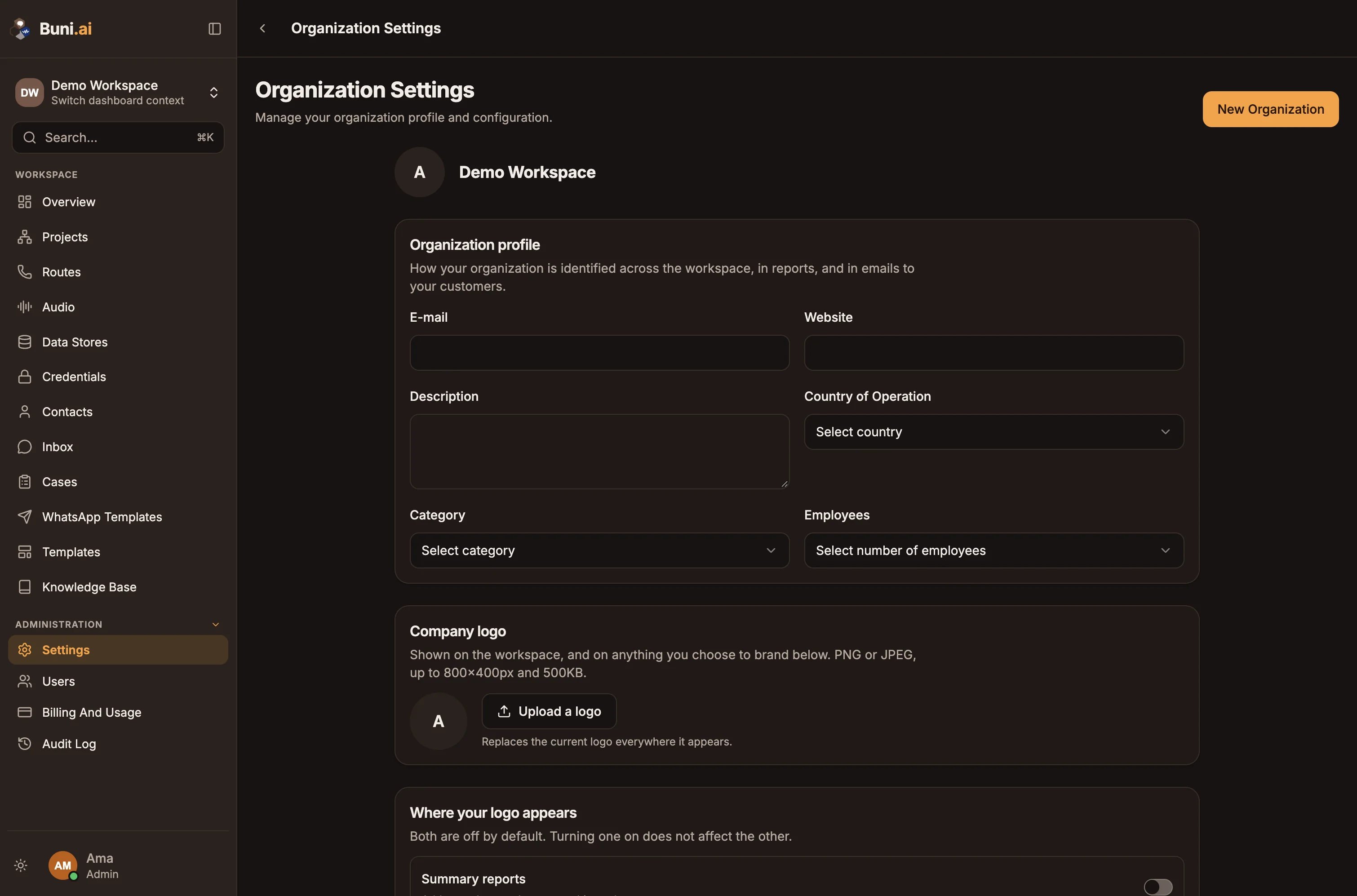
Organization profile
| Field | Purpose |
|---|---|
| Your organization's contact address. The weekly summary email is sent here. | |
| Website | Your website. |
| Description | A short description. |
| Country of Operation | Where you operate. |
| Category | Your sector. |
| Employees | Your organization's size. |
Company logo
Select Upload a logo to add or replace your logo. Use a PNG or JPEG, up to 800×400 px and 500KB. The new logo replaces the old one everywhere it appears.
Under Where your logo appears, choose whether to add it to Summary reports (reports this workspace generates) and Customer emails (emails sent to the people you talk to). Both are off by default.
Email notifications
Weekly summary emails turns the weekly summary on or off for the organization. See Weekly digest.
Select Save changes after editing the profile, logo or email settings, or Discard changes to undo them.
Outcomes
Outcomes is the list agents choose from when they record an outcome on a conversation or case. Free text is never accepted, so this list is the whole vocabulary your reports group by.
To add one, fill in:
| Field | Purpose |
|---|---|
| Outcome | The label agents see, such as "Water point restored". |
| Indicator | Optional. A reference to your own reporting framework, such as WASH.04. |
| Available in | All projects, or one project. |
Then select Add outcome. Each outcome gets a code generated from its label, which never changes. Retire stops agents choosing an outcome; reports already recorded against it keep it. Restore makes it selectable again.
Until at least one outcome exists, agents cannot record outcomes.
Data retention
Data retention controls how long conversation transcripts are kept after a conversation is resolved: 30, 60, 90, 180 or 365 days (30 by default). You can also switch expiry off, so transcripts are kept. Call recordings have their own window, which cannot be longer than the transcript window. Loop records, such as outcomes and who recorded them, are kept indefinitely so reporting survives. See Privacy and data.
Outbound calling
Outbound calling controls whether agents can call people from the workspace. Turn on Let agents call people to allow callbacks from the Inbox, a contact record or the callback queue. The agent's own phone rings first, then the person they are calling.
When it is on, Calls a day sets a ceiling for the whole workspace. Agents are also limited to a few calls a minute each.
Your obligations
Calling people carries rules that receiving calls does not, such as consent, the hours you may call and the number you appear to call from. Those are yours to meet.
Send cases somewhere else
Set a Webhook URL and optional Signing secret to push every case to your own helpdesk as it changes.
Work with several organizations
You can belong to more than one organization, for example one per client.
- Switch organization: open the organization menu at the top of the sidebar and pick another organization. You can also search for it in the command palette.
- Create an organization: choose Create Organization in that menu, or select New Organization on the Settings page. Your plan may limit how many organizations you can create.
Everything else in the app, including projects, contacts, data stores and billing, is shown for the organization you have selected.